TABLE OF CONTENTS
This article outlines the process for viewing Standardised testing data imported into SEQTA Teach.
Viewing from the Student Information Panel
- Select the student's name in the SIP.
- Ensure you are in the General overview section. Click the Standardised tests button at the bottom of the SIP.
- Select the Instrument from the drop-downs.
- Any available graphs for the selected Instruments will appear, with the Instrument and Series in the graph title.
- The Jurisdiction drop-down will allow you to see more data if it exists for that graph.
- To view the next student's testing data, click on the arrows to the left and right of the student name - this will scroll through all students in alphabetical order (by surname).
- You can also click on the student name field to see a drop-down list of all students.
- Click Ok to dismiss the Standardised testing pop-up.
Viewing from the Marks book or the Attendance page
- Go to the Teaching workspace>My classes/Traditional view.
- If required select a teacher name.
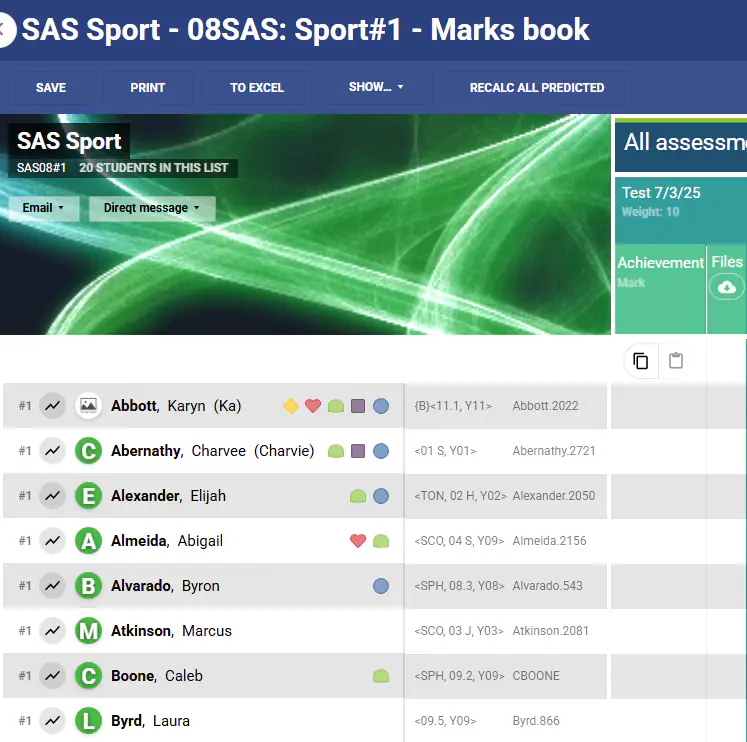
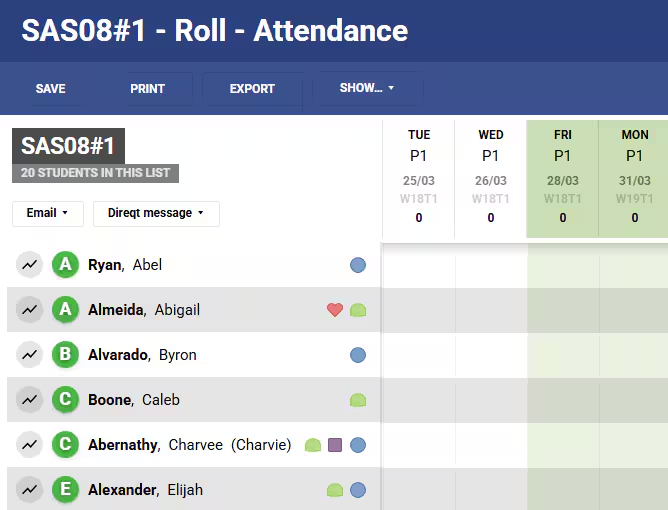
- Click on the Marks book or the Attendance icon for the class.
- If required, select All classes from the top of the Marks book.
- Click on the Standardised testing graph icon
 to the left of the student's name. The standardised testing graph should be displayed if correctly imported.
 - To view the next student's testing data, click on the arrows to the left and right of the student's name - this will scroll through all students in the selected classes only.
- You can also click on the student name field to see a drop-down list of all students.
Was this article helpful?
That’s Great!
Thank you for your feedback
Sorry! We couldn't be helpful
Thank you for your feedback
Feedback sent
We appreciate your effort and will try to fix the article