The option to delete Standardised testing components (i.e. Instruments, Items or Series), is only available when there is no data stored against them. If a Padlock icon is displayed this indicates data is stored against that component. The data will need to be cleared for the component to be unlocked.
There two scenarios:
- Clear the data from the instrument
- Delete the instrument (which cannot be done until the data is cleared).
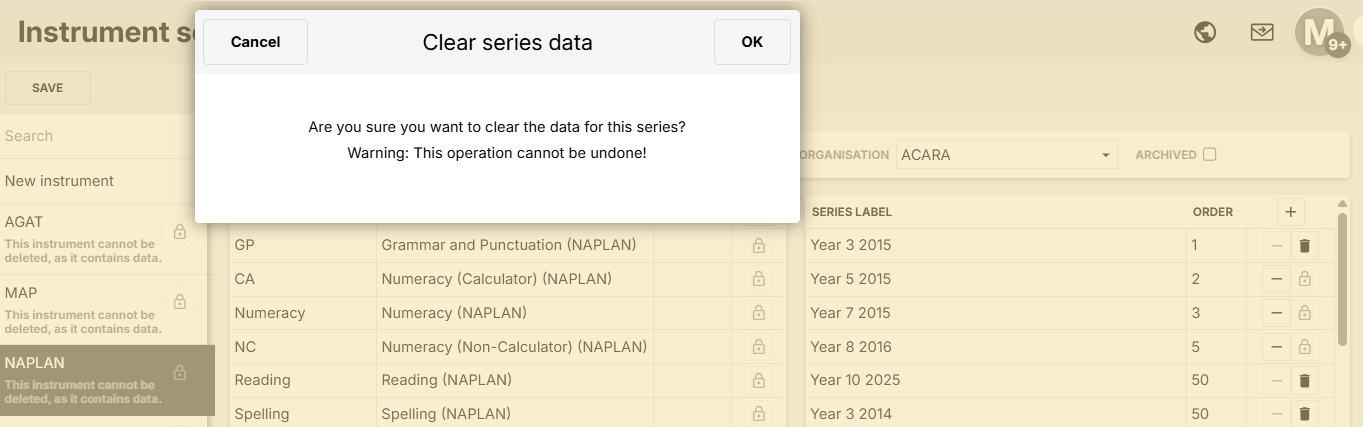
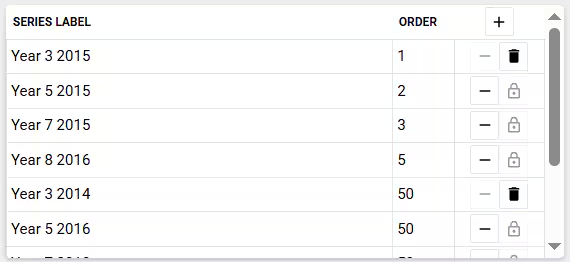
The padlock will have a dark minus sign to its left. If you hover over the minus sign it will display the text Clear all scoring data from series. Please clear the standardised testing data from the instrument by clicking on the minus sign, as per the following instructions. You will then see an "Are you sure..." pop-up (see screenshot below). The padlock will change to a bin, so you will then be able to click on that to delete the instrument entry as per the second set of instructions below. Please then click Save to finalise the removal.
You can also Save immediately after the padlock changes to a bin. This means that you will then be able to import a new CSV file against that instrument setup. If you wish to do that, be sure to confirm that the five statistical parameters have been reset to match the data you will be importing.
Clearing standardised testing data
- Go to the Administration workspace>Standardised testing management>Instrument setup.
- Review the editing pane that shows the Series label and the Order number
- Click on the - icon for the Series label component that you wish to clear (to the right of the Order column)
- If you are sure you want to clear the data from that series, click OK
- Click SAVE
Deleting Standardised Testing Instruments, Series and Items
- Go to the Administration workspace>Standardised testing management>Instrument setup.
- Click on the Bin icon to delete a component. If the Padlock icon is displayed, this indicates there is data. This data will need to be cleared (see steps above) to unlock the component. You may need to repeat the steps above a number of times to remove all of the Series label data that is referenced in an Item code entry.
- Click SAVE.
Related articles:
Was this article helpful?
That’s Great!
Thank you for your feedback
Sorry! We couldn't be helpful
Thank you for your feedback
Feedback sent
We appreciate your effort and will try to fix the article