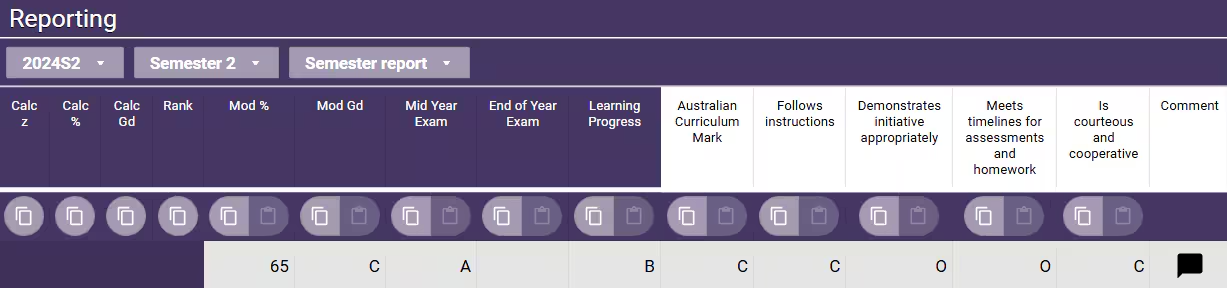
Reporting data is entered through the Reporting section (the purple section) of the Marks book. For reporting data to appear on reports it needs to be saved against the relevant Timetable period, Report type and Report template. If in doubt was to which option to select, or the required option is not available please contact your school's Curriculum Adviser.
- Go to the Teaching workspace > Timetable > My Classes/Traditional view/Calendar.
- Click on the Marks book icon for the class.
- Scroll to the right-hand side of the Marks book to display the purple section.
- Select the relevant Timetable Period, Report Type and Report Template from the drop-down menus.
- Enter the required information (ie: grades/scores, affectives, comments).
- Solid purple cells are computed results and cannot be changed. Cells for data entry are grey or white.
- Click SAVE.
Additional Information
- Academic data that is calculated by or is present in the marks book can be transferred into the reporting columns (course type columns) using the transfer tool. Use the Copy/paste tool (at the top of the columns) to transfer data from any column of the marks book into the course type columns for moderated (ie: confirmed) marks and grades. Marks or grades in the course type columns are static (so they will not automatically update, like the summary and calculated columns) and can be moderated and edited as needed.
- Reporting syllabus (if applicable) allows the grading or marking of specific syllabus items relevant for the Academic report. Syllabus summary columns (Syll %, Syll Gd) will automatically appear.
- Valid inputs for affectives are set by the school in the relevant Report template.
- The Course type associated with the programme determines whether values not matching the valid inputs will be tolerated or stripped out. Valid inputs can be viewed by using the dropdown selector on the right-hand side of the mark-entry tool when in the relevant column.
- Entering comments utilises the Edit report comment pop-up editing window. Type in a comment, or utilise the comment bank facility to search for applicable comments, which automatically adds student name and relevant pronouns (he/she/her etc.). The Edit report comment dialog also provides editing of affectives and the ability to view assessment results and previous academic reports.
- If data has been entered against the incorrect Timetable period, Report type or Report template, this can be fixed by removing the incorrect data and re-entering the correct data in the Marks book or Report editor areas.
- NOTE: If you require us to fix this data in bulk, a service fee will be charged.
Was this article helpful?
That’s Great!
Thank you for your feedback
Sorry! We couldn't be helpful
Thank you for your feedback
Feedback sent
We appreciate your effort and will try to fix the article