TABLE OF CONTENTS
- Creating a portal page
- Editing a portal page
- Deleting a portal page
- Portal page permissions
- SyncUI portal page
Portal pages are simple web pages which are accessible through SEQTA Teach, SEQTA Learn and SEQTA Engage. This is an easy way for school staff to share information with parents, students and staff.
Creating a portal page
- Click on Administration workspace > Portal Management
- Click Add page and select either Classic or Creator. If choosing Creator, at least one module will need to be added before the page can be saved.
- Add content to page using the editor tools.
- Select the People tab to set the users who require access to view the page. Choose Available to 'Staff' and 'Students and Guardians' to drop down list or ellipsis.
- Click Save.
Editing a portal page
- Click on Administration workspace > Portal Management
- Click on the Edit icon for the page you would like to edit. Pages created using Creator will require at least one module will need to be added before the page can be saved.
- Make required changes.
- Click Save.
Deleting a portal page
- Click on Administration workspace > Portal Management
- Click the Bin icon then click Delete to confirm.
Portal page permissions
- PORTALS: Required to create, edit and delete portal pages.
- SPLSH: ED Required to change which portal page is set as the landing page.
SyncUI portal page
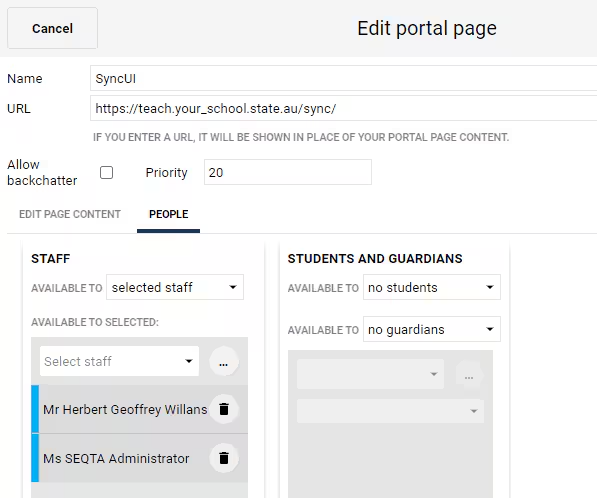
If your school is using SyncUI, you might want to use a Portal page to access the SyncUI interface.
- Click on Administration workspace > Portal Management
- Click Add page and select Classic.
- Name your page and optionally choose an icon.
- Enter your SyncUI web address into the URL field - it will be your SEQTA Teach URL with /sync/ at the end, eg: https://teach.your_school.state.au/sync/
- Leave Allow backchatter blank.
- Set the Priority to adjust its position in the list of portal pages.
- Select the People tab to set the users who require access to make SyncUI changes. Choose Available to selected staff and select the authorised staff for this function. Ensure that Students and Guardians have no access to this page (Available to no students, etc).
- Click Save.
- Confirm the settings for access, and ensure that the SyncUI portal page is not available as a splash page.
Was this article helpful?
That’s Great!
Thank you for your feedback
Sorry! We couldn't be helpful
Thank you for your feedback
Feedback sent
We appreciate your effort and will try to fix the article