Sync UI will need to be setup and customised by the SEQTA Sync team before the following process can be completed.
The steps below refer to accessing SyncUI directly via a URL. Alternatively you might want to set up a Portal page in SEQTA Teach and use that to open SyncUI. Here is a link to the Knowledge Base article about Creating and managing Portal pages.
How to upload (8 steps):
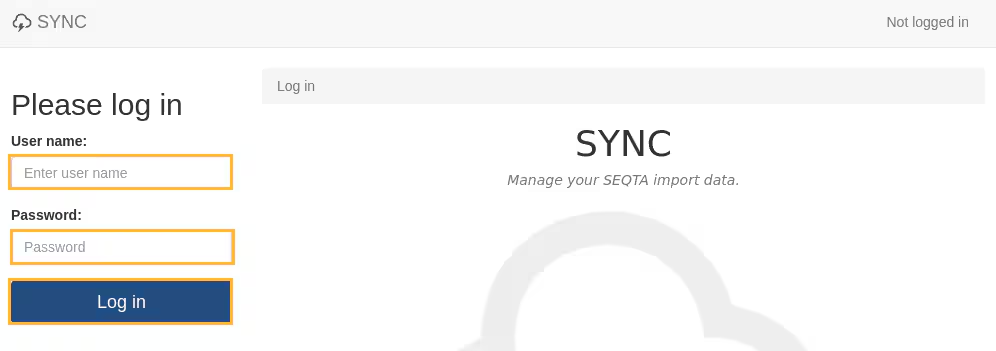
- Go to the Sync UI page, e.g. https://ta.myschool.vic.edu.au/sync
- Enter the Username and Password then click Log in. Log in details are provided by the SEQTA Sync team during the initial Sync UI setup process.
- NOTE: The SyncUI credentials are independent of your SEQTA Teach login.
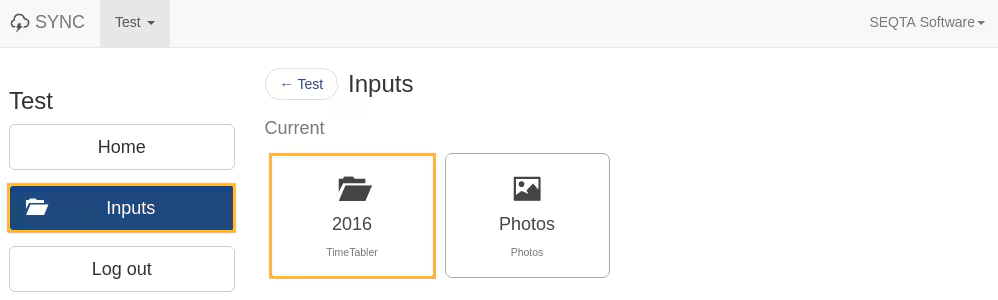
- Select Inputs, then click on the Input (Data source). If there is no current input available, then you will need to clone one. See this article in the Knowledge Base: Cloning a Sync UI input for a new timetable period.
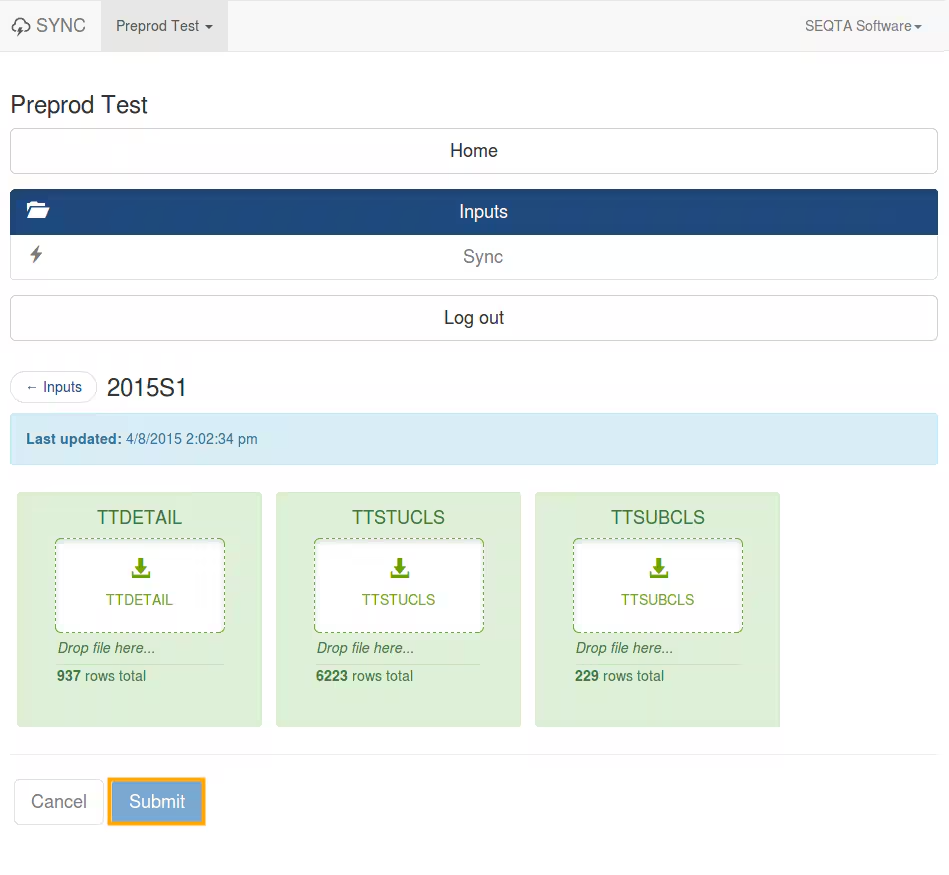
- Select or drag and drop each file to its specific destination.
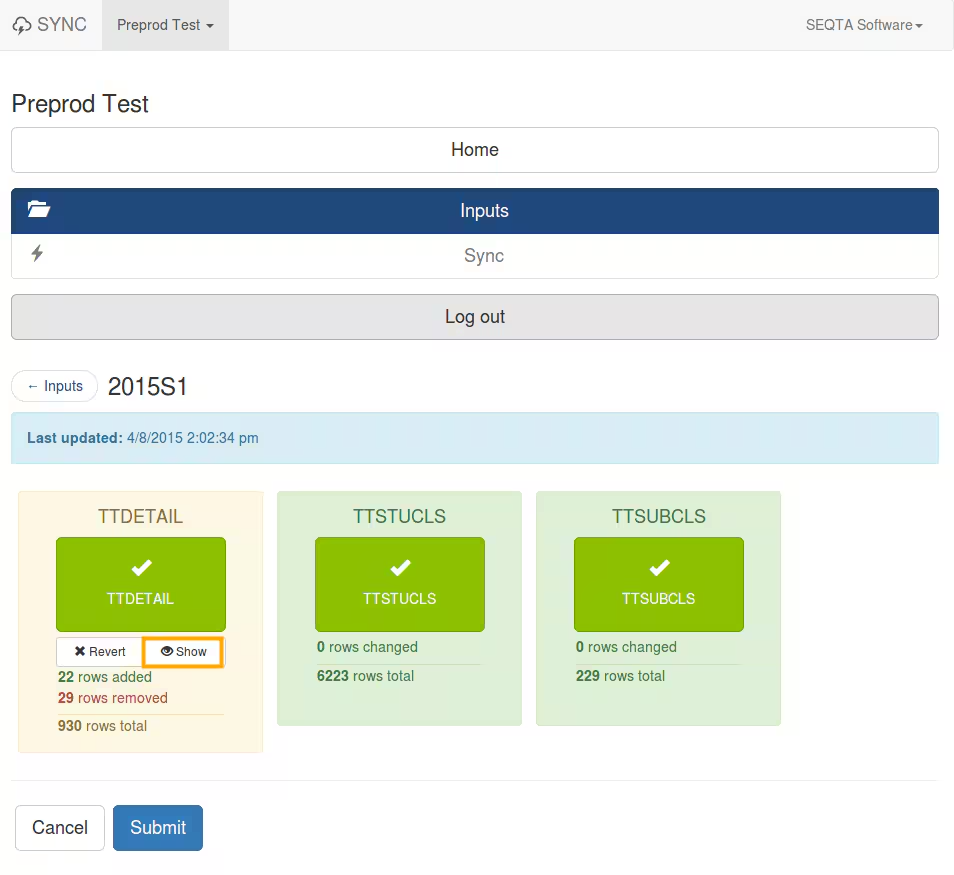
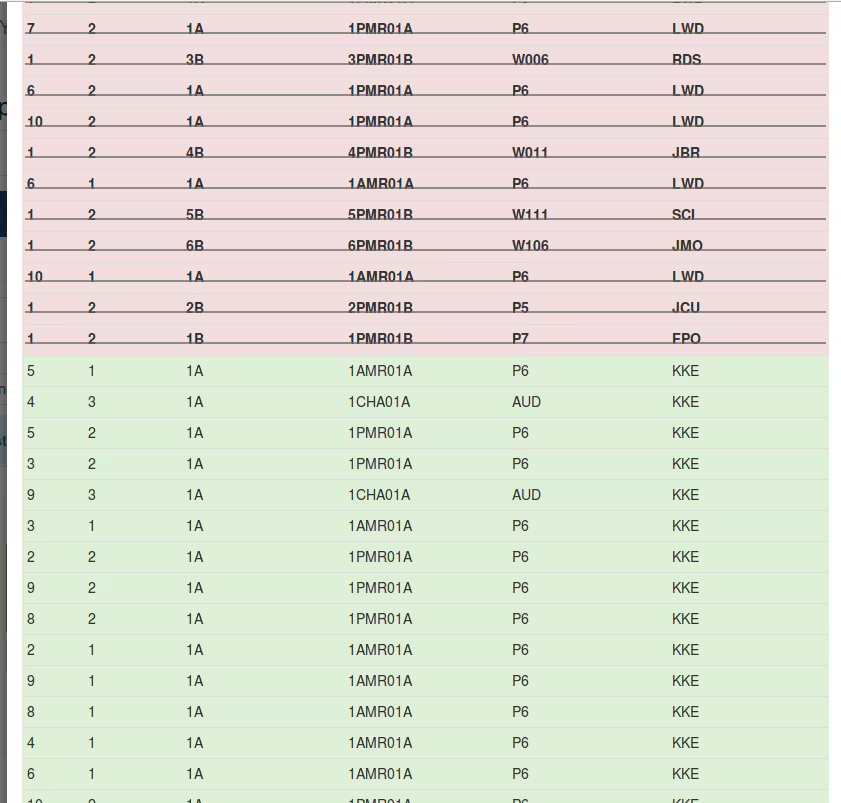
- To view the specific changes, select Show.
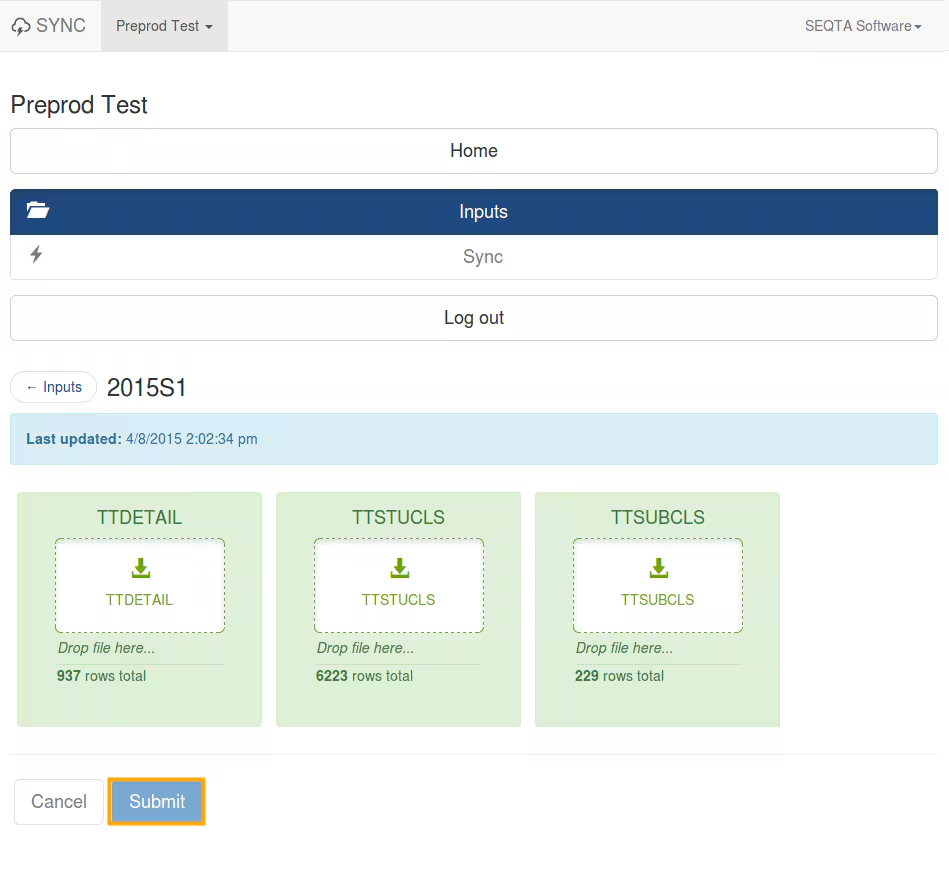
- Once done, make sure that there aren't any warning messages and select Submit.
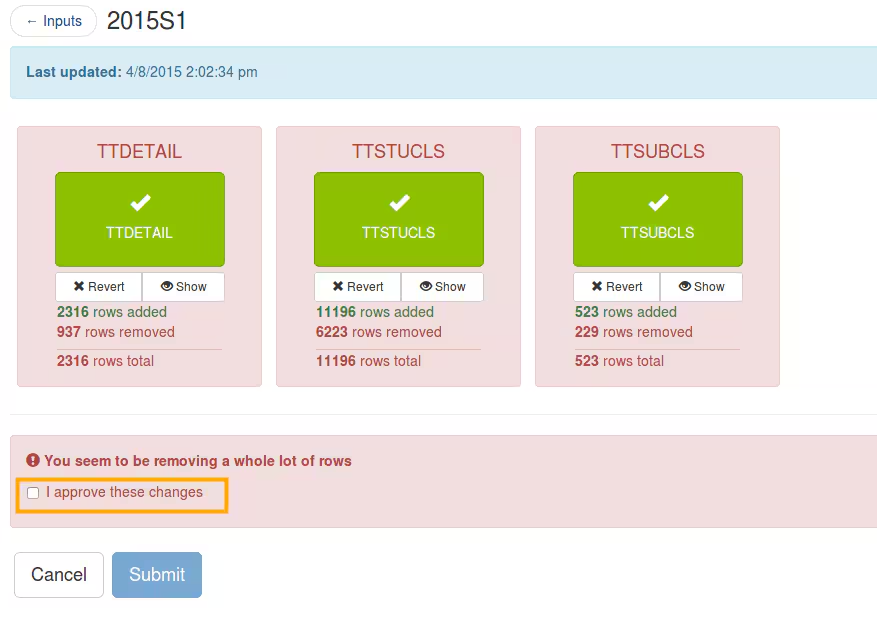
- If there are a lot of warnings and you are sure the information is correct, you need to select the tick box I approve these changes before clicking Submit
Was this article helpful?
That’s Great!
Thank you for your feedback
Sorry! We couldn't be helpful
Thank you for your feedback
Feedback sent
We appreciate your effort and will try to fix the article