Schools that use Sync UI to upload their timetable data into SEQTA will need to clone an existing Sync UI container for each new timetable period.
Semester one (S1) and Semester two (S2) timetable Inputs/containers can exist concurrently in the SyncUI prior to the end of S1.
Important information: It's recommended that school's wait until semester one reporting has been completed prior to rolling out the semester two timetable, as this may affect data on the reports. For example subject titles and teacher names.
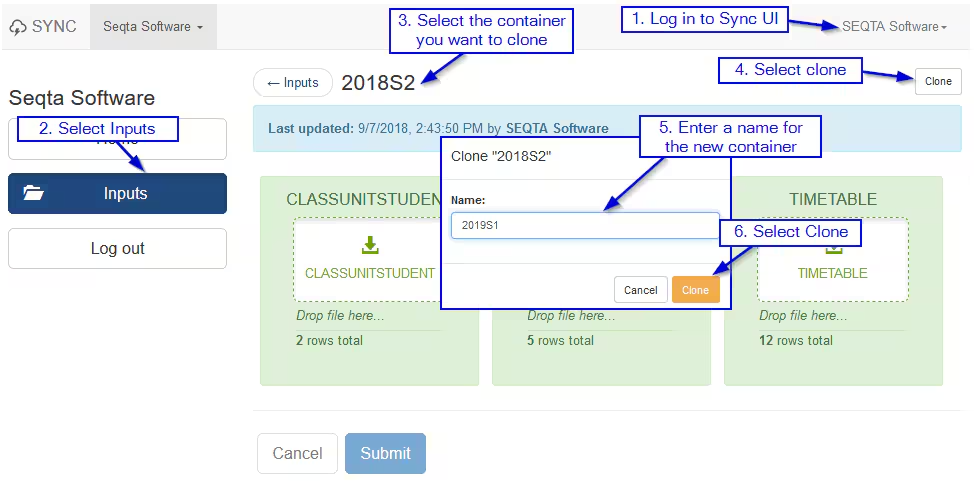
- Log in to Sync UI
- Select Inputs
- Click on the container you would like to clone
- Click on the Clone button in the top right corner
- Enter a Name for the new container (eg. 2020S1). A 500 internal server error will display if attempting to use the same 'Name' as an existing input container.
- Select Clone
- Continue to the next step of the timetable setup process
- If using Term aliases see: Timetable Setup - Adding in the Term Alias
- Otherwise see: Rolling Out a Timetable and Setting up the Nightly Sync (Externally Managed Timetables Only)
Was this article helpful?
That’s Great!
Thank you for your feedback
Sorry! We couldn't be helpful
Thank you for your feedback
Feedback sent
We appreciate your effort and will try to fix the article