TABLE OF CONTENTS
This article steps through the setup process for Externally Managed Timetables (timetables managed in a different system, separate from SEQTA. This is the most common scenario, using eg: Edval, Maze, etc) and Internally Managed Timetables (timetables managed directly within SEQTA - typically only used for small schools)
Externally Managed Timetable Setup
Create or clone a timetable structure
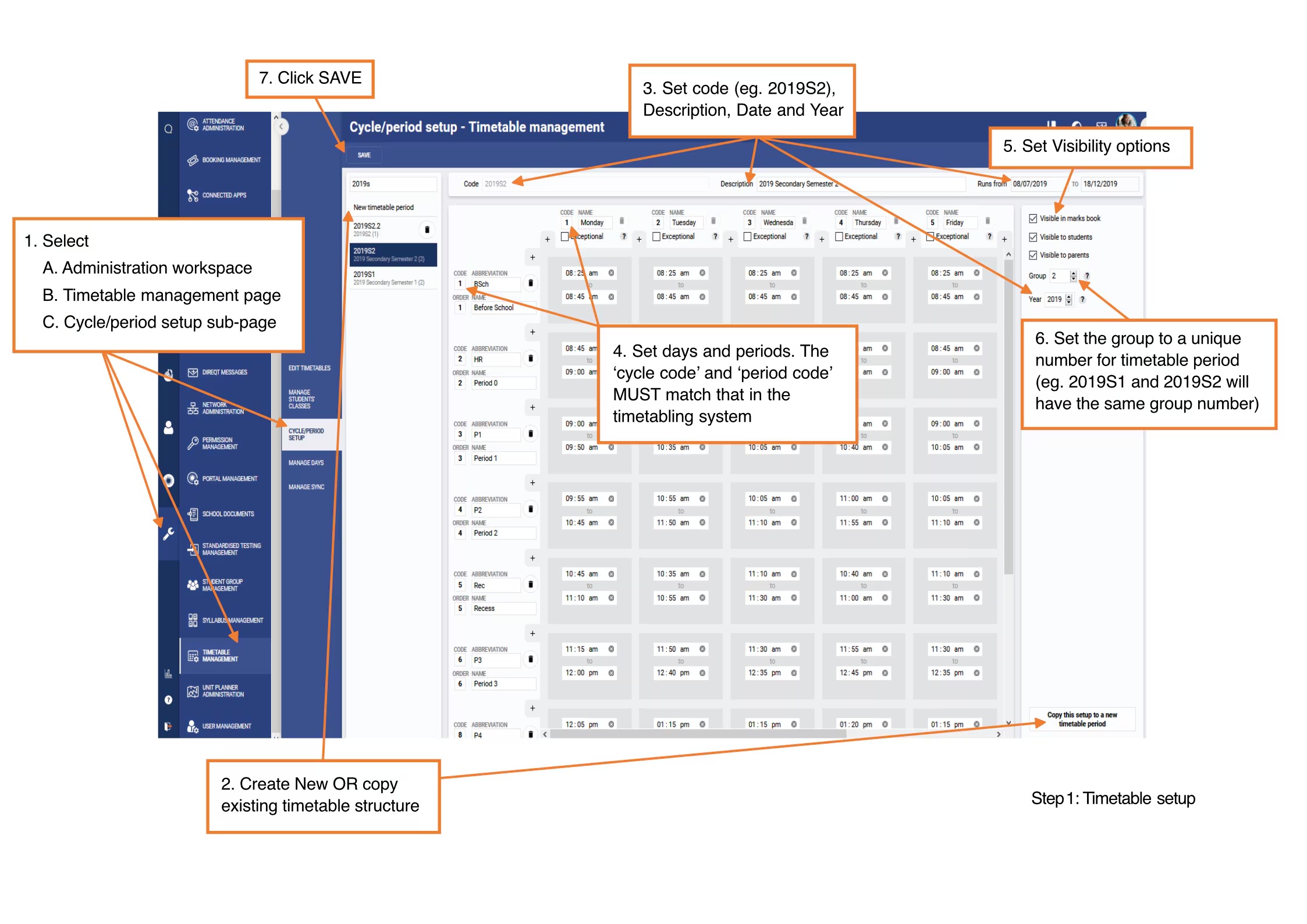
- Go to the Administration Workspace > Timetable Management > Cycle/Period Setup.
- To create a new timetable, click ‘New timetable period’. Alternatively, clone an existing timetable by selecting the timetable and then clicking Copy this setup to a new timetable period in the bottom right corner.
- Enter the timetable Code
- The code cannot be changed after the timetable has been rolled out.
- It's recommended to adhere to the naming convention used in previous years. If this is not correct it may cause the timetable sync to fail.
- Enter the timetable Description
- It's recommended to adhere to the naming convention used in previous years.
- Set the start and end dates for this Timetable period
- These dates will usually be determined by the jurisdiction that controls all schools in your country, state or system. These are typically the dates on which a teacher should officially be at school. The days for which students need to be present is set in the next section, Setup the Calendar.
- If these dates are changed later, remember to check and then save the timetable under Manage days. Changes need to be made in advance and cannot be changed retrospectively.
- Set the Period codes and Cycle codes.
- If these are not correct it may cause the timetable sync to fail. If these are changes to the structure from previous years, the Timetabling admin staff will need to compare the codes with those listed in their Timetable system to ensure they are correct.
- Set the Period and Cycle Abbreviations
- The Abbreviation displays in the SIP and other areas. Due to space constraints, it’s recommended this be no more than 3 characters.
- The Abbreviation may be linked to the school's Absentee SMS rules. If these differ from previous timetable periods, the Absentee SMS rule may need to be updated.
- Set the Group number.
- Refer to the article Setting the Group Number to Prevent Bridging Issues. The group number displays next to the existing timetables listed on the left-hand side in curly brackets
- Select the applicable options in the top-right corner to determine the new timetable's visibility in the marks book, and for students and parents in Learn and Engage.
- Classes cannot be hidden from the teacher’s timetable.
- Click Save
Setup the Calendar
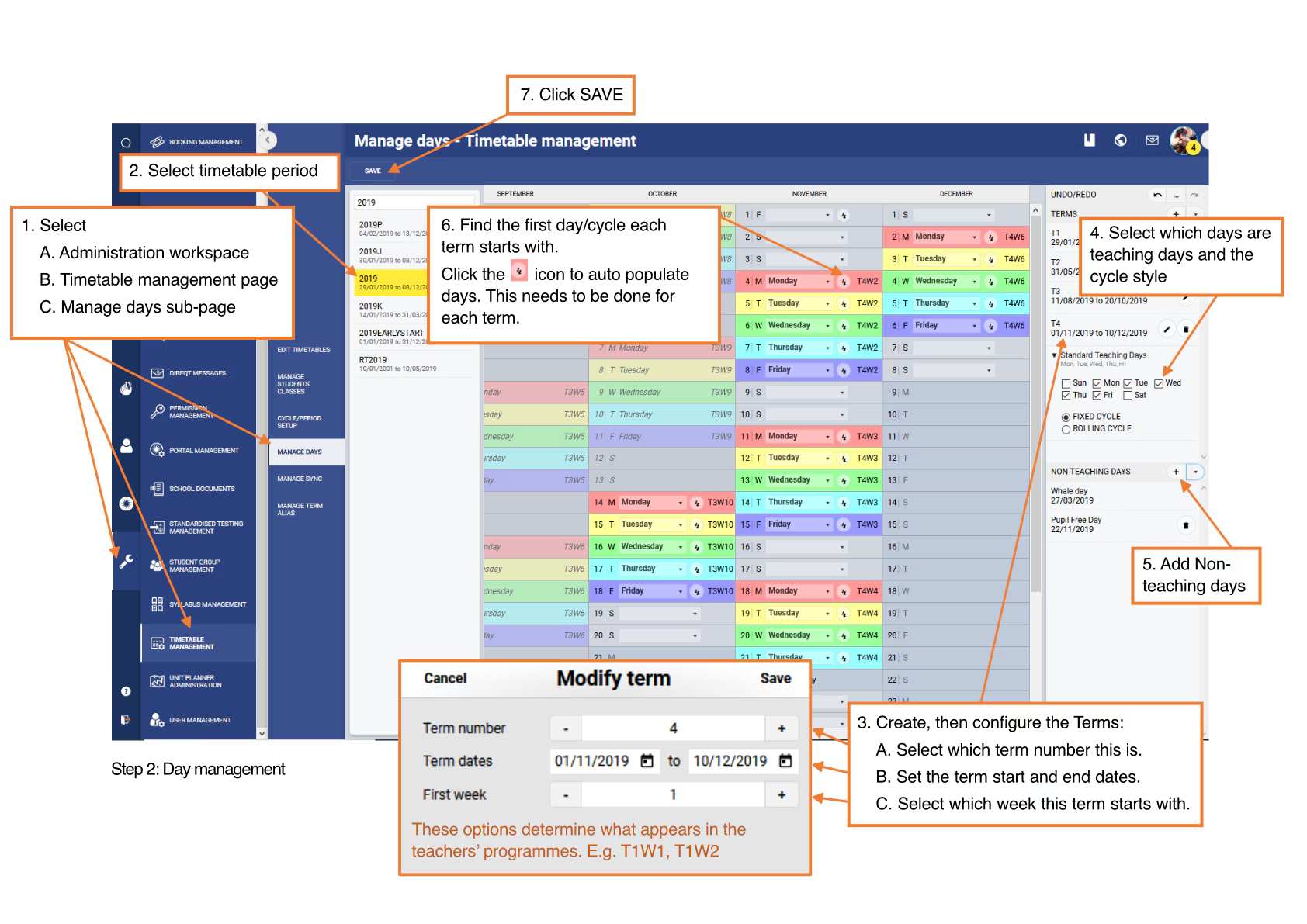
- To do this, go to the Administration Workspace > Timetable Management > Manage Days.
- Select the timetable period, then click the '+' button to add a new term (top-right corner). Set the term dates, standard teaching days and non-teaching days.
- For the first date of each term select the corresponding day, then click the arrow icon to the right of the day to populate the rest of the days (they should all display in colour).

- Repeat for each term and then click Save.
Cloning a Sync UI input container (Sync UI Only)
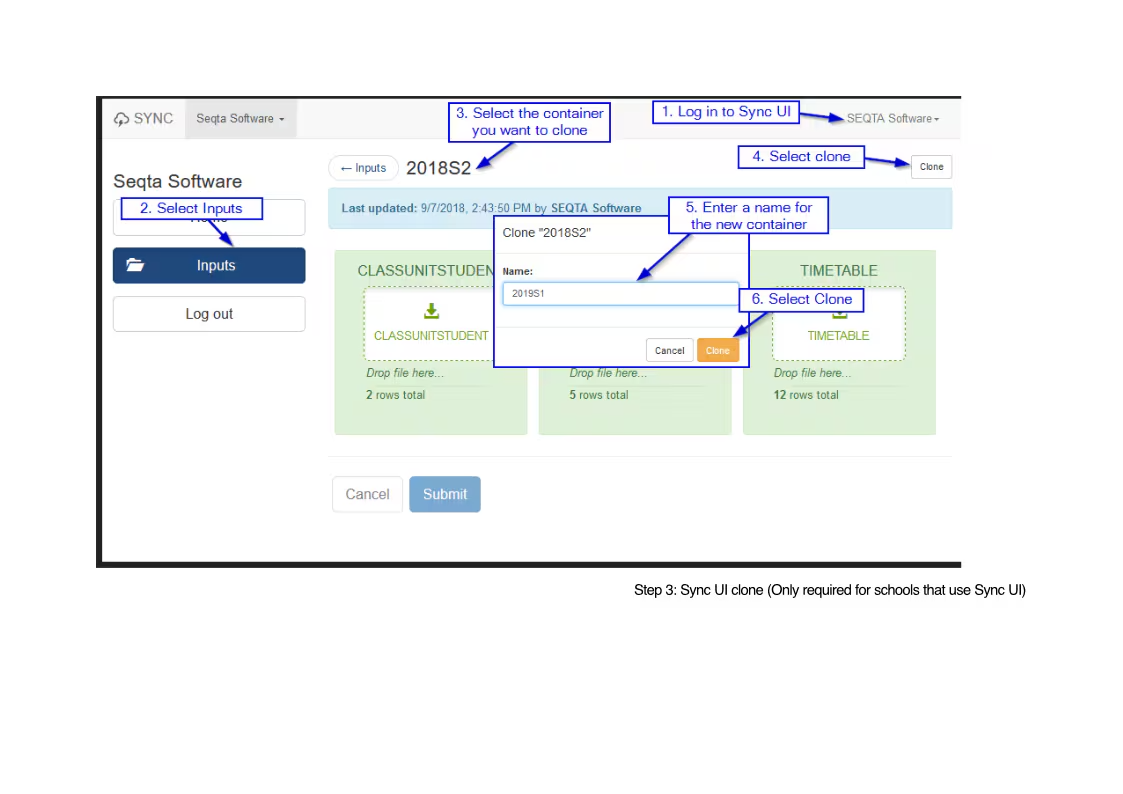 This is only required for schools which export files from their timetable system and manually drop them into Sync UI.
- To do this, log into Sync UI, select an existing timetable input container.
- Click on the Clone button in the top-right corner.
- Enter the timetable code as the Name for the new input.
Add the New Term Alias (If Using Term Aliases)
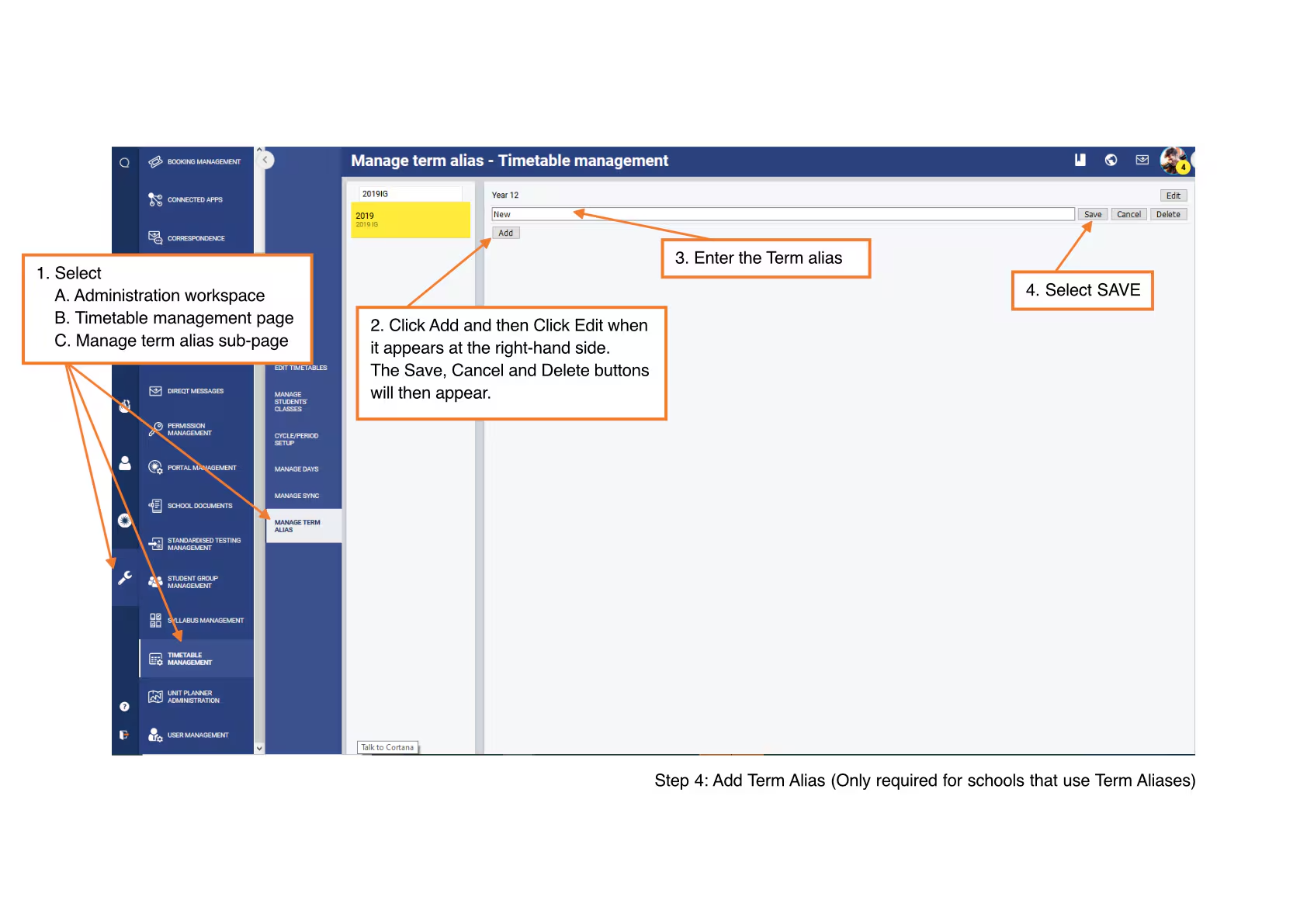
- To add a new term alias, go to the Administration workspace > Timetable Management > Manage Term Alias. If this sub-page is not visible then your school does not use Term Aliases.
- Select the timetable period, then click Add and enter the term alias. Continue the process until all term aliases have been added, then click Save.
Add the New Timetable Period to a Sync Profile
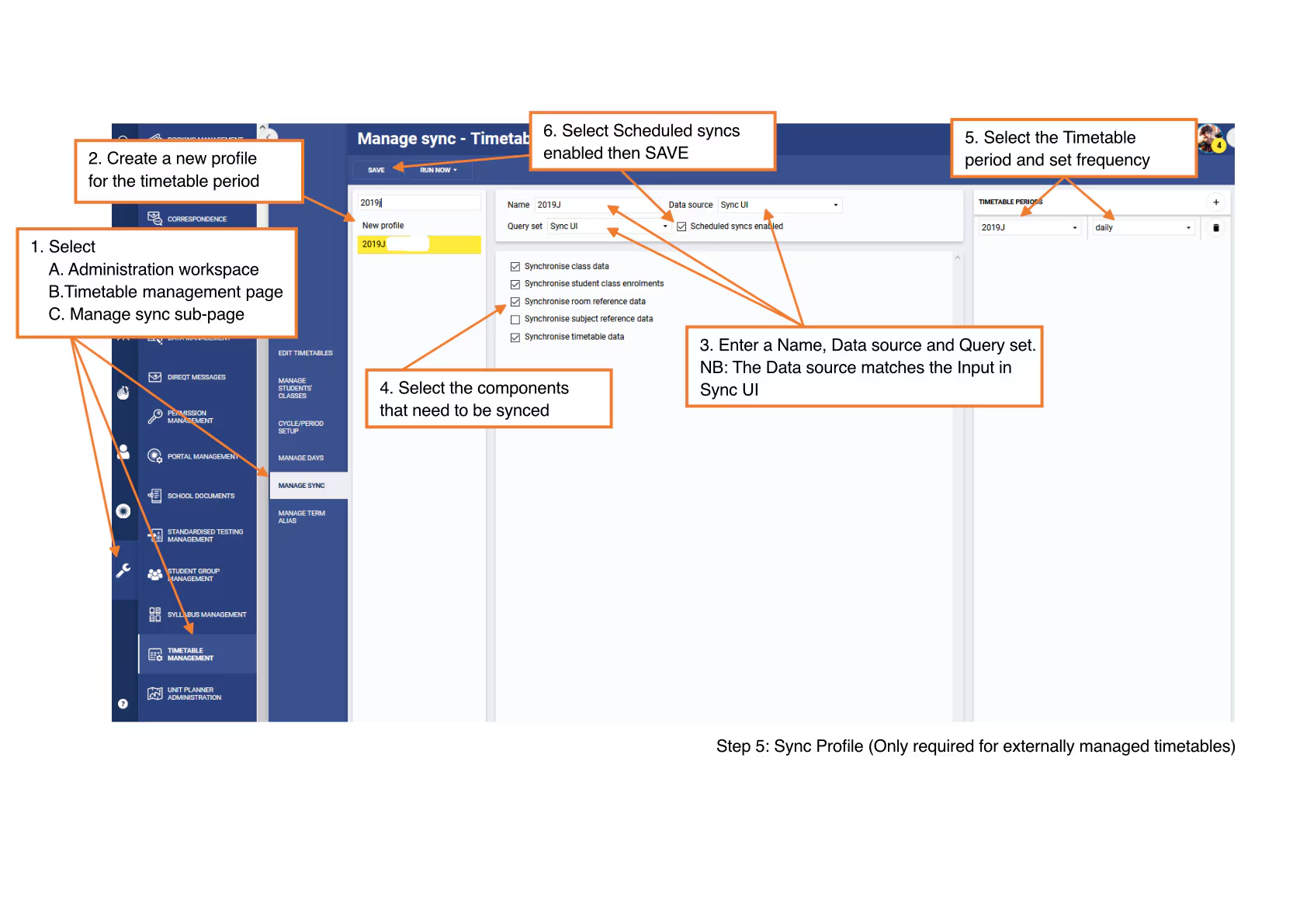
- Go to the Administration Workspace > Timetable Management > Manage Sync.
- If a Sync profile is used for each timetable period select New Profile enter a name, the data source (if the option shows), Query set and click Save.
- Choose the components that you wish to sync.
- Select the timetable periods in the top right-hand corner. Set the frequency for the sync to run and click Save.
Rolling out the Timetable and Enabling the Sync Profile
- Go to the Administration Workspace > Timetable Management > Manage Sync.
- To enable the automatic sync select Scheduled Syncs Enabled and click Save.
- Select the sync profile, then select Run Now > From Today. Running a sync will roll out the timetable.
- Wait 5-10 mins and then refresh the page and the classes should then show on the teacher's timetable.
Once reports are archived the students can be rolled into the next year level by running the sync profile with the option 'Synchronise Student Data'.
Internally Managed Timetable Setup
The following steps outline the timetable setup process for timetables that are managed entirely in SEQTA (not in an External Timetabling System).
IMPORTANT:
Before starting the processes below you will need to have the following items planned and/or set up:
- Student classifiers
- Campus
- Year groups (eg: Y05, Y5, 5, Year Five)
- Sub-schools (optional)
- Roll groups
- Houses (optional)
- Subjects
- Naming structure for classes planned
- List of all public holidays and other non-teaching days
Create or Clone a timetable structure
- Go to the Administration Workspace > Timetable Management > Cycle/Period Setup.
- Follow the process detailed in the Externally Managed section above. Any references to sync can be ignored.
- Remember to click Save.
Setup the Calendar
- To do this, go to the Administration Workspace > Timetable Management > Manage Days.
- Select the timetable period, then click the '+' button to add a new term. Set the term dates, standard days and non-teaching days.
- For the first date of each term select the corresponding day, then click the arrow icon to the right of the day to populate the rest of the days (they should all display in colour). (See Step 2 Day management screenshot above).
- Repeat for each term and then click Save.
Create the Classes
- Go to the Administration Workspace > Timetable Management > Edit Timetables.
- Select New class then enter a name, number and select a subject from the drop-down list. (Note: "Number" can also be a letter - it is used to differentiate classes that are otherwise identical).
- Add the class instances in the main work area (
 ), select the teacher (essential) and enter a room (optional).
 - Click Save.
Enrol the Students
- Go to the Administration Workspace > Timetable Management > Manage Students' Classes.
- Select the timetable period and the class.
- Set the Effective Date to the first day of the term.
- Select the students that will be in that class.
- Click Enrol then OK.
Further Assistance
Should assistance be required for the timetable rollout process please contact the SEQTA Support Team via the Help portal. Be sure to include any relevant information and any applicable examples.
Was this article helpful?
That’s Great!
Thank you for your feedback
Sorry! We couldn't be helpful
Thank you for your feedback
Feedback sent
We appreciate your effort and will try to fix the article