Once the end date of the timetable has past, the Sync UI input container can be archived using the below steps.
- Go to the Sync UI page, i.e. https://ta.myschool.wa.edu.au/sync
- Enter the Username and Password, and then click 'Log in'. If unable to log in refer to this article.
- Select 'Inputs'.
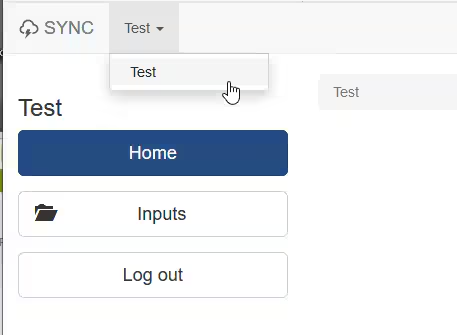
- If there are multiple campuses, it may be necessary to select the campus from the drop-down in the top-left corner. If there is only one option, showing in the drop-down, continue on to the step below.
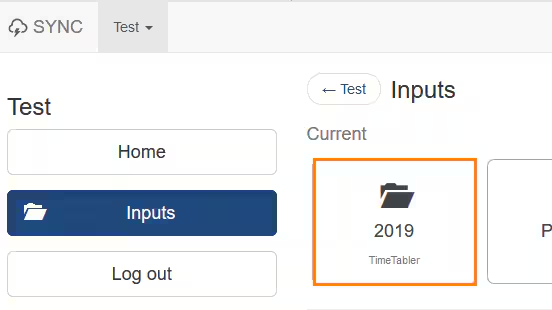
- Click on the Input container that needs to be archived.
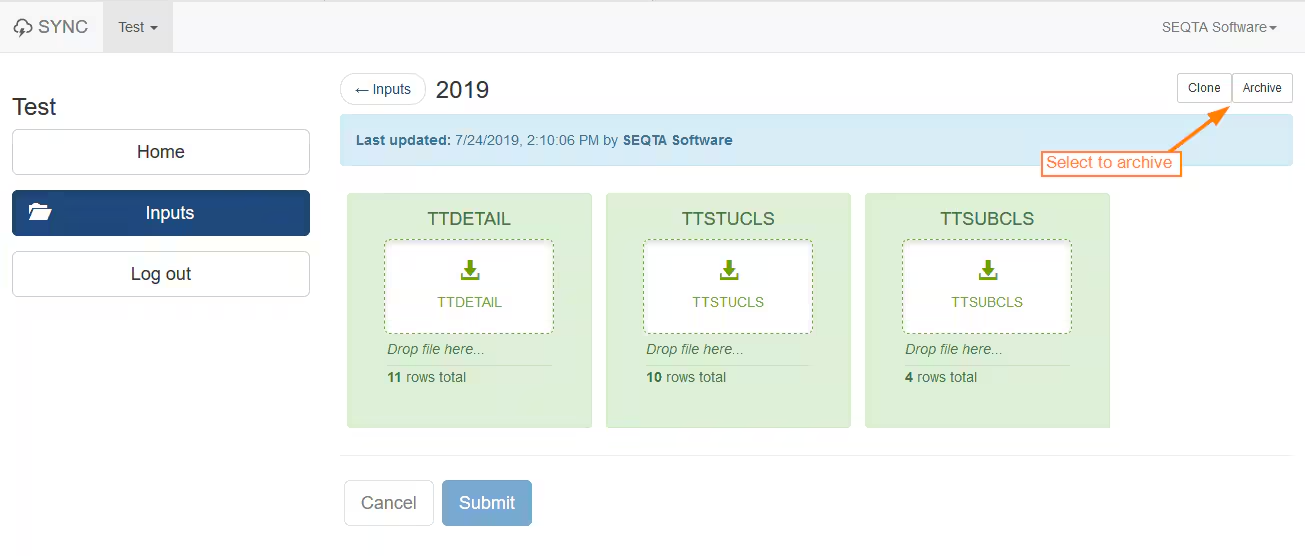
- Click the 'Archive' button in the top-right corner.
- Select 'Update' to confirm the archive.
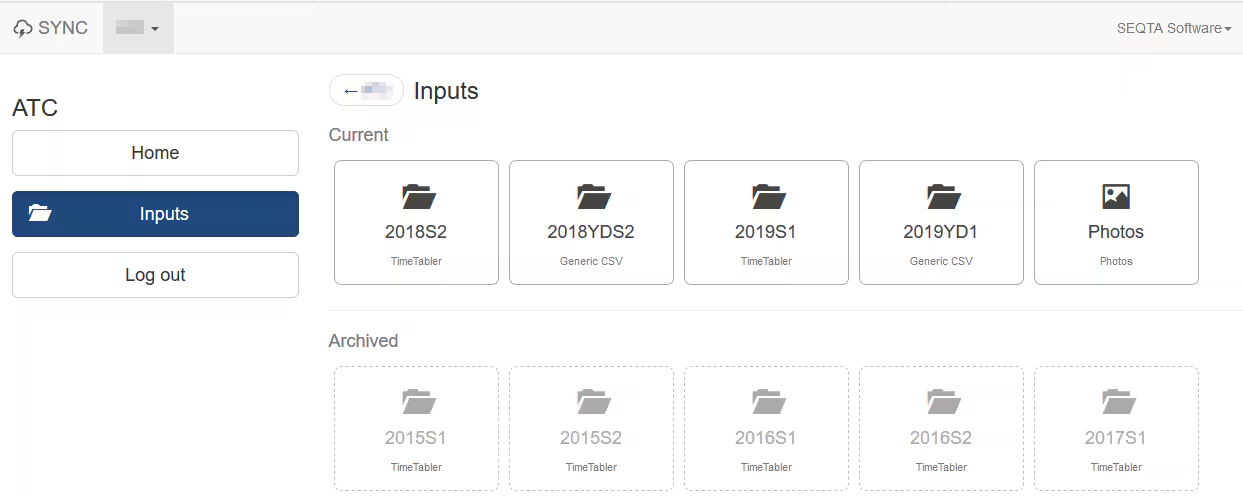
Image below: Archived Sync containers on the SEQTA Sync page.
Was this article helpful?
That’s Great!
Thank you for your feedback
Sorry! We couldn't be helpful
Thank you for your feedback
Feedback sent
We appreciate your effort and will try to fix the article