TABLE OF CONTENTS
There are two folder areas that Analyse uses to store the views and reports created. Both folders follow the same structure, with the only difference being that clients can not write to the SEQTA Folder.
Organization folder
- The Organization folder is available for clients to use as they like. Read, Write and Delete permissions exist here for the user that is logged in.
SEQTA folder
- The SEQTA folder is ONLY available to SEQTA employees, with Read, Write and Delete access. Clients have Read Only access.
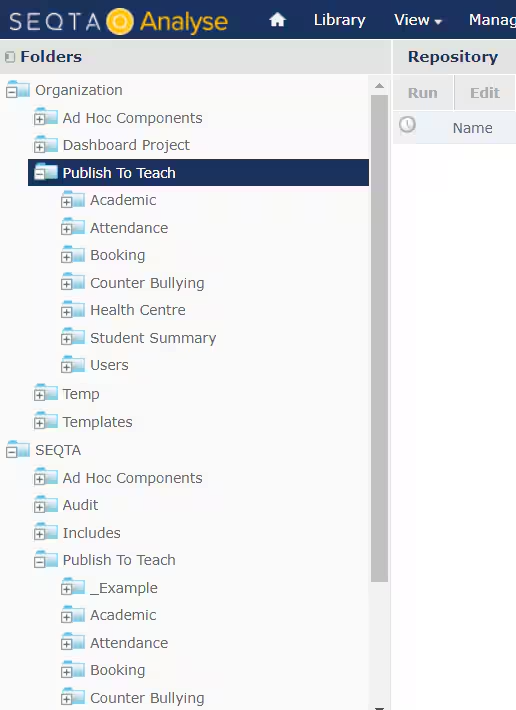
To have your reports displayed in SEQTA Teach, you must move your report to the Publish To Teach folder and then into the appropriate SUB-Folder that represents the location of the Reporting Page in SEQTA Teach.
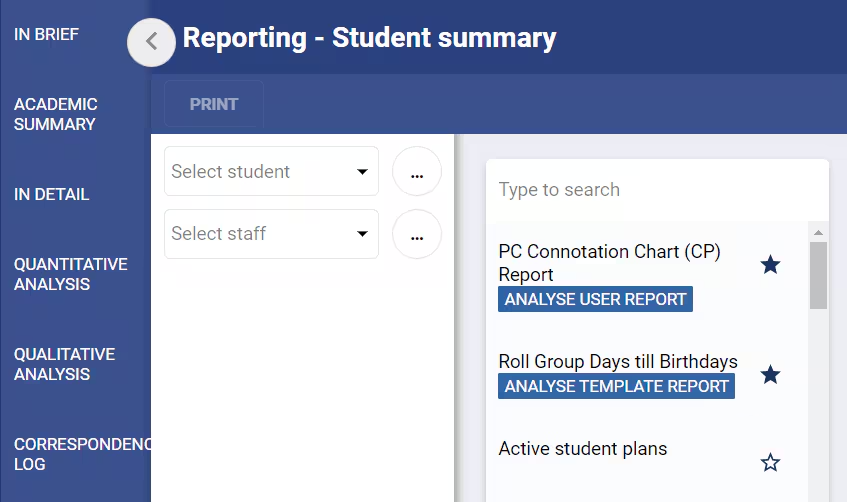
Moving a report to the Organization > Publish To Teach > Student Summary folder in the Analyse Repository, will allow that report to appear in SEQTA Teach > Pastoral Care Workspace > Reporting page and will include a subheading of Analyse User Report. This is managed by the user.
Moving a report to the SEQTA > Publish To Teach > Student Summary folder in the Analyse Repository, will allow that report to appear in SEQTA Teach > Pastoral Care Workspace > Reporting page and will include a subheading of Analyse Template Report. Only SEQTA Staff can do this action.
The following video also explains the usage of the repository.
Was this article helpful?
That’s Great!
Thank you for your feedback
Sorry! We couldn't be helpful
Thank you for your feedback
Feedback sent
We appreciate your effort and will try to fix the article