With the exception of the Portal page, SEQTA Creator allows the creation of linked images through the use of the 'Legacy' module.
Clickable images can also be created using the 'HTML Module' in SEQTA Creator or the 'Legacy Module'. To access this option in the Legacy Module, click on INSERT > Web Content > HTML Snippet.
TABLE OF CONTENTS
SEQTA Creator: Legacy Module (Excludes Portal Pages)
- Access SEQTA Creator through the Programme Cover page Overview, or Online lesson editor.
- Drag the Legacy module to the main work area.
- Select INSERT > IMAGE.
- Click Add File, find and add the image. After adding the image, click on it, the outline around the image will turn blue.
- Enter a Caption (optional) and paste the link under URL to Open When Image is Clicked.
Portal Pages (Classic Editor Only)
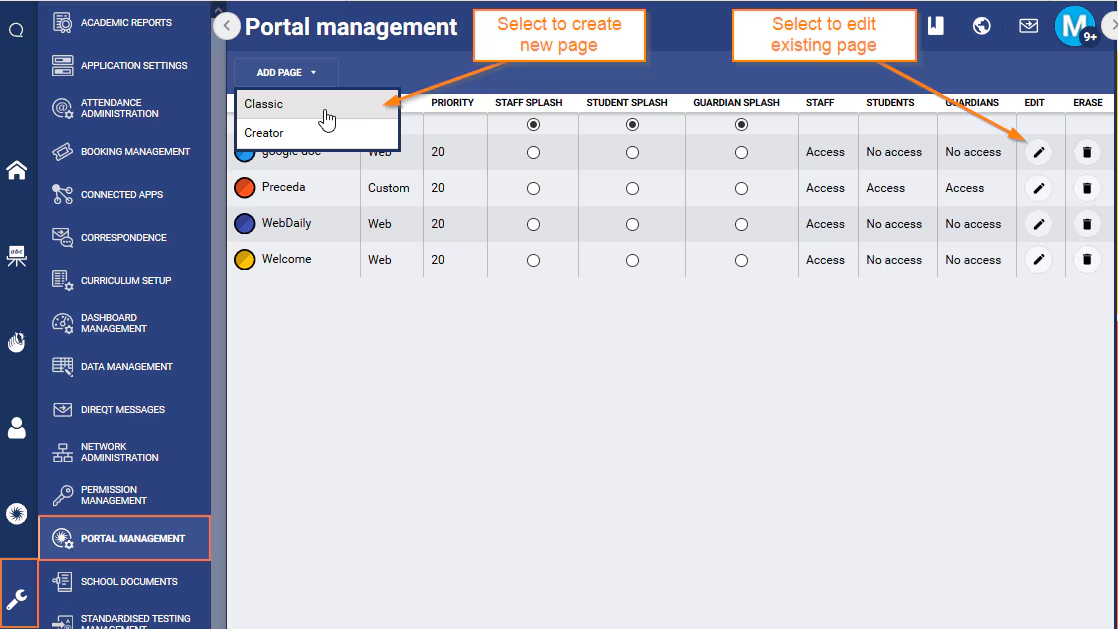
- To to the Administration Workspace > Portal Management.
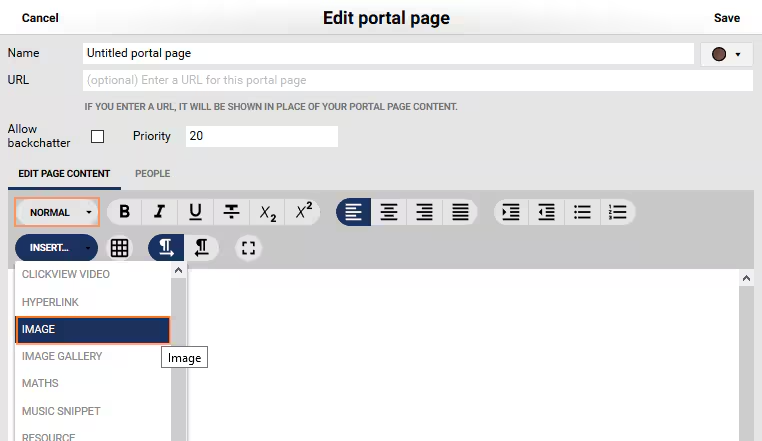
- Select Add Page > Classic, or click the edit icon for an existing 'Classic' portal page.
- Select INSERT > IMAGE
- Click Add File, find and add the image, ensure the image is selected (click on it, the outline around the image will turn blue once selected).
- Enter a Caption (optional) and paste the link under URL to Open When Image is Clicked.
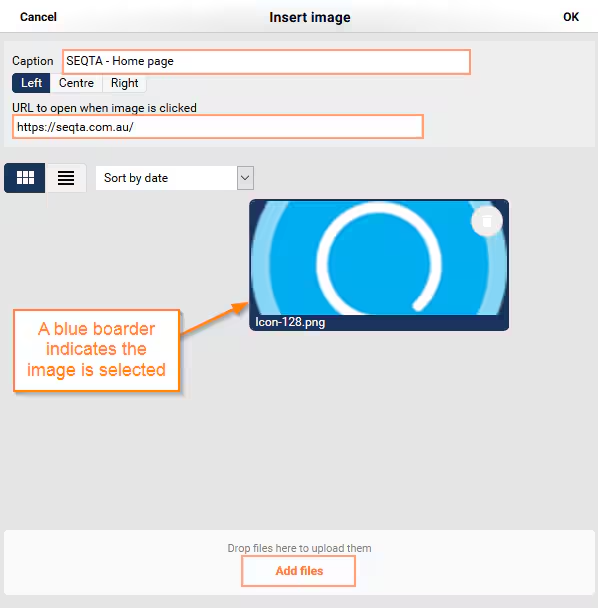
- Click OK.
Was this article helpful?
That’s Great!
Thank you for your feedback
Sorry! We couldn't be helpful
Thank you for your feedback
Feedback sent
We appreciate your effort and will try to fix the article