TABLE OF CONTENTS
Accessing the HTML editor - Legacy module and editor
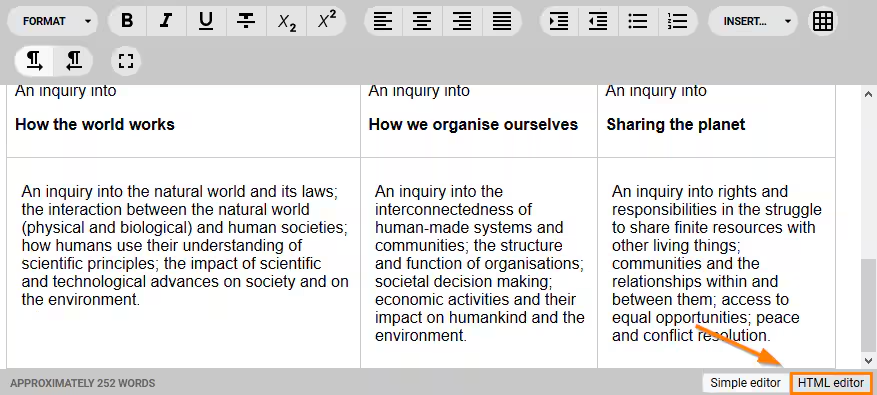
Some areas in SEQTA have the option to view and edit the HTML code. Where this is the case an 'HTML editor' button displays in the bottom-right corner of the editor.
HTML can be copied from one SEQTA Editor into another to ensure the formatting is kept. This is useful for Portal pages and Custom reports, however, with Lessons it's often easier just to Clone the lesson.
- Open the SEQTA Editor (be it through a Lesson, Custom report, Portal page or Legacy module)
- Click the HTML editor button - this will display the HTML code based on the content in the Simple Editor, or will be blank if nothing has been entered yet.
- Make any required changes and if required click SAVE.
- To copy into another HTML editor use your Operating System shortcuts (typically Ctrl+a in Windows or Command+a in Mac) to select all, then copy
- Go to the lesson, Legacy module, etc where you want to paste it and click the HTML editor button
- Use your Paste command to place the HTML in the new location.
- If required click SAVE.
- NOTE that the HTML editor does not show the entire HTML code for the page, such as data in the <head> area. Also some HTML code may not be correctly understood by the system.
Was this article helpful?
That’s Great!
Thank you for your feedback
Sorry! We couldn't be helpful
Thank you for your feedback
Feedback sent
We appreciate your effort and will try to fix the article