TABLE OF CONTENTS
- Introduction
- Reactivating Sync Profiles Flagged as Ended
- Reactivating Sync Profiles Flagged as Disabled
Introduction
Sync profiles flagged as 'Ended' will not be included in the auto sync, nor will a sync run on-demand. A sync flagged as 'Disabled' will not be included in the auto sync, however a sync on-demand will work.
Reactivating Sync Profiles Flagged as Ended
'Ended' indicates none of the timetables assigned to the sync profile, have an end date in the future. To prevent the need to do this for each new timetable period please refer to the article Sync profile FAQs
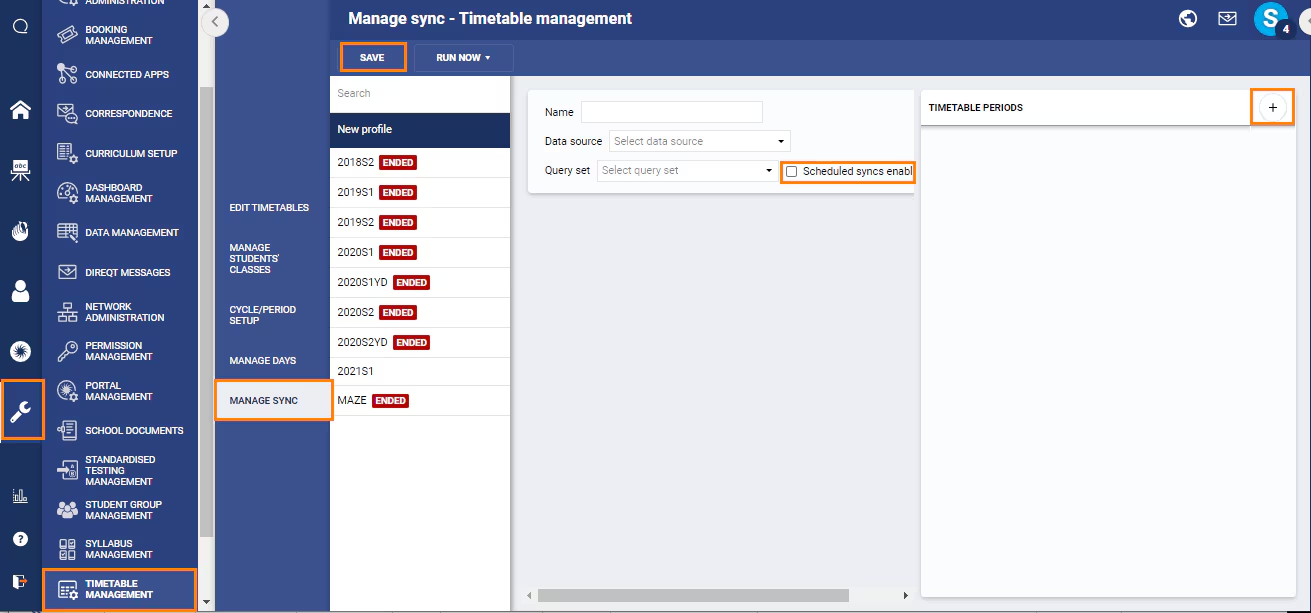
To re-enable the sync, add a current or future timetable to the Sync profile. The steps for this process are as follows:
- Go to the Administration Workspace > Manage Timetables.
- Open the tab 'Manage Sync'. The permission 'SYNC: MANAGE' is required to access this page.
- Select the applicable Sync profile.
- In the top-right corner remove any timetable periods that have ended, then select a current or future timetable (providing the end date is in the future).
- Click 'Save'. Provided the Sync profile is not flagged as 'Disabled', the auto sync will be enabled.
- (Optional) To run a Sync and confirm the changes come through, click on the Sync profile, select Run Now > From Today. Give the Sync 5-10 mins to finish then refresh/reload the page to see if the changes show on the teacher and student timetables.
Reactivating Sync Profiles Flagged as Disabled
Disabled indicates 'Scheduled Syncs Enabled' is not selected. To enable the automatic sync, this option needs to be selected. A Sync on-demand can be run with for a Disabled Sync profile.
- Go to the Administration Workspace > Manage Timetables
- Open the tab 'Manage Sync'. The permission 'SYNC: MANAGE' is required to access this page.
- Select the applicable Sync profile.
- Select the option 'Scheduled Syncs Enabled'.
- Click 'Save'. Provided the sync profile is not flagged as ended, auto sync will be enabled.
- To run a sync on demand, click on the sync profile, select Run Now > From Today.
- (Optional) To run a sync and confirm the changes come through, click on the Sync profile, select Run Now > From Today. Give the Sync 5-10 mins to finish then refresh/reload the page to see if the changes show on the teacher and student timetables.
Was this article helpful?
That’s Great!
Thank you for your feedback
Sorry! We couldn't be helpful
Thank you for your feedback
Feedback sent
We appreciate your effort and will try to fix the article