TABLE OF CONTENTS
- Uploading Photos to Sync UI

Uploading Photos to Sync UI
Sync UI is used to upload photos into SEQTA in cases where it is not possible to Sync them directly from the School's Administration system into SEQTA. The Sync UI username and password are provided when Sync UI is setup. Note: these credentials are independent of the SEQTA Teach username and password.
Student photos need to be named with the student Code which is case-sensitive. If unsure check the Student Record. Filename extensions are not case-sensitive. Supported file types are .jpg and .jpeg.
The steps below refer to accessing SyncUI directly via a URL. Alternatively you might want to set up a Portal page in SEQTA Teach and use that to open SyncUI. Here is a link to the Knowledge Base article about Creating and managing Portal pages .
Step One: Upload the Photos to the Sync UI Page
- Go to the Sync UI page. This will be the School's SEQTA URL with '/sync/' on the end, for example https://ta.myschool.vic.edu.au/sync/.
- Enter the Username and Password and click on Login. If unable to log in please contact the SEQTA Support team via the Help portal to request your Sync UI username and password.
- Select Inputs.
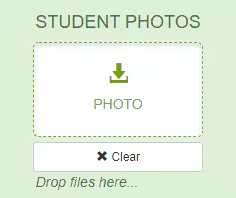
- Click on the Photos container.
- Select all the photos and click-drag them into the container. Alternatively, select Photoand browse to the directory where the photo(s) are stored, select the photo(s) and click OK.
- Click Submit.
- A message should appear at the bottom confirming that the photos have been submitted and are now ready to be synced.
Step Two: Run a Sync on Demand or Wait for the Overnight Sync to Run
Once the photos have been uploaded to the Sync UI page they will need to be synced into SEQTA.
- In SEQTA Teach, go to the Administration Workspace > Timetable Management > Manage Sync.
- Select the Sync profile named Photos. If the Photo profile has ENDED or is DISABLED the sync will not run. Click here for details on how to start or re-enable the profile.
- From the top of the work area select Run Now > From Today.
Was this article helpful?
That’s Great!
Thank you for your feedback
Sorry! We couldn't be helpful
Thank you for your feedback
Feedback sent
We appreciate your effort and will try to fix the article