Identifying issues on a student-by-student basis
- Select the student name in the Student Information Panel on the right hand side.
- Click on the View attendance history button to the right of the SIP.
- Choose the Time-Based button.
- Choose a time duration from the drop-down menu. All recorded attendance for that time frame will display.
- The period boundaries can be displayed by choosing the Show period overlay from the ellipsis menu (
 ).
).
- The period boundaries can be displayed by choosing the Show period overlay from the ellipsis menu (
- For more detailed information click on the Date itself. This will open the Attendance Stack as a pop-up window.
- Once any gaps have been noted, check the student's timetable for the day by clicking on the View Timetable button to the right of the SIP. Also, refer to the section below entitled: Ensuring Attendance is Captured for the Entire Day.
Attendance reports suitable for use when following-up on multiple student absences
There are a number of reports available to help attendance admin staff resolve and investigate student attendance. See below for some troubleshooting steps.
Absences missing from the Absences report
The Absences report displays only one icon per timetabled class (period based). This report may not be suited in instances where there are classes missing from the student's timetable or if the classes are Calendar Classes (created directly through the teacher's timetable). The icon that will be displayed depends on factors such as the attendance type and the duration.
Viewing underlying attendance using the Absences (linear view) report
The report called Absences (linear view) is well-suited for identifying absences. This report displays the attendance on a minute-by-minute basis, regardless of whether the student has classes timetabled.
About the Discrepancies report
The Incomplete roll report
Report on specific attendance types
- Attendance details
- Attendance details (linear view)
- Attendance list
- Attendance list (teacher)
- Attendance solution details
- Attendance solutions (CSV)
Ensuring Attendance is Captured for the Entire Day
To ensure attendance is recorded for the entire day, the following options can be used:
- Option 1: Record attendance using a Day roll (to mark attendance once a day), or an AM roll and PM roll (to mark attendance twice a day). Marking the roll twice a day is the SEQTA recommendation. This method is typically used for primary students or students that do not change rooms.
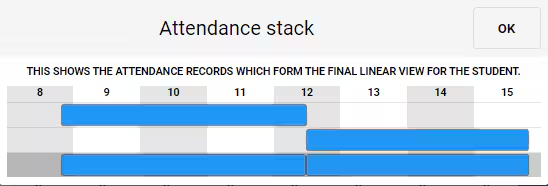
- Option 2: Record attendance using timetabled, period-based subject classes. If this method is chosen, it's essential the students are timetabled for all classes, as missing classes will result in gaps in attendance (as there will be no roll for the teacher to mark).
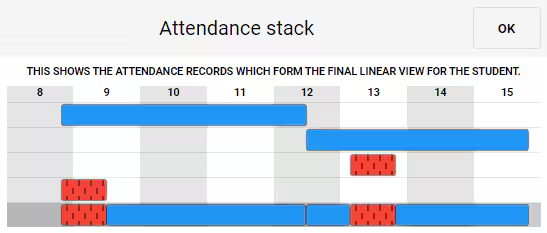
- IMPORTANT: If both of the above options are used simultaneously, teachers can override the attendance recorded in the roll classes to mark the roll during the timetabled subject class (and vice-versa). The teacher of the subject class will see that the roll has already been marked, as the attendance data is stored as part of the student record, not the class record. The attendance stack will show both instances of recorded attendance. In the example below, the student has been marked present for both AM and PM rolls, but has been marked absent for 2 subject classes.
- Option 3: Record attendance using Calendar classes. This option is not ideal in all situations as attendance only displays in Time-based viewing and linear view reports.
- Option 4: Use SEQTA Kiosk to record attendance when there may be no teacher present or no timetabled class exists (eg: during lunch break when a student might leave school for an appointment)
Was this article helpful?
That’s Great!
Thank you for your feedback
Sorry! We couldn't be helpful
Thank you for your feedback
Feedback sent
We appreciate your effort and will try to fix the article