TABLE OF CONTENTS
Related articles:
Below is a list of common scenarios users may encounter throughout their use of this integration, and some suggestions if they encounter difficulties.
Enabling the integration
- Integration is shown as Disabled in Application Settings. If any of the MS Teams API details are changed or removed in the Application Settings page, it will disable the integration. The integration will have the be Enabled again to reinstate it. To do this, navigate to the Application Settings page. Refresh the page, and check the details are all present and correct. Then click Enabled, and Save. Only Administrators have this permission.
Navigation
- Unable to locate Manage MS Teams Classes page. This page will only be visible if the integration has been enabled. In some instances it may take a few minutes to appear after the integration has been enabled. This page is located in Timetable Management > Manage MS Teams Classes. To check if the integration is in place after saving the Application Settings details, wait a few moments before refreshing the page (F5). If the Manage MS Teams Classes page is still not visible in Timetable Management, check the details added when enabling the integration (see Enabling the integration for further details).
- No classes are shown in Manage MS Teams Classes page. This page creates a list of all classes that can be enabled for teams. Only timetabled classes can be enabled. Classes associated with a timetable or term within the last two years will be shown. This time frame moves with the current date, and is not associated with when the integration was enabled. Check that the intended classes are linked to a current timetable.
- MS Teams logo is not showing in my classes in my timetable. When first setting up the integration, if multiple classes were selected and enabled together the process can take several moments to enable all associated teams. After a few minutes, refresh the page to show the logo. If the logo is still not present after several minutes, the class may need to be disabled and re-enabled in the Manage MS Teams Classes page. Be sure to check that all teachers and students are enrolled correctly and are associated with the correct email addresses when doing this step.
- MS Teams logo is not showing in my class' Attendance Roll. As with the timetable, the initial setup of the integration can take several moments when working with large lists or classes. Follow the steps listed for MS Teams logo is not showing in my classes in my timetable.
Enabling a class
- Class does not have a teacher. Classes must have at least one teacher at all times. Check that at least one active teacher is assigned to the class to be enabled. Next, check that the teachers have a valid email address. It must be of the same domain as that used to enable the MS Teams integration through Application Settings.
- Class contains a teacher or student without a valid email address. Teachers and students must have a valid email address stored in SEQTA to ensure they can connect to the team associated with their class and be included as members. Teacher and Student emails must be of the same domain as that set in the Application Settings. Check that each teacher and enrolled student has a valid email address of the correct domain. For example:
- Domain is schoolname.com.au
- Email addresses will need to be teacher.example@schoolname.com.au and student.example@schoolname.com.au
- Duplicate teams for the same class have been created. This can happen when first enabling a class (clicking Enable in the Manage MS Teams Classes page), if the Enable button is clicked multiple times. This initial process can take several seconds due to the SEQTA-Microsoft authentication process. These duplicates can be safely deleted in MS Teams and will not affect the integration. It is best to do this as soon as they are noticed, leaving a single instance.
Teams functionality
- Team is Read-Only and does not allow members to chat. A team will become read-only if:
- The team has has no owner (teacher) associated with it
- If the integration for that class has been disabled
- If the class has been archived
Review the class in SEQTA and ensure at least one teacher with a correct email address is allocated to the class. Once this change has been made, Disable and then Enable the class in the Manage MS Teams Classes page to reset the connection to MS Teams.
- My class's team is not listed in MS Teams. Individual teams will only be visible if the class has been enabled for the integration. In some instances it may take a few minutes to appear after the integration has been enabled. Wait a few moments before refreshing the page (F5).
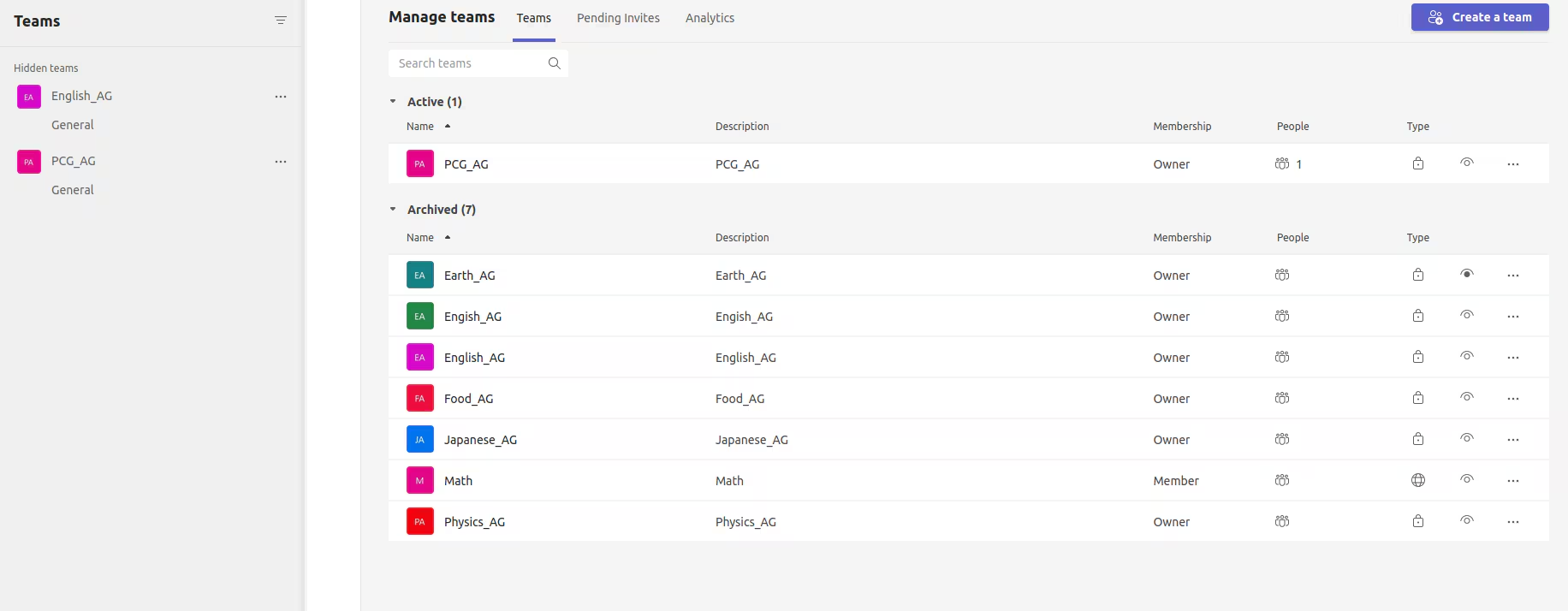
- Archived Classes are not visible. When a team is archived, either automatically through the integration (the class is Disabled for Teams) or through Teams itself, they can occasionally not be shown. The workaround options are as follows:
- Click on the settings near to 'Join or create team' below the list of teams
- Expand the 'archived' section to see the list of all archived classes
- Click on 'click to favourite/unfavourite this team' option to get the archived class listed in the 'Your teams' list.
User Management
- A teacher with MS Teams enabled classes is leaving the school. To ensure continuity for students in their hybrid learning environment, it is best to add the new teacher(s) as soon as possible, preferably before the departing teacher's end date.
- Locate the class in SEQTA and add the additional teacher(s), this requires the class to be associated with more then one period allowing you to allocate another staff member.
- To reset the team, locate the class in the Manage MS Teams Classes page
- Check that the new teacher(s) are listed
- Select the class and Disable it. Then select it again and Enable it.
- A teacher with MS Teams enabled classes has left the school. To ensure any teams associated with a departed teacher's classes have either been allocated a new owner (teacher) or have been deactivated, the following steps should be added to the school's business processes for departing teachers:
- Disable departing staff emails as soon as possible
- Any classes that are no longer active should have the MS Teams integration disabled. To do this, search the Manage MS Teams Classes page for any mention of the departing teacher. Select those classes which should have the teams disabled. Click Disable at the top of the page and confirm the selection. This will make all instances of these teams read-only. Members will still be able to access the team and view any past chat or resources shared there. They will no longer be able to communicate in this space.
- Some students are missing from the team. To be included in a team's membership, a student must:
- Be enrolled in the class in SEQTA. Check the roll of students in SEQTA for the class.
- Have a valid email address associated with their SEQTA record. This must be a working email address with the same domain as that used to enable the school's MS Teams integration (see Integration Setup). Check the student record in SEQTA to ensure they have a valid email address.
- A student left the team in MS Teams. Members of a team, including students, are able to leave a team if they choose. This is functionality within the Microsoft application and cannot be restricted. To reset a student's inclusion in the team through SEQTA, disable the class for MS Teams, and then enable it again through the Manage MS Teams Classes page.
Was this article helpful?
That’s Great!
Thank you for your feedback
Sorry! We couldn't be helpful
Thank you for your feedback
Feedback sent
We appreciate your effort and will try to fix the article