TABLE OF CONTENTS
- 1. Register an application in Azure AD
- 2. SEQTA setup
- 3. Enable Classes (Administrators and Teachers)
- Enabling a class in the Manage MS Teams Classes page
- Disabling a class in the Manage MS Teams Classes page
- Accessing a class's team through the Attendance Roll (Teachers only)
- Accessing a class's team through the Timetable (Teachers and Students)
- Related articles:
There are two stages that must be completed to setup the integration between SEQTA and MS Teams. These will only need to be done once and are the registration of the application in the school's Microsoft Azure Directory, and the linking of the school's Microsoft tenancy within SEQTA. These steps will require Azure Active Directory access with Microsoft, usually held by ITC staff, and Administrator access in SEQTA respectively.
1. Register an application in Azure AD
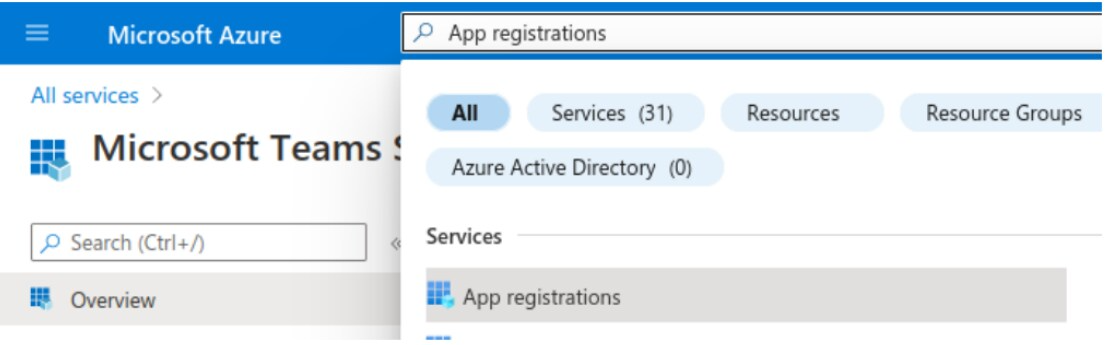
a) Navigate to the organisation's Microsoft tenancy’s Azure account then navigate to “App registrations” - the search bar at the top will make this easier to find.
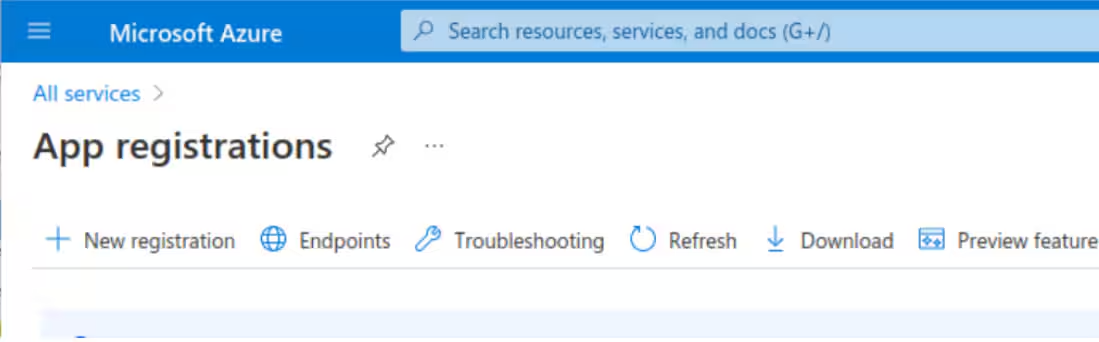
b) On the “App registrations page”, click the Plus icon to create a “New registration”.
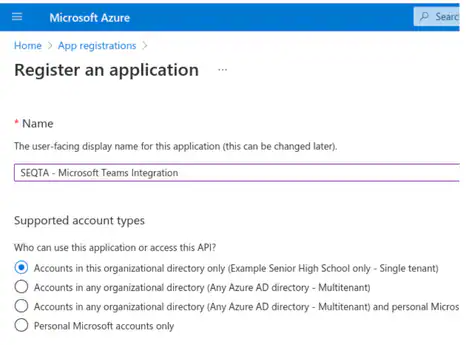
c) This directs you to the “Register an application” page. Enter a suitable name and select the appropriate supported account based on your needs.
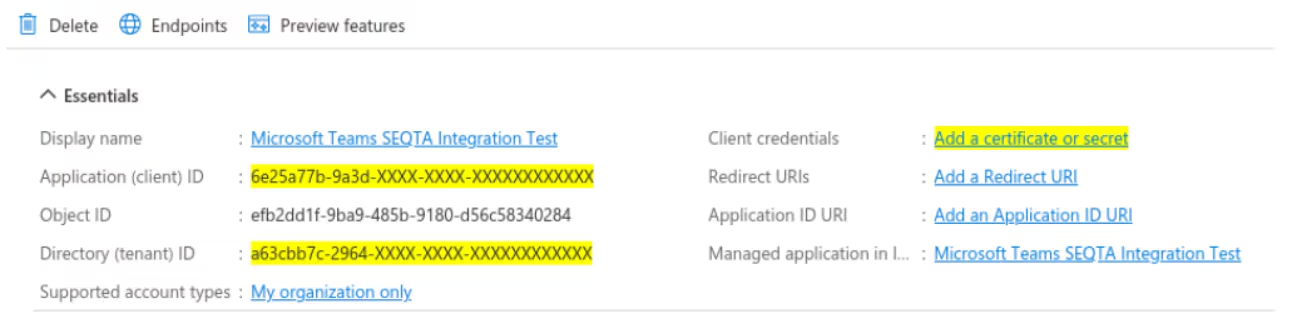
d) Click on “Register” and the App registration’s Application Id and Directory Id will be shown. These two pieces of information will be needed later in the “Setting up the integration” section so be sure to take note of them. Once noted, click on “Add a certificate or secret” on the right-hand side.
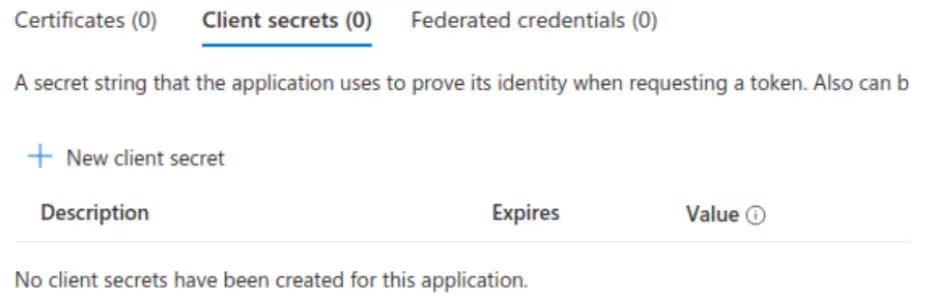
e) Add a Secret. Clicking on “Add a certificate or secret” will direct you to the below page. Click on “New client secret”
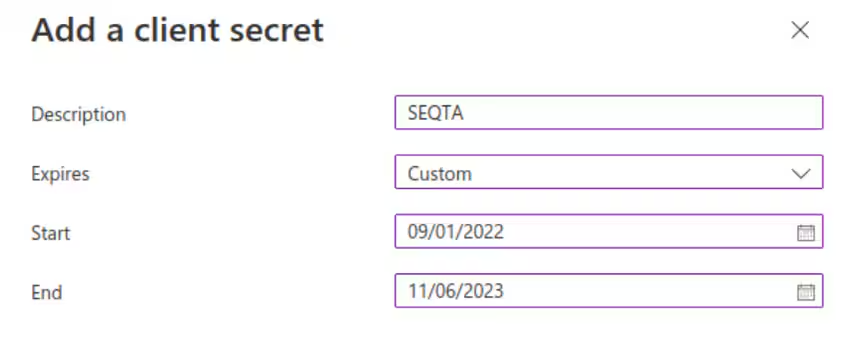
f) Give the client secret a name and configure the expiration – the school must manage the periodic provision of new secrets prior to their expiration and update SEQTA accordingly.
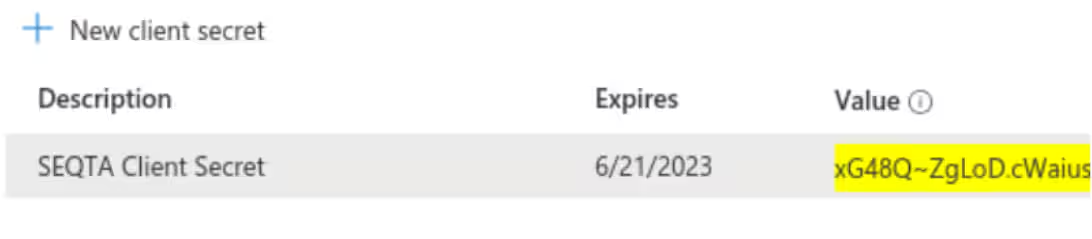
g) Once completed, enter the Client secret’s value. This will be required later so please make a note of it.
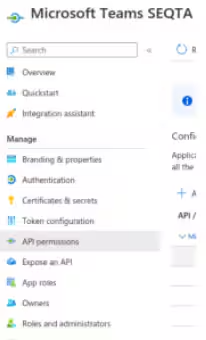
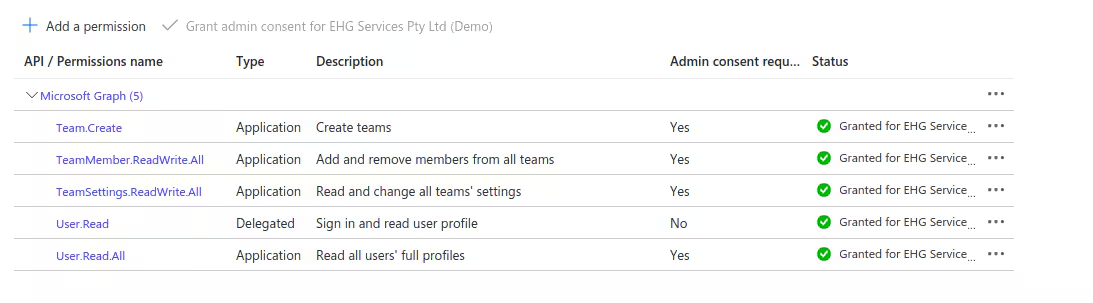
h) Add permissions to the App registration. From the left-hand side navigation bar, select “API permissions”.
i) Add the five permissions shown below. Admin consent for your tenancy will be needed to be able to do this.
j) The integration can now be added in SEQTA.
2. SEQTA setup
Once the application has been registered in an organisation's Microsoft Azure AD, it can be enabled within SEQTA. This will connect the SEQTA data (teachers, students and their enrolments in classes) to MS Teams to allow the creation of teams. Administrator access will be needed to complete these steps.
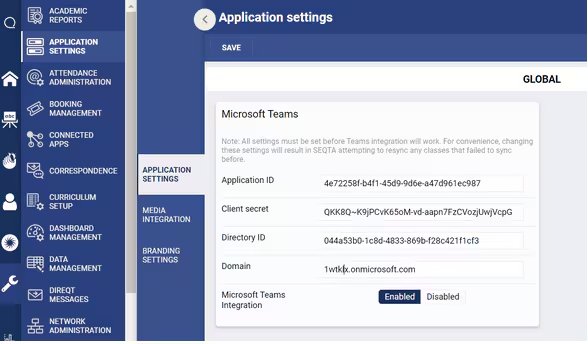
a) Navigate to the Application Settings page. (Settings > Application settings, search for Microsoft Teams). The details unique to the school's Microsoft Teams licence will need to be entered here. This is the information noted in the previous steps, and can also be found in the organisation's Azure Active Directory. SEQTA's support team are able to assist with this if needed.
b) Once the details have been entered, enable the integration by toggling the button to Enabled. This will create a new page named "Manage MS Teams Classes" in the Timetable Management section, through which individual classes can be managed for the MS Teams integration.
3. Enable Classes (Administrators and Teachers)
Once the MS Teams integration has been enabled for the school, individual classes can be enabled to make use of the additional functionality. This is not an automatic process to allow for the unique teacher-class circumstances and preferences in teaching approach.
The Manage MS Teams Classes page creates a list of all the classes that qualify for a team being created. Classes will only be displayed in the following scenarios:
- Classes linked to a Timetable that is greater than (current year minus two years)
- Classes linked to a Term
Classes will be hidden in the Manage MS Teams Classes page in the following scenarios:
- Archived classes
- Deleted classes
- Classes linked to a timetable that is earlier than (current year minus two years)
Enabling a class in the Manage MS Teams Classes page
a) Once the integration has been enabled in Application Settings, the Manage MS Teams Classes page with be visible in Timetable Management.
b) Search for and select the classes to be enabled. Multiple classes can be selected at the same time.
c) Ensure the class(es) has at least one teacher shown. The teacher(s) will become the owner of the team with the associated permissions (adding/removing members, creating channels, etc). All listed teachers will inherit the owner role in the team
d) Click Enable at the top of the page. A pop up will appear to confirm the classes selected to be enabled with Microsoft Teams.
e) Confirm this list to start the creation process. Note that for the first time a class is enabled, it will take a few seconds to be created while SEQTA communicates with Microsoft and validates the request. For long lists of classes, this may take a few minutes before all teams have been created. Clicking the Enable button again may create duplicate teams.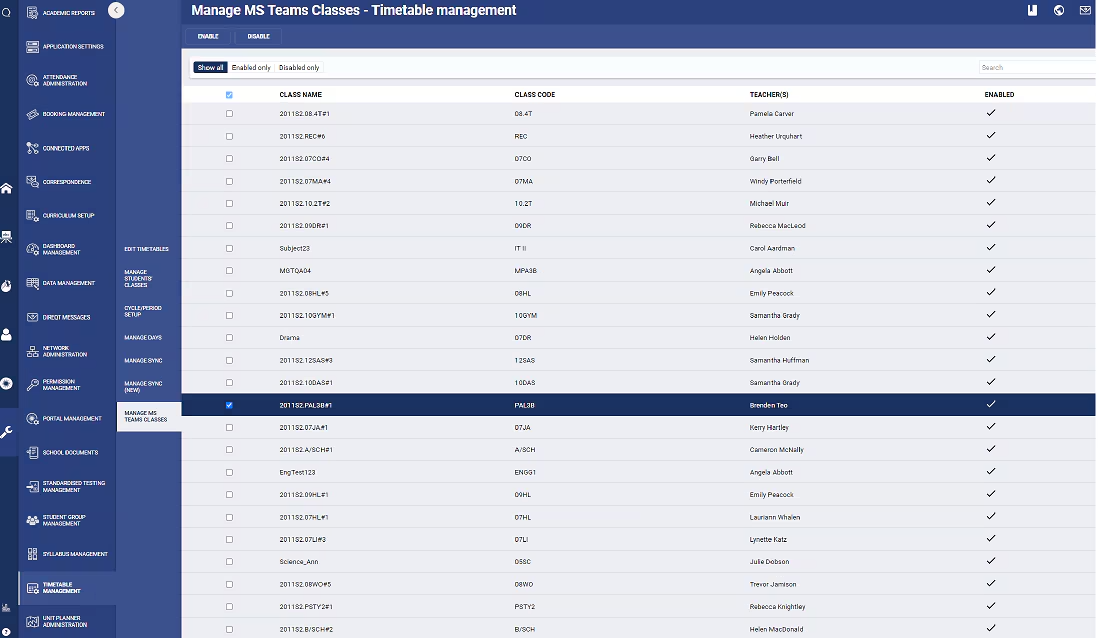
Disabling a class in the Manage MS Teams Classes page
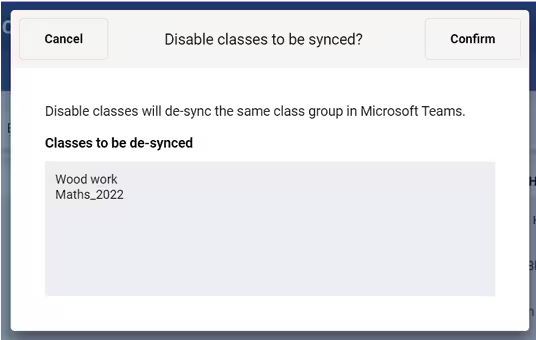
Disabling a class for MS Teams will make the associated team read-only. Members will still be able to access the team and view any past chat or resources shared there. They will no longer be able to communicate in this space.
- Search for and select the class(es) to be disabled. Multiple classes can be selected at the same time.
- Click Disable at the top of the page and confirm the selection.
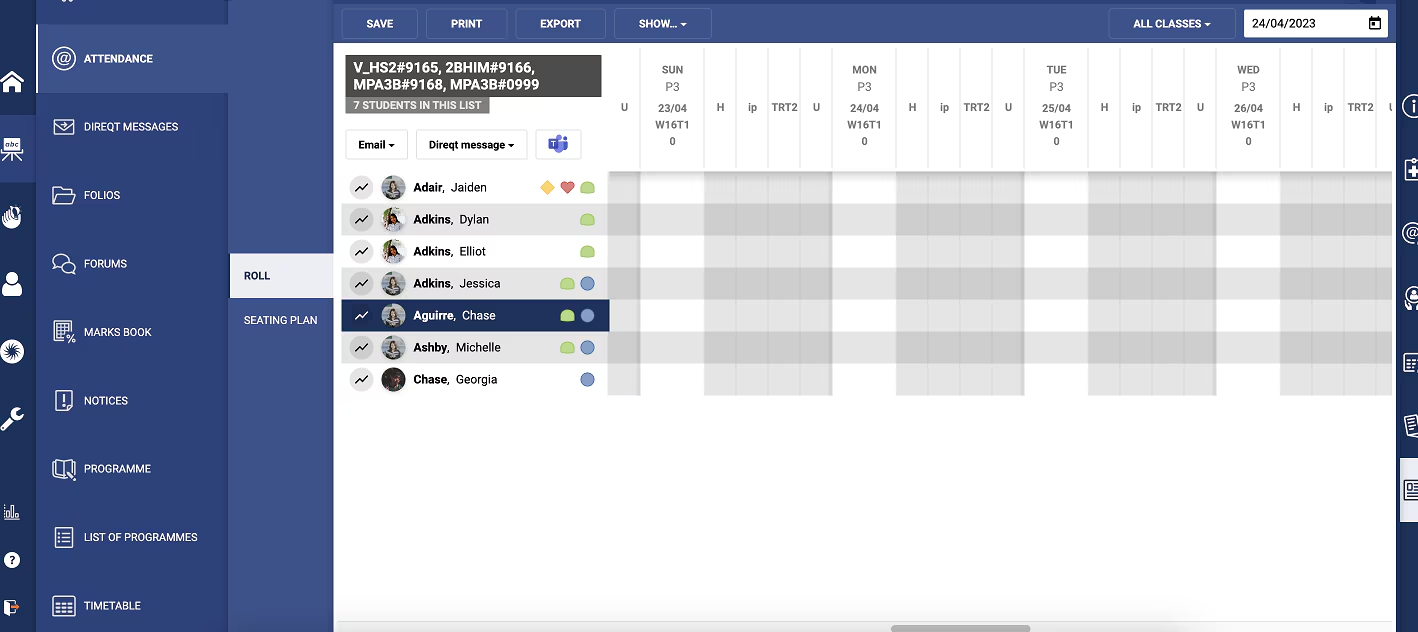
Accessing a class's team through the Attendance Roll (Teachers only)
- Open the MS Teams enabled class's Attendance Roll.
- Note the MS Teams logo.
- Take attendance of the class.
- Click the MS Teams logo to launch the team
- This will launch the MS Teams application, and open to the appropriate team for the class.
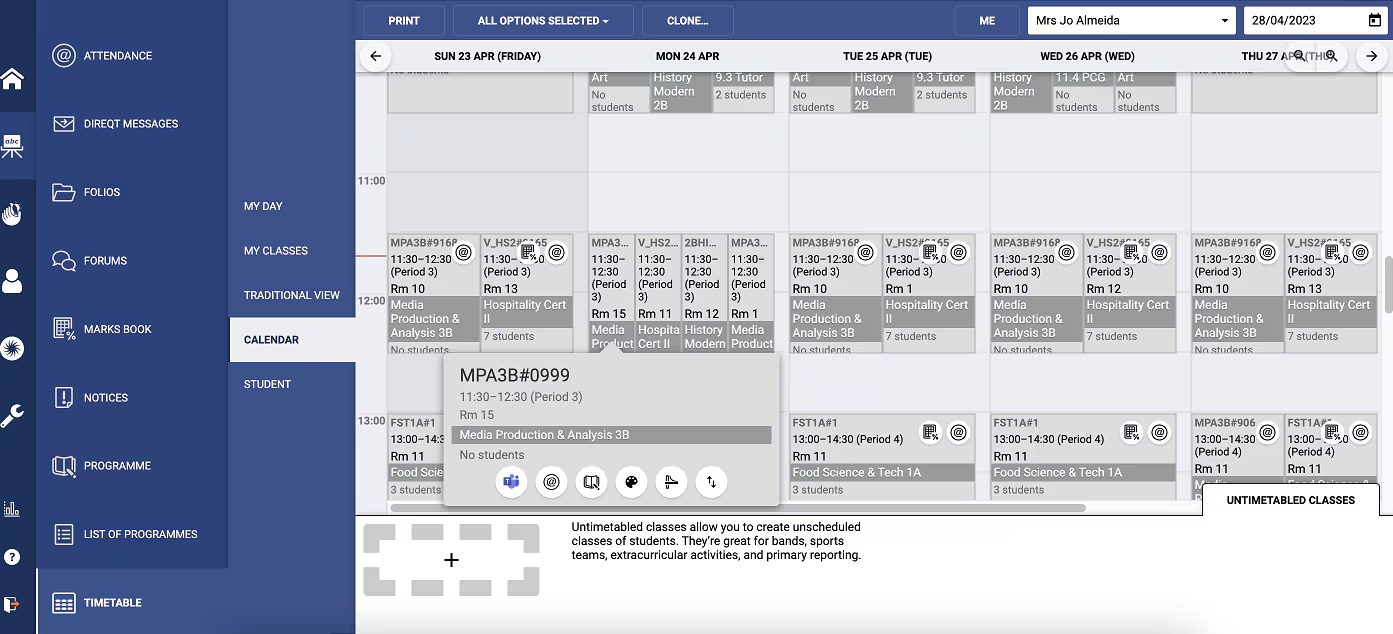
Accessing a class's team through the Timetable (Teachers and Students)
- Open the Calendar (Teaching workspace > Timetable > Calendar)
- Note the MS Teams logo shown against timetabled classes
- Click the MS Teams logo to launch the team
- This will launch the MS Teams application, and open to the appropriate team for the class.
Related articles:
Was this article helpful?
That’s Great!
Thank you for your feedback
Sorry! We couldn't be helpful
Thank you for your feedback
Feedback sent
We appreciate your effort and will try to fix the article