This article includes the following FAQs:
- Error code 500 after selecting import file
- Import button greyed out
- How to delete blank cells using Excel
- Removing smart quotes and apostrophes and other non-standard ascii characters
- Option 1: Remove smart quotes and smart apostrophes using Excel
- Option 2: Re-saving a spreadsheet to remove non-standard characters
- Turning off the smart quotes option in Word
- Related pages:
Error code 500 after selecting import file
- There are blank lines in the spreadsheet: To delete these, either open in notepad and delete the rows that only have commas or follow the steps in the section below.
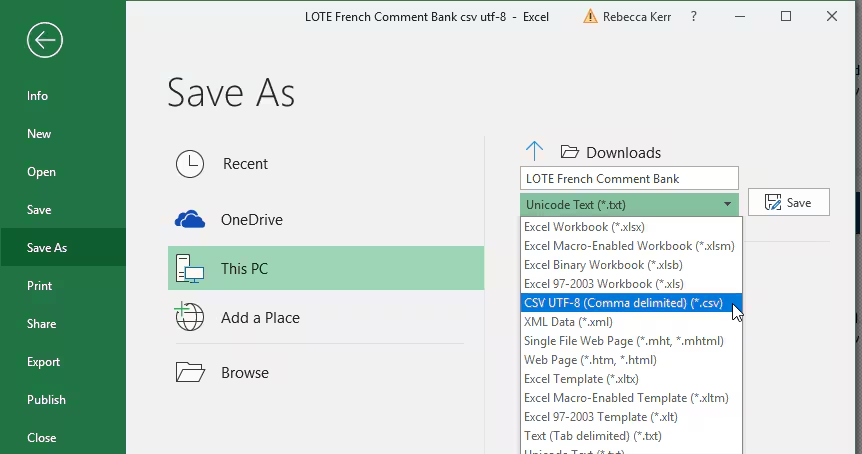
- Smart quotes and smart apostrophes and non-standard ASCII characters: To resolve this, re-save the spreadsheet using the file type 'CSV UTF-8 (Comma delimited) (*.csv)'
- Open the file in Excel
- Choose 'File' > 'Save as'
- Select the file type 'CSV UTF-8 (Comma delimited) (*.csv)'
- Click 'Save'
Import button greyed out
- Character length exceeded: See Importing and Managing the Comment Bank for field definitions and character lengths.
- One or more of the required fields is blank: All fields require data except for 'level' which can be left blank if preferred.
- Code duplicated in import file: This message indicates there are two records in the import file with the same code.
How to delete blank cells using Excel
This can be done by either opening the file in Notepad and deleting the unwanted rows of commas or by completing the steps below to remove them from the spreadsheet.
- Select your data (press <Ctrl>+A)
- Press F5. This opens “Go to” dialog in Excel, click Special
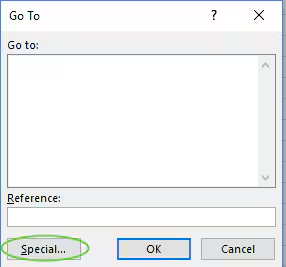
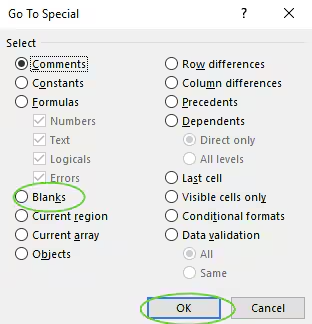
- Select Blanks and click OK. Now, all the blank cells will be selected.
- Just press CTRL and Minus sign (-), or, right-click and select Delete
- Select "Entire row"and "OK"
Removing smart quotes and apostrophes and other non-standard ascii characters
An error will occur when trying to import CSV files with non-standard ASCII characters in them. Typically, these non-standard characters are added when using the auto correct in Word or Excel.
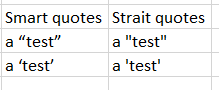
Option 1: Remove smart quotes and smart apostrophes using Excel
These characters can be identified by viewing in Excel, then removed using the 'Find and replace' option.
Option 2: Re-saving a spreadsheet to remove non-standard characters
Google sheets and most other spreadsheet programs use standard characters. Due to this, they will revert non-standard characters into standard ASCII when a spreadsheet is saved as CSV.
Google sheets: Click File > Download as > Comma separated values
Excel: Click File > Save as > select filetype 'CSV UTF-8 (Comma delimited)
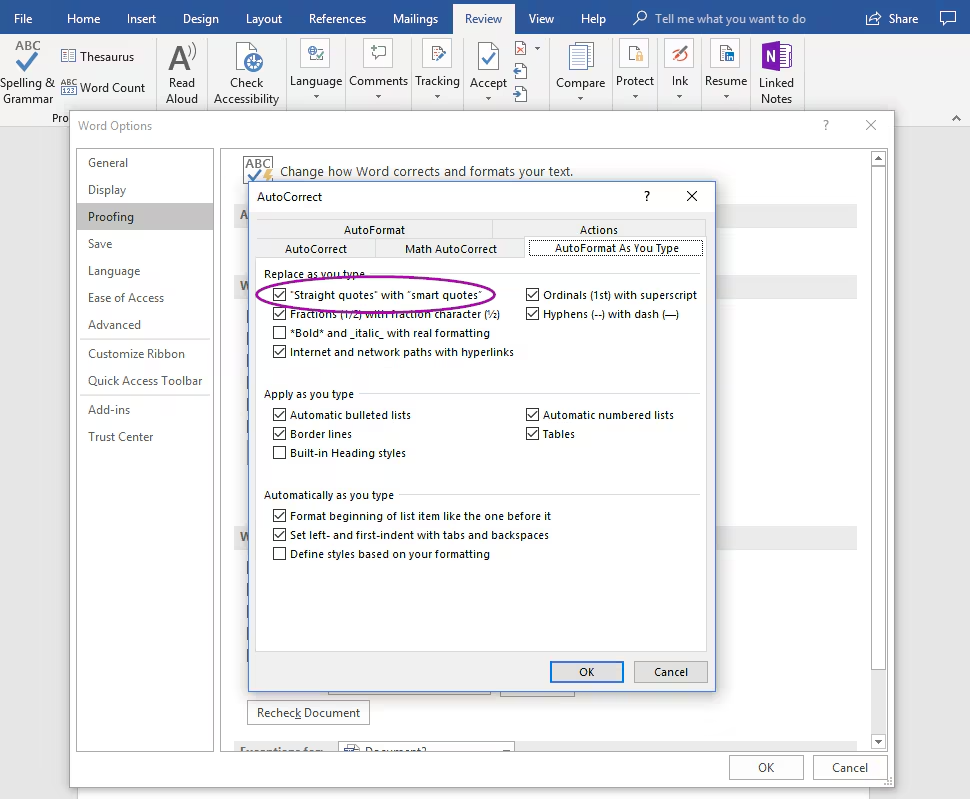
Turning off the smart quotes option in Word
- On the File tab, click Options.
- Click Proofing, and then click AutoCorrect Options.
- In the AutoCorrect dialog box, do the following:
- Click the AutoFormat As You Type tab, and under Replace as you type, select or clear the "Straight quotes" with “smart quotes” check box.
- Click the AutoFormat tab, and under Replace, select or clear the "Straight quotes" with “smart quotes” check box.
- Click OK.
Related pages:
Was this article helpful?
That’s Great!
Thank you for your feedback
Sorry! We couldn't be helpful
Thank you for your feedback
Feedback sent
We appreciate your effort and will try to fix the article