TABLE OF CONTENTS
- Mode
- Types
- Creating and managing Reporting syllabus sets
- Permissions for managing Reporting Syllabus sets
Reporting syllabus sets are used in place of reporting on syllabus using assessments. Reporting syllabus can be assigned to specific subjects, or selected through the Marks book setting in the programme itself. Once enabled, additional columns display in the purple Reporting section of the marks book for teachers to enter the syllabus results.
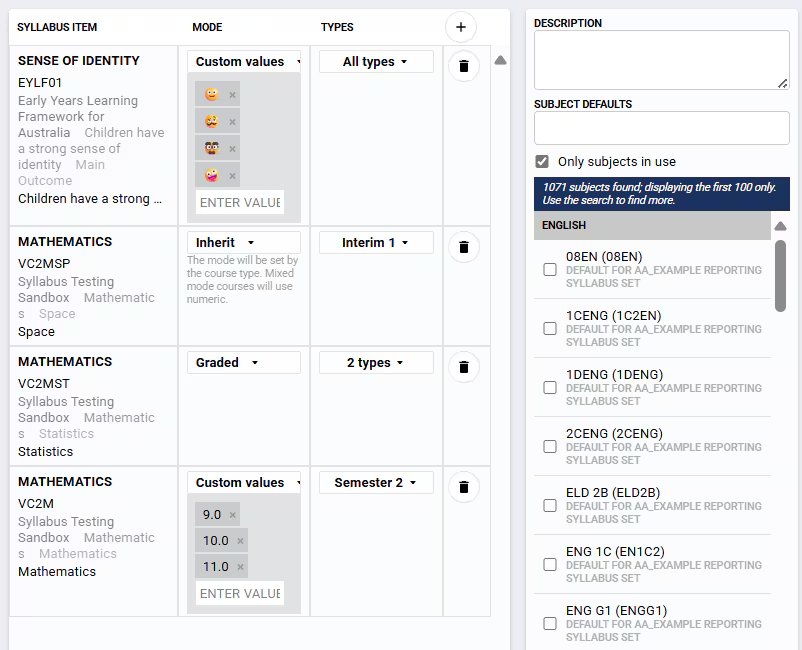
Each syllabus item is assigned a Mode which determines which types of values can be entered into the syllabus columns in the Reporting section (purple columns) of the Marks book. The use or visibility of each item can also be controlled by the Report types chosen in the Types column.
Please note that Reporting syllabus for VET courses does not support the RSVET export.
Syllabus items are drawn from syllabus available to SEQTA Teach. The method of marking can be set for each Syllabus item using the Mode column.
Mode
The following are the modes available and what they mean:
- Inherit - The values will be inherited from the course type cutoffs in use by the programme. This is the default behaviour.
- A Grades-based course type will be set as Graded (ie: based on Cutoffs)
- A Mixed-mode or Numeric course type will be set as Numeric (recorded as a Percentage)
- Graded - The grades that are defined as the default values for the whole school.
- Numeric - Any whole number between 0 and 100.
- Custom values- Define your own values that can be used per syllabus item.
- A custom set of values unique to this Reporting syllabus set. (Custom values can include emojis)
- HINT: If you require a word descriptor that includes a space, such as "AT STANDARD" or "BELOW AVERAGE", you will need to COPY the word from your favourite editor and PASTE the value into this area.
Pressing the space bar in that area will terminate the tag word, whereas pasting the full text will allow the space to be included.
If teachers are unable to save results entered, this indicates that the values they are entering are not an accepted value for the syllabus item. Where this is the case, the teacher should be notified of what the accepted values are, or if they are set incorrectly they will need to be changed by one of the school's SEQTA Administrators with the below steps.
Admin permissions are required to confirm if this is the issue and make the required changes to correct it.
Types
By default each syllabus item is available for all Report types, but the Reporting syllabus set can be restricted to a subset of the available Report types (eg: if only available for Semester Reports it will not be available for Interim Reports).
Creating and managing Reporting syllabus sets
- Go to the Administration Workspace>Curriculum setup>Reporting syllabus.
- Select New syllabus set to create a new set, or select an existing set to make changes.
- If required enter or edit the Name.
- Enter a Description.
- Add Syllabus items, set the Mode and choose what Report types will use the Reporting syllabus set.
- Select any Subjects the Reporting syllabus is used for (listed in the right-hand pane). To search for a subject type the Class Code or Subject Name in the field under the label Subject Defaults.
- NOTE: All programmes/marks books that use that subject will be updated to use Reporting syllabus, but see the note above about restricting by Report types.
- NOTE: Only 100 subjects will be displayed at one time. Please use the Subject defaults search box to narrow down the available choices.
- NOTE: Your timetabling program might generate new subject codes when the timetable is deployed at the start of the new academic year.
- Once complete select the Enabled checkbox.
- Click SAVE.
Permissions for managing Reporting Syllabus sets
PROGS: REP SYLL Edit reporting syllabus association for programmes
ACAD: EDIT Access the Academic Reports page and Report Editor
PROGS: EDIT ALL Edit all programmes, including change and enable the Reporting Syllabus set for individual programmes
Was this article helpful?
That’s Great!
Thank you for your feedback
Sorry! We couldn't be helpful
Thank you for your feedback
Feedback sent
We appreciate your effort and will try to fix the article