TABLE OF CONTENTS
- Installing and activating a new Syllabus version
- Deactivating a Syllabus version
- Updating syllabus links in programmes, reporting syllabus sets and student plans
Go to the Administration workspace > Syllabus management > Manage syllabus.
You can search for a syllabus set by name using the search box, or use the checkboxes to filter the displayed syllabus entries.
To open a syllabus card, click on the disclosure arrow and you’ll see all the available versions listed.
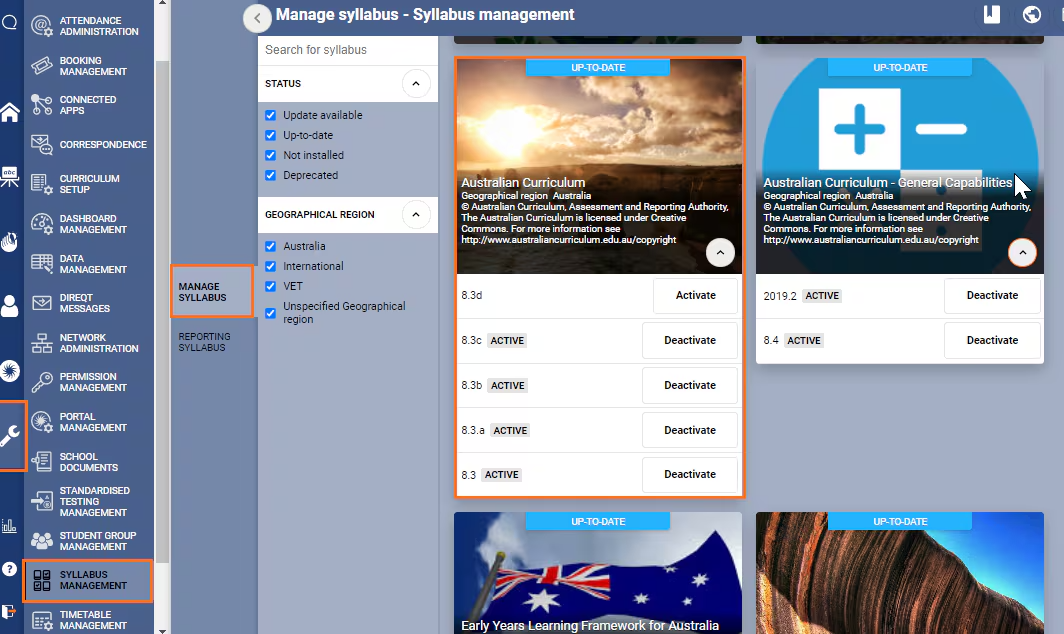
Installing and activating a new Syllabus version
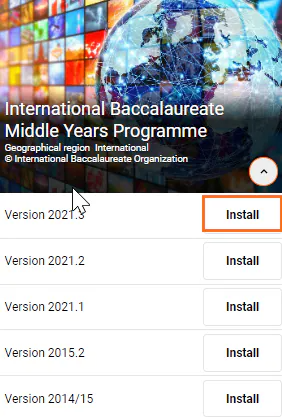
Check to ensure the required Syllabus version is installed. If it has not been installed click the most recent Install button. This downloads the version from the SEQTA syllabus warehouse server and makes it available on your SEQTA Teach server.
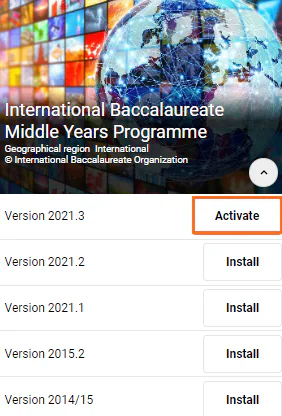
Next, select the Activate button. It’s recommended that you only activate versions which are in active use – that is, versions from which items will be inserted.
. 
Deactivating a Syllabus version
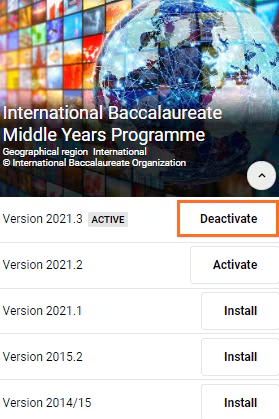
Click on the Deactivate button. Deactivating a version simply prevents the insertion of more syllabus from that version by hiding it in the Insert syllabus popup. It does not affect any syllabus entries which have already been added to a programme.
Updating syllabus links in programmes, reporting syllabus sets and student plans
When a programme, student plan, or reporting syllabus set that uses old syllabus is loaded, the system will prompt the user to Upgrade now or Remind me later. If the Upgrade now option is selected the syllabus links will be updated to the new set.

For more information, please see the following article:
Was this article helpful?
That’s Great!
Thank you for your feedback
Sorry! We couldn't be helpful
Thank you for your feedback
Feedback sent
We appreciate your effort and will try to fix the article