TABLE OF CONTENTS
- Unit Plan Template Permissions
- Creating and Managing Unit plan templates
- Creating and Managing Curriculum Mapping for Unit Plans
- Setting the Unit Plan Section Width
- Related Articles:
Unit Plan templates provide staff a frame work to assist with creating Unit Plans. Unit plans themselves are created and managed through the Programme page.
When creating Unit Plans add the sections in the order they need to be displayed in the Unit Plans as the sections cannot be reordered.
Unit Plan Template Permissions
The permissions required to manage Unit Plan templates and curriculum mapping are are follows:
- 'UNIT PLAN: PRINT MAP': Print unit plan curriculum mapping
- 'UNIT PLAN: MAN TMPLS': Manage unit planner templates
Creating and Managing Unit plan templates
- Go to the Administration Workspace > Unit Planner Administration > Manage Unit Planner Template.
- Click on an existing template to edit, or select 'New Template' and add a Title to create a new template.
- Set up the Unit Planner template as required.
- Click on the 'SAVE' button to keep the changes.
Creating and Managing Curriculum Mapping for Unit Plans
- Go to the Administration Workspace > Unit Planner Administration > Curriculum Mapping.
- Select the 'Unit Plan Template', 'Timetable Period' and 'School Year' from the drop-downs at the top of the page. Alternately, set the timetable period and school year to 'None' (optional) and use the search box to find the template.
- Select the required Mapped Fields and click 'SAVE'.
Setting the Unit Plan Section Width
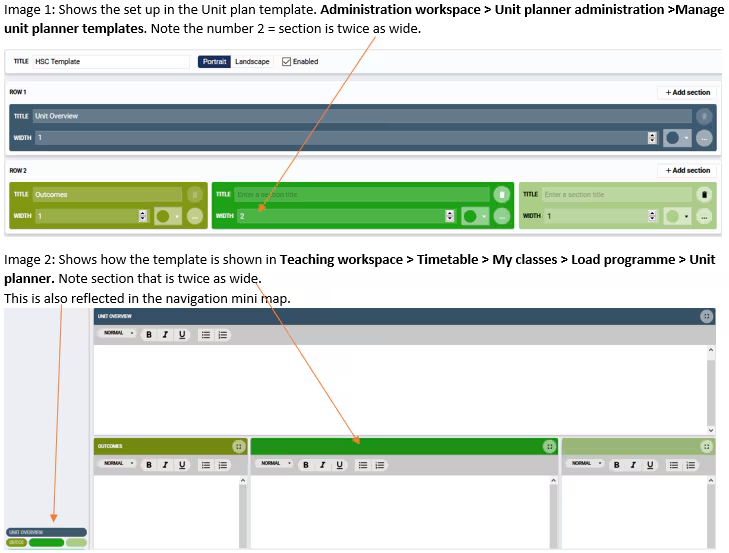
The width setting in the Unit Plan Template correlates to the amount of room the section takes up across the page, when viewed on the screen and in the printout. '1' is the default, if this is changed to '2' then it will be twice as wide.
Related Articles:
Was this article helpful?
That’s Great!
Thank you for your feedback
Sorry! We couldn't be helpful
Thank you for your feedback
Feedback sent
We appreciate your effort and will try to fix the article