Viewing, editing and deleting Pastoral care notes
Pastoral care notes can be edited and deleted through the Student summary page, under the sub-pages In detail and Qualitative analysis.
We don't recommend editing PC notes unless there is an error. Because the PC notes are date/time stamped, editing a note after it's created breaks the time sequence. This can lead to confusion and incorrect responses when viewed later or by others. We believe it is better to create a new note, and in that the writer can refer to the previous entries. This can become quite important if the school records are ever requested for legal reasons. Similar reasons apply to the deletion of PC notes.
Pastoral care permissions for edit and delete
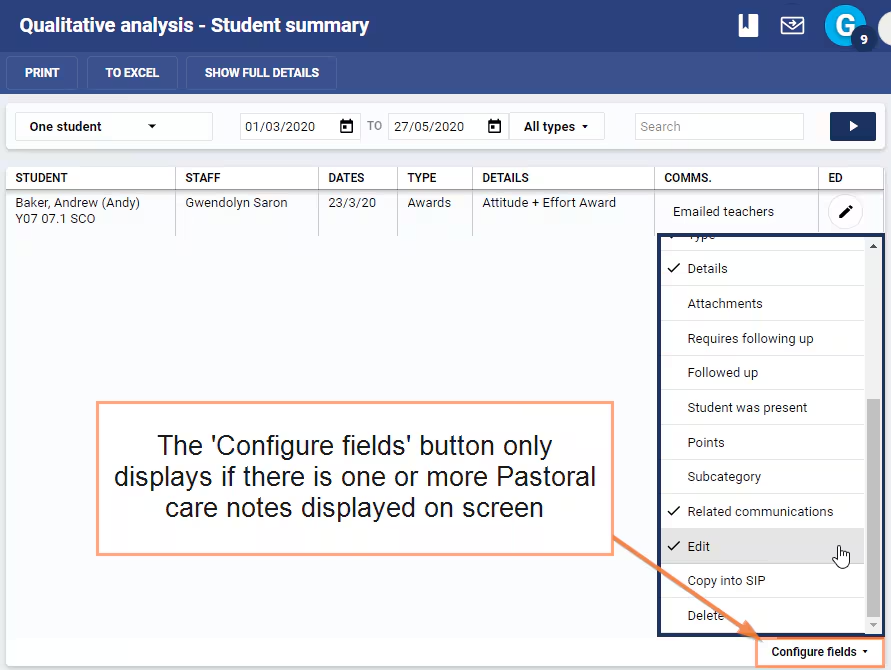
The permission PC: EDIT ALL (edit all Pastoral care notes that can be seen) is required for the edit and delete options to be available under the Configure Fields button. Click here for a full list of Pastoral Care Permissions.
Enabling the edit and delete options
- Go to the Pastoral care workspace>Student summary>Qualitative analysis/In detail.
- Use the filters at the top of the page to display the Pastoral care notes.
- The Qualitative analysis page will only display records after the Play button is clicked (top-right corner)
- Click on the Configure fieldsbutton in the bottom-right corner. If this does not display complete step 2 above.
- Configure fields will only appear when records are displayed
- Tick Edit and Delete.
Editing Pastoral care notes
Pastoral care notes can only be edited by staff with the permission PC: EDIT ALL (to edit other staffs note).
Some fields are locked and cannot be edited (eg: Staff, Student). Where this is the case a new note will need to be created and the old one deleted. The Copy into SIP option may save time with this process.
- Go to the Pastoral care workspace>Student summary>Qualitative analysis/In detail.
- Select people in the drop-down in the top left corner of the Qualitative analysispage if wanting to select notes by staff or students.
- In detail can only filter for a single student at a time.
- Set the date range or leave as default.
- Select All types to filter results or leave as All types. None and All have the same effect!
- In detail cannot filter for Types.
- Click on the Play button (white arrow with blue background) in the top-right corner to load the Pastoral care notes.
- In detail will display the notes immediately.
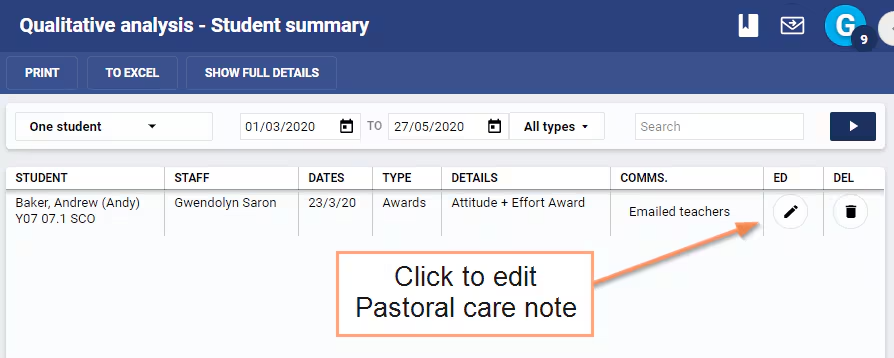
- Click the Edit pencil icon to make changes (the column is labelled ED). If the Edit icon does not display, click the Configure fields button and select Edit.
- Click Save.
Deleting Pastoral Care Notes
- Go to the Pastoral care workspace>Student summary>Qualitative analysis/In detail.
- Select people in the drop-down in the top left corner of the Qualitative analysispage if wanting to select notes by staff or students.
- In detail can only filter for a single student at a time.
- Set the date range or leave as default.
- Select All types to filter results or leave as All types. None and All have the same effect!
- In detail cannot filter for Types.
- Click on the Play button (white arrow with blue background) in the top-right corner to load the Pastoral care notes.
- In detail will display the notes immediately.
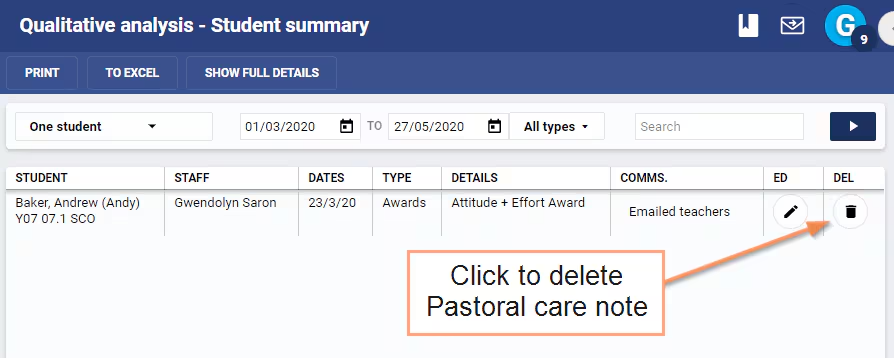
- Click the Delete bin icon to make changes (the column is labelled DEL). If the Edit icon does not display, click the Configure fields button and select Delete.
- If required, tick the Email coordinators checkbox
- Select Yes.
Viewing and Printing Pastoral Care Notes
- Go to the Pastoral care workspace>Student summary>Qualitative analysis/In detail.
- Select people in the drop-down in the top left corner of the Qualitative analysispage if wanting to select notes by staff or students.
- In detail can only filter for a single student at a time.
- Set the date range or leave as default.
- Select All types to filter results or leave as All types. None and All have the same effect!
- In detail cannot filter for Types.
- Click on the Play button (white arrow with blue background) in the top-right corner to load the Pastoral care notes.
- In detail will display the notes immediately.
- If there is too much text in the row click Show full details.
- Select Print or To Excel. Select Click here to access your document to download your report.
Un-Restricting Pastoral Care Notes
Pastoral care notes can only be restricted by staff with the permissions PC: EDIT ALL and PC: ALL RES. The same level of permission is required to remove a restriction.
- Go to the Pastoral care workspace>Student summary>Qualitative analysis/In detail.
- Select people in the drop-down in the top left corner of the Qualitative analysispage if wanting to select notes by staff or students.
- In detail can only filter for a single student at a time.
- Set the date range or leave as default.
- Select All types to filter results or leave as All types. None and All have the same effect!
- In detail cannot filter for Types.
- Click on the Play button (white arrow with blue background) in the top-right corner to load the Pastoral care notes.
- In detail will display the notes immediately.
- Click the Edit icon beside the note in the list. If this icon is not available select it from the Configure fields list as described above.
- Deselect Restricted.
- Click Save.