TABLE OF CONTENTS
The steps below, outline how to clear the cache for various web-browsers. While these settings are outside of SEQTA, they are sometimes used to resolve issues (i.e. a page not loading correctly).
If preferred the below steps can be completed by the school's IT department.
How to Clear the Cache in Chrome:
The cache is part of the web-browser that is used to access SEQTA and are not part of SEQTA itself. As such, the School's IT Department is best placed to assist with the steps below if required.
- Open Chrome.
- Use the keyboard shortcut <CTRL>+<SHIFT>+<DEL> (Windows).
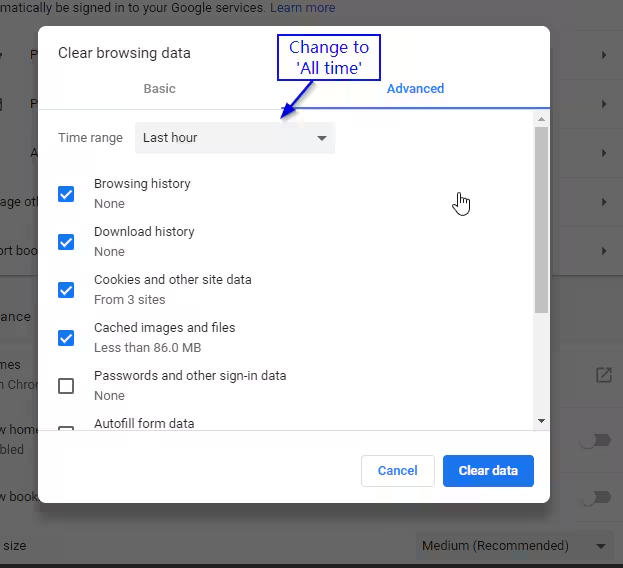
- Select the Advanced tab
- Change the 'Time range' to 'All time'.
- Tick the boxes for 'Browsing history', 'Download history', 'Cookies and other site data' and 'Caches images and files'
- Click Clear Data
- Close all Chrome windows then reopen.
How to Clear the Cache in Firefox:
- Open Firefox.
- Use the keyboard shortcut <CTRL>+<SHIFT>+<DEL> (Windows).
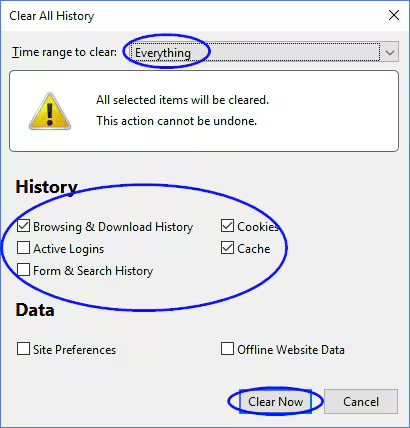
- Change the 'Time range' to clear to Everything.
- Select the options you would like to clear. Removing the history, cookies and cache will in most cases resolve any page loading issues.
- Click Clear Now.
How to Clear the Cache in Safari:
- In the top menu, choose Safari.
- Click Preferences.
- Choose the Advanced tab.
- Enable Show Develop menu in menu bar.
- Now go to Develop in menu bar.
- Choose Empty Caches.
Further Assistance
Should this not fix the issue, please submit a ticket to the SEQTA Support via the help portal.
Was this article helpful?
That’s Great!
Thank you for your feedback
Sorry! We couldn't be helpful
Thank you for your feedback
Feedback sent
We appreciate your effort and will try to fix the article