IN THIS ARTICLE
- How to clear the cache in Chrome:
- How to clear the cache in Firefox:
- How to clear the cache in Safari: Method 1
- How to clear the cache in Safari: Method 2
- How to clear the SEQTA Engage app cache on your phone
- Further Assistance
The steps below outline how to clear the cache for various web-browsers. While these settings are outside of SEQTA, they are sometimes used to resolve issues (eg: a page not loading correctly). A section on the SEQTA Engage phone app is also included.
If preferred the below steps can be completed by the school's IT department.
How to clear the cache in Chrome:
The cached data are part of the web-browser that is used to access SEQTA and are not part of SEQTA itself. As such, your school's IT Department is best placed to assist with the steps below if required.
- Open Chrome.
- Use the keyboard shortcut CTRL+SHIFT+DEL (Windows).
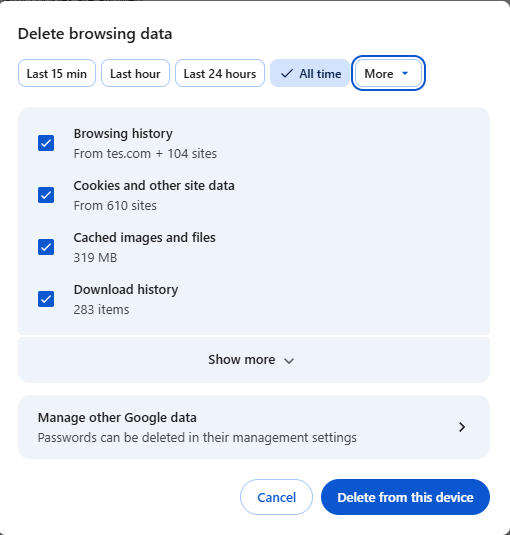
- Change the Time range to All time.
- Tick the boxes for Browsing history, Cookies and other site data, Cached images and files and Download history.
- Click Delete from this device
- Close all Chrome windows then reopen.
How to clear the cache in Firefox:
- Open Firefox.
- Use the keyboard shortcut CTRL+SHIFT+DEL (Windows).
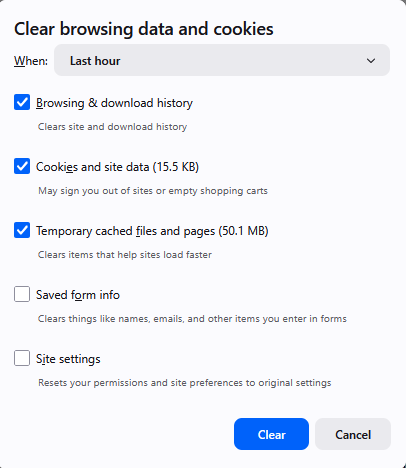
- Change the When: drop-down to Everything.
- Select the options you would like to clear. Removing the Browsing & download history, Cookies and site data and Temporary cached files and pages will in most cases resolve any page loading issues.
- Click Clear.
How to clear the cache in Safari: Method 1
This method allows you to clear caches, cookies and other browsing data on a per-website basis.
- Open Safari.
- In the top menu, choose Safari.
- Click Settings.
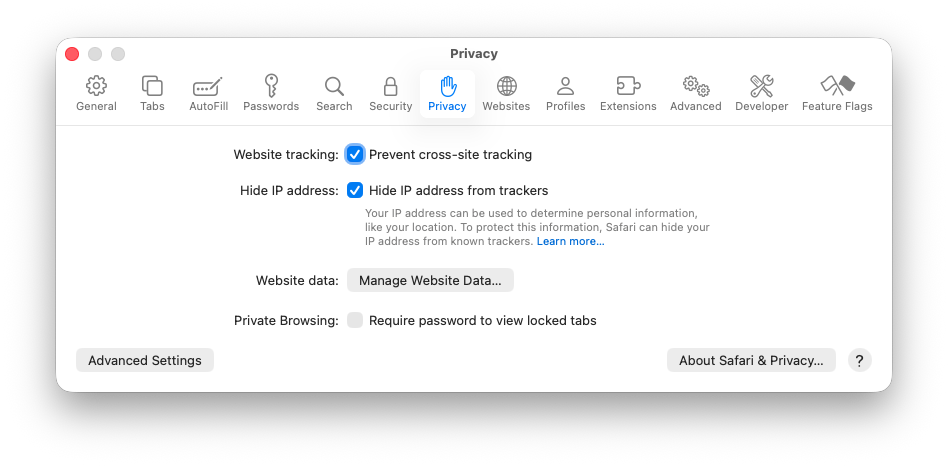
- Choose the Privacy tab.
- Click on Manage Website Data. The pop-up screen will display a list of websites. This might take a few moments to display.
- Choose the SEQTA Engage website entry. (There is a search box to make it easier)
- Click Remove.
- Click Done.
How to clear the cache in Safari: Method 2
This method clears only caches, but will remove cached data for all websites.
- Open Safari.
- In the top menu, choose Safari.
- Click Settings.
- Choose the Advanced tab.
- Select Show features for web developers.
- Close Settings.
- Now go to Develop in menu bar.
- Choose Empty Caches.
Mac shortcut: Command-Option-E.
How to clear the SEQTA Engage app cache on your phone
The simplest way to clear your phone's cached data for the SEQTA Engage app is to delete the app, and if asked, to delete the data as well. Then reinstall the app. This targets cached data for Engage only and will not affect your other apps.
Further Assistance
Should this not fix the issue, please submit a ticket to the SEQTA Support team via the help portal.
Was this article helpful?
That’s Great!
Thank you for your feedback
Sorry! We couldn't be helpful
Thank you for your feedback
Feedback sent
We appreciate your effort and will try to fix the article