TABLE OF CONTENTS
- Enabling the Student Goals Page in SEQTA Learn and SEQTA Engage
- Enabling the Option for Students to Add Notes Through SEQTA Learn
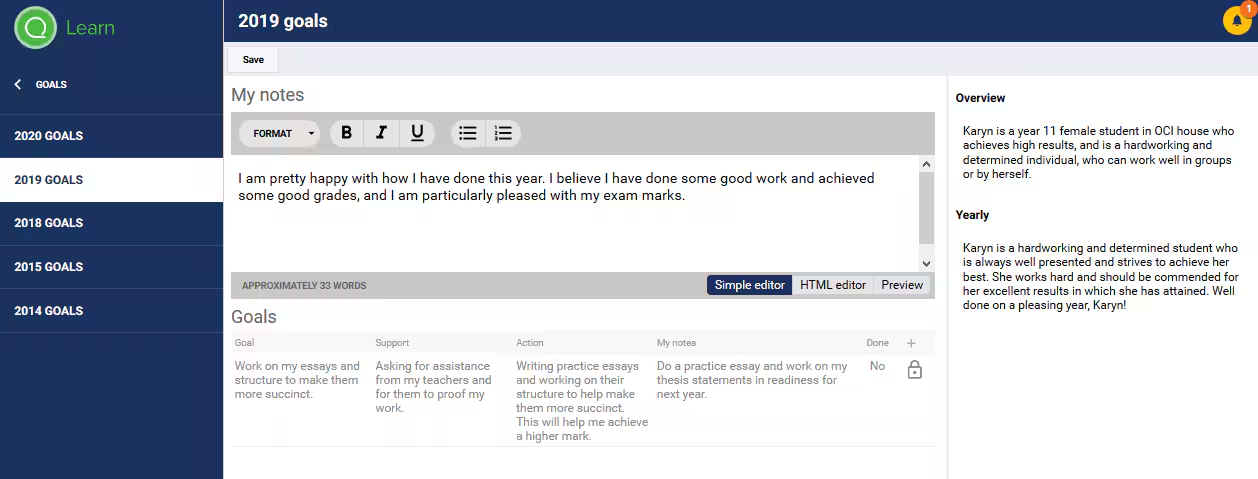
To display Student goals in SEQTA Learn and SEQTA Engage first enable the 'Student Goal Page' in 'Application Settings'. See below for steps.
Students can add a general note for the Student Goals for the year through SEQTA Learn. If enabled (steps below), notes can also be entered against individual goals.
Enabling the Student Goals Page in SEQTA Learn and SEQTA Engage
- Go to the Administration Workspace > Application Settings > Application Setting.
- In the 'Search for Settings' box type the word goals.
- Under the sub-heading 'Pages' enable or disable the setting called Goals Page. This option is available under the Categories SEQTA Learn and SEQTA Engage.
- Type in a message under 'Goals Page Message' (optional).
- Click Save.
Enabling the Option for Students to Add Notes Through SEQTA Learn
The option to add a general note for a Student Goal is always available and cannot be disabled. Whereas, the option to a note against specific goal, is only available if the option 'Student editable' is selected against that goal.
- Go the Pastoral Care Workspace > Student Goals.
- Select the student name.
- Select the applicable year from the top of the work area.
- Add at least one Student goal by clicking in the plus button.
- To enable notes for a goal select the option Student Editable.
- Click Save to keep the changes.
Was this article helpful?
That’s Great!
Thank you for your feedback
Sorry! We couldn't be helpful
Thank you for your feedback
Feedback sent
We appreciate your effort and will try to fix the article