Student goals allow schools to track students’ progress against specific educational and career goals.
Goals are created against the year. When entering or viewing goals the applicable year will need to be selected in the top-right corner.
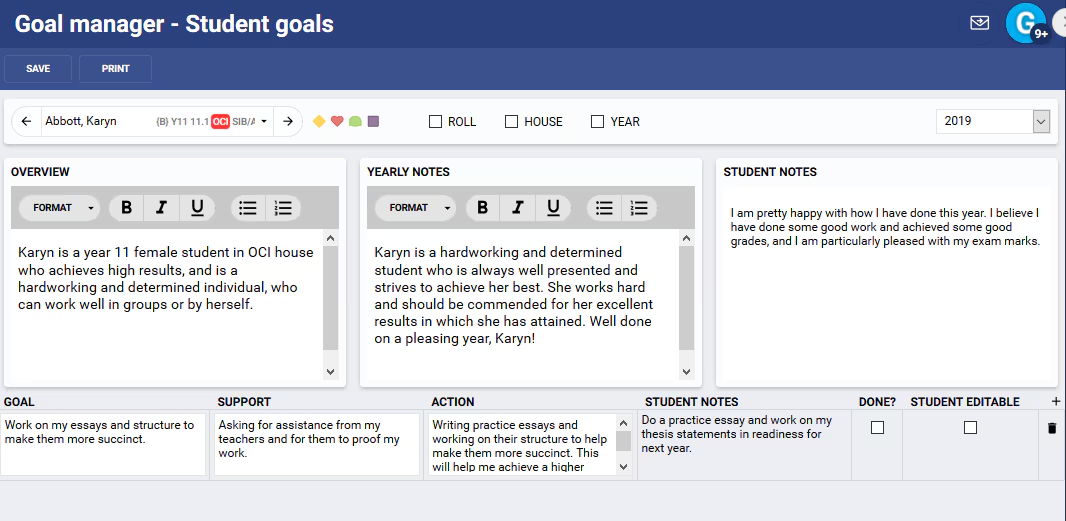
- Go the Pastoral Care Workspace > Student Goals > Goals Manager
- Select the student name. When working on the student goals page the arrow keys either side of the student name can be used to scroll through students, by roll, hour and year.
- Select the year for the Student goal in the top-right corner
- Enter or edit student's goals as required
- Enter an overview: The overview is designed to keep overall information about the student.
- Yearly Notes: The notes are designed to allow the recording of the student’s progress towards the goals, and details of meetings between the Mentor and the student.
- Student Notes: Student notes can only be created by the student through SEQTA Learn.
- Student goal table: Individual goals can be added by clicking on th3e "+" on the right-hand side.
Goal Support Action Student notes Done? Student editable The individual goal. Details of support available to achieve the goal. Details of actions that can be taken to assist with achieving the goal. Any notes entered by students through SEQTA Learn will display in this area. Indicator to distinguish completed goals from uncompleted goals. Enabling this will allow students to enter a notes against the individual goal.
- Click Save.
Was this article helpful?
That’s Great!
Thank you for your feedback
Sorry! We couldn't be helpful
Thank you for your feedback
Feedback sent
We appreciate your effort and will try to fix the article