TABLE OF CONTENTS
- Entering school values through the Student summary page
- Entering school values through the Report editor
School values can be entered through the Student summary page (General staff) or the Report editor (Admin staff). School values typically display at the end of academic reports.
At some schools the School values comments may be entered as Pastoral care notes or via the Marks book. If unsure about the correct process please contact your school's SEQTA specialist or academic reporting team in the first instance. Otherwise please contact the SEQTA Support team via the Help portal.
Entering school values through the Student summary page
- Go to the Pastoral care workspace>Student summary>In brief/Academic summary/In detail.
- Select the student's name.
- Review the students data. To view the affectives entered by teachers for subjects in the Student summary page, select Academic summary, then click on the result under Reports for the specific subject. It is possible that a report may not be available, in which case the Reports sub-heading will not appear.
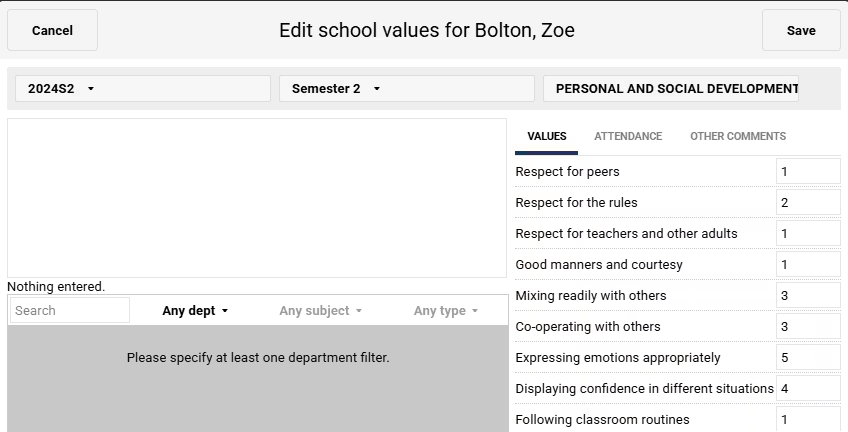
- Click the School values...button at the top of the work area. This should open the School values popup.
- On the Academic summary sub-page, look for Add school values.
- Select the applicable Timetable period, Report type and Value template. This will only need to be done for the first student after which it will be remember until the page is refreshed or closed.
- (Value templates are set up in Administration workspace>Curriculum setup).
- Enter or edit value affectives and comments as required.
- Click Save.
- Select the next student or select the arrows to the side of the student selector to step to the next student. If working with the InBrief or In Details sub-pages, students can be filtered by selecting Roll, House and/or Year checkboxes. On the Academic summary sub-page, click on the cog icon to choose House, Roll group or School year.
Entering school values through the Report editor
This method requires the Permission ACAD: EDIT which is typically granted to key staff responsible for reporting. The Permission allows the editing of all aspects of the students' reporting data (Subject Results and Comments, Attendance etc.).
- Go to the Administration workspace>Academic reports>Report editor.
- Select the student's name.
- Select the Report type and Timetable period from the drop-down at the top of the work area.
- Click Add School Values... button at the top of the page.
- Select the applicable Value template from the drop-down list.
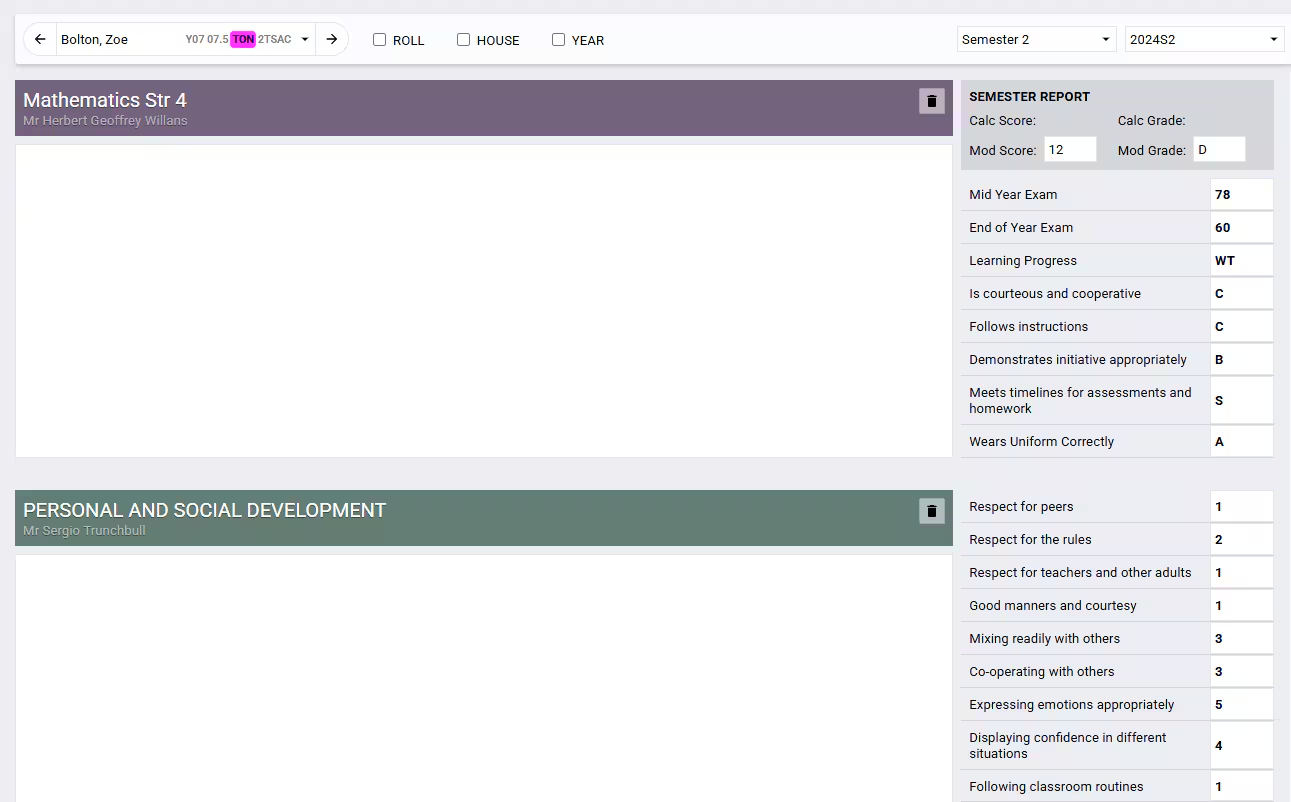
- Click OK. A new entry will be added to the list. Value template entries have a green header and appear after academic results, which display with a purple header.
- Enter or edit value affectives and comments as required.
- Click SAVE.
- Select the next student or select the arrows to the side of the student selector to step to the next student. Students can be filtered by selecting Roll, House and/or Year.
Was this article helpful?
That’s Great!
Thank you for your feedback
Sorry! We couldn't be helpful
Thank you for your feedback
Feedback sent
We appreciate your effort and will try to fix the article