TABLE OF CONTENTS
- Registering Your OneDrive Application
- Adding the OneDrive Application ID into SEQTA Teach
- Ensure Users Have Provisioned Their OneDrive Account
- Enable Popups For the OneDrive Site in Browser Setting
This article outlines the process required to set up OneDrive to integrate with SEQTA. Once this process has been completed OneDrive can be accessed through SEQTA anywhere the Add files button is available, without the need to authenticate.
Anyone with a OneDrive account can upload OneDrive files within SEQTA. However, only users with OneDrive for Business can use OneDrive to share their files within the organisation.
Registering Your OneDrive Application
1. Go to https://portal.azure.com/#blade/Microsoft_AAD_RegisteredApps/ApplicationsListBlade
2. Click on New registration.
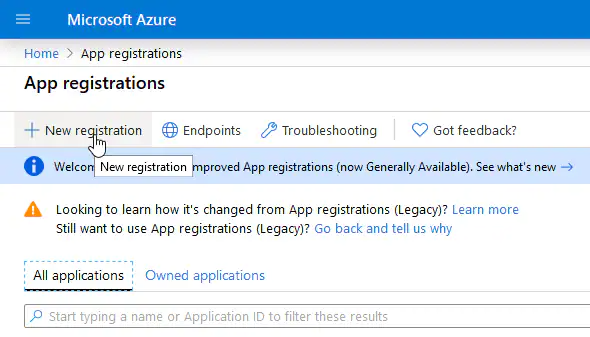
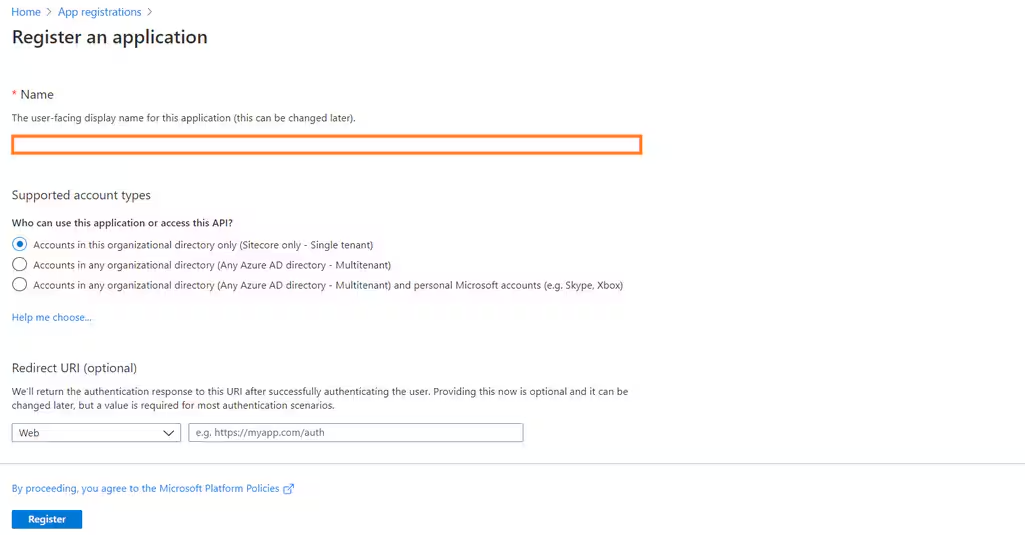
3. Enter a Name, select the supported account type and enter the Redirect URI. Then click Register.
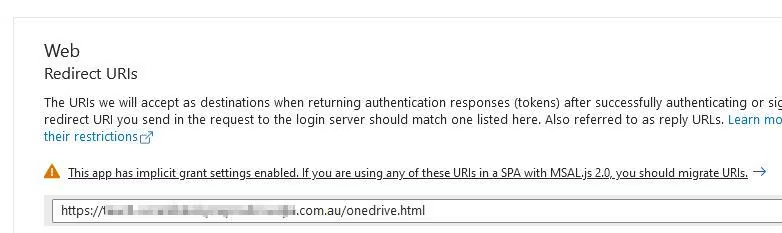
4. Click on the Redirect URIs set up to add more URIs.
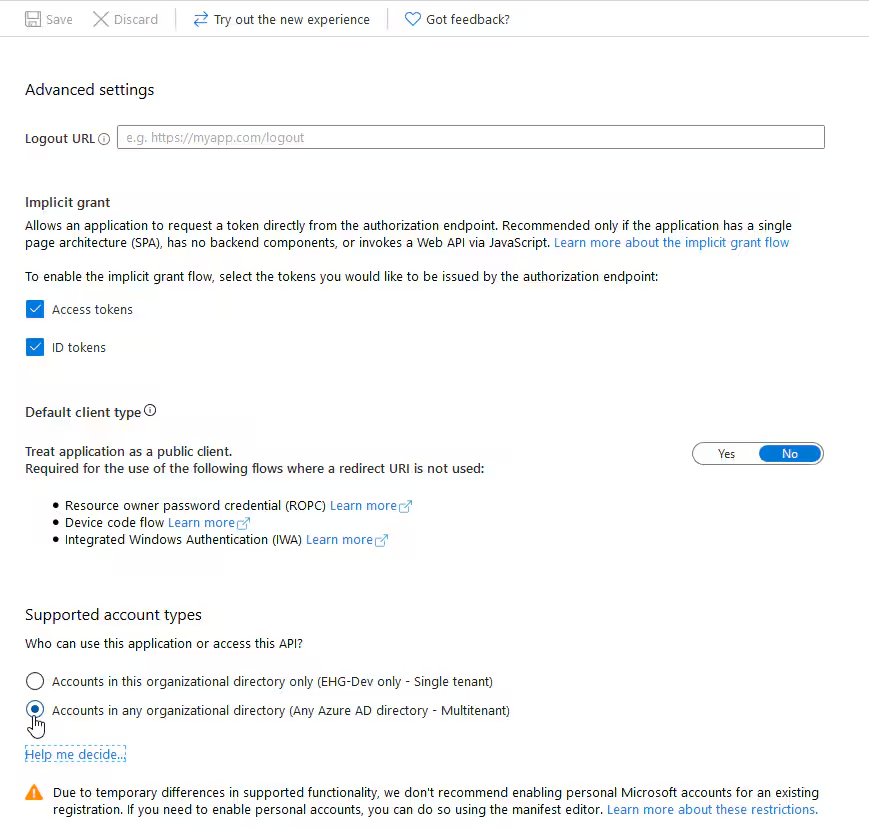
5. Add additional URLs for SEQTA Teach, and SEQTA Learn. Select Access tokens, ID token and Accounts in any organizational directory (Any Azure AD directory - Multitenant. Click Save. For more information, see Why update to Microsoft identity platform (v2.0)?
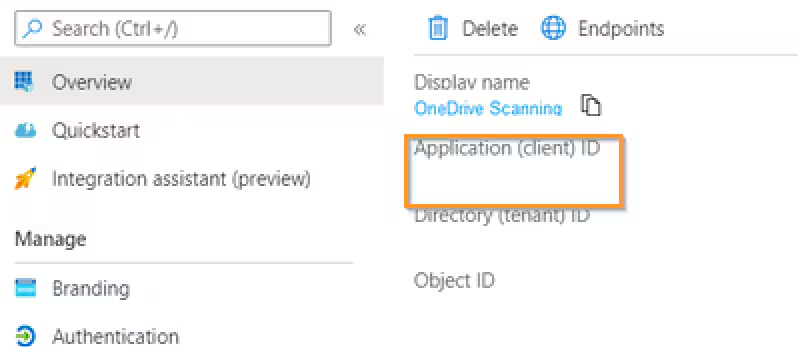
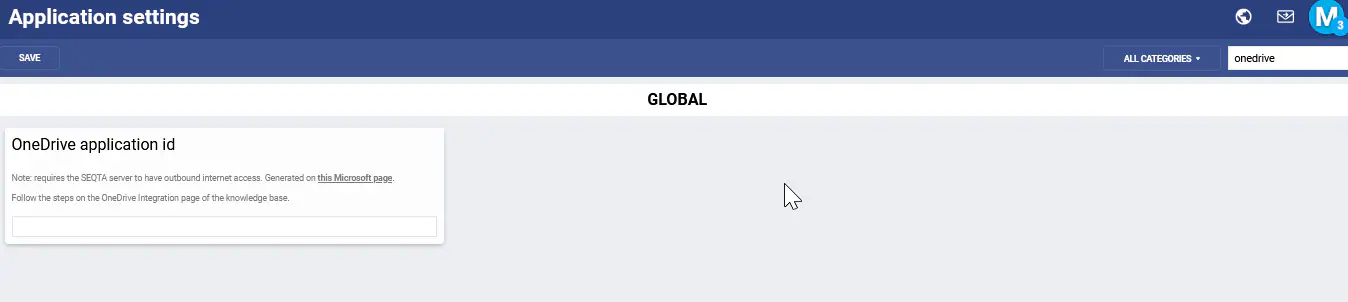
6. Note the Application (client) ID as this will need to be entered into SEQTA under Application settings:
Adding the OneDrive Application ID into SEQTA Teach
Before starting this process ensure you have the Application ID for the School's OneDrive account on hand. This can be obtained initially using the above steps. After which point it can be obtained by logging in the the Microsoft Application Registration Portal are outlined in the FAQs section below.
- Go to the Administration Workspace > Application settings > Application settings.
- Search for OneDrive (without the quotes).
- Enter the Application ID in OneDrive Application ID.
- Click Save in the top-left corner. Refresh the page then test to ensure the OneDrive integration is working.
Ensure Users Have Provisioned Their OneDrive Account
Office365 users are required to provision their OneDrive account before they can upload OneDrive files into SEQTA. This is done by logging into OneDrive (https://onedrive.live.com) to make sure OneDrive has been set up.
Enable Popups For the OneDrive Site in Browser Setting
When the OneDrive is first accessed through SEQTA, the user may need to enable popups from the site, then reload the page. In most cases, the browser will display a prompt with an Allow button.
Related pages:
Was this article helpful?
That’s Great!
Thank you for your feedback
Sorry! We couldn't be helpful
Thank you for your feedback
Feedback sent
We appreciate your effort and will try to fix the article