TABLE OF CONTENTS
- Accessing and printing staff timetables (SEQTA Teach)
- Accessing and printing student timetables (SEQTA Teach)
- Accessing and printing student timetable (SEQTA Learn)
- Accessing and printing student timetables (SEQTA Engage)
- Checking staff timetable for Calendar classes
Student and teacher timetables can be viewed by staff in various areas in SEQTA Teach. Students can view their own timetable through SEQTA Learn and parents can view their own timetable and that of their students through SEQTA Engage.
The option to print timetables is available from any area in SEQTA where a timetable displays. In addition, there are various timetable reports available in the Student summary page which are typically used by school administrators.
Calendar classes, events and appointments do not appear on any timetable printouts or reports, even if the calendar class is visible on screen.
Printing timetable reports (SEQTA Teach)
The timetable reports in the Student summary area can only be printed by staff with sufficient permissions. The steps for printing timetable reports are as follows:
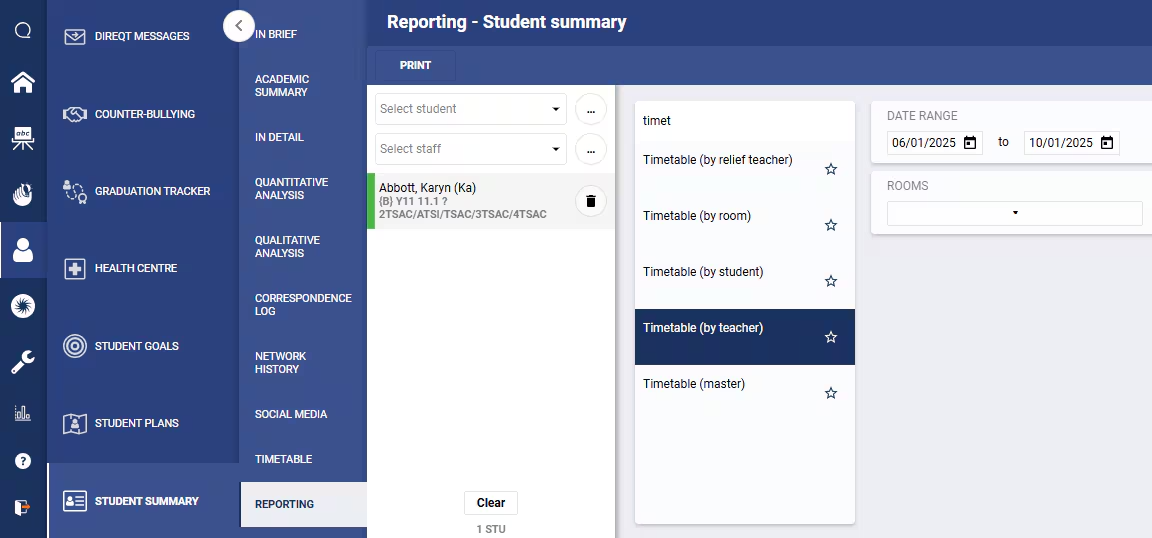
- Click on the Pastoral care workspace > Student Summary > Reporting.
- Type 'timetable' in the search box at the list of reports.
- The following reports are available. Select the report you would like to print.
- Timetable (by relief teacher) - Do not select any students.
- Timetable (by teacher) - Do not select any students.
- Timetable (by room).
- Timetable (by student).
- Timetable (master).
- Set the date-range. This should include one full cycle (eg. Mon-Fri).
- (Optional) Select the relevant rooms. If no rooms are selected, the report will include all rooms and classes with no rooms assigned.
- Click Print.
Accessing and printing staff timetables (SEQTA Teach)
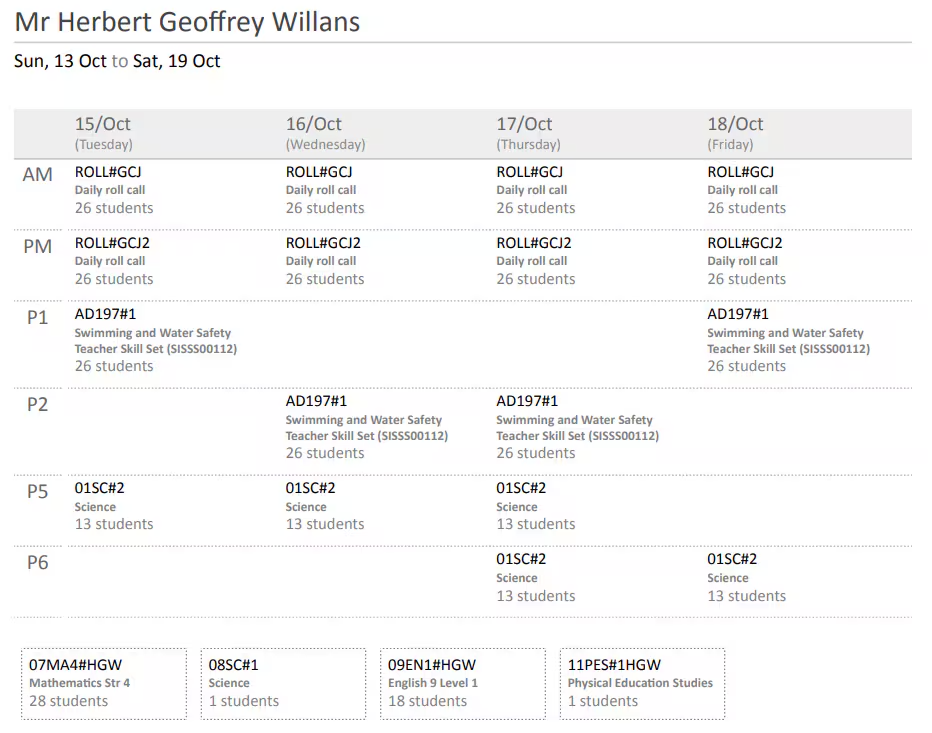
The steps for printing a staff member's timetable are as follows:
- Click on Teaching workspace > Timetable > Traditional view.
- In Traditional view, calendar classes will not display even if they are selected to display in the Options drop-down menu.
- Untimetabled classes will display in the PDF report.
- If required, change the date using the date selector or using the left and right arrows.
- If printing for another staff member, choose their name in the drop-down menu.
- Click Print if a PDF copy of the timetable is required.
Accessing and printing student timetables (SEQTA Teach)
The steps for accessing and printing student timetables via the SIP are as follows:
- Select the student in the Student information pane (SIP) on the right-hand side.
- Click the View timetable button
 .
. - The current day's timetable is displayed by default. Use the date-selector to change the date or click on Show full week icon
 to display an entire week. The print option is available for both views.
The steps for accessing and printing student timetables through the Teaching workspace are as follows:
- Click on Teaching workspace > Timetable > Student.
- Select the student name
- To access additional student timetables change the student name, or use the left and right arrows next to the student name. If required, select the checkbox to filter by Roll, House or Year.
- If required change the date using the date selector or using the left and right arrows.
- Click Print if a PDF copy of the timetable is required.
Accessing and printing student timetable (SEQTA Learn)
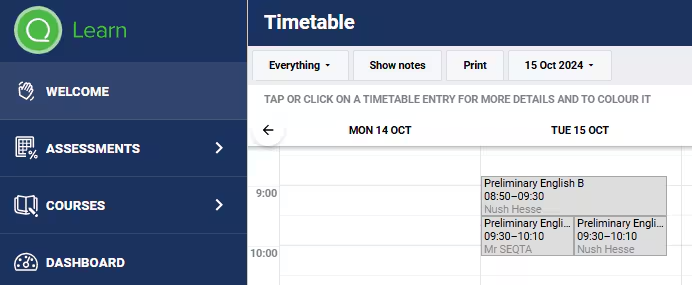
- Log in to SEQTA Learn (staff can use the Masquerade button under the student name in the SIP to masquerade as a student).
- Select the Timetable option from the left-menu. The timetable will then display. If required change the date to display a different week.
- Click Print if a PDF copy of the timetable is required.
Accessing and printing student timetables (SEQTA Engage)
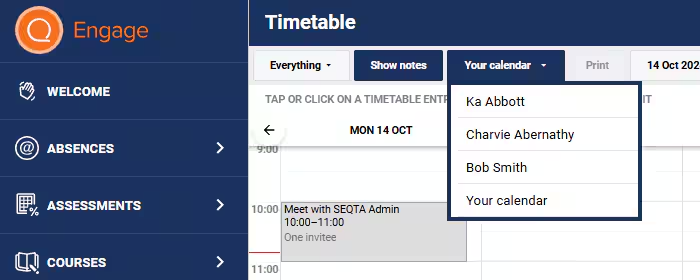
- Log in to SEQTA Engage (staff select the SEQTA Engage icon next to the parent name to Masquerade as a Parent in SEQTA Engage).
- Select the Timetable option from the left-menu. The parent timetable will then display.
- If required, change the date to display a different week.
- Parents are not enrolled in classes however the timetable will display any Events or Appointments the parent is scheduled to attend, but these are not able to be printed.
- To display their student's timetable, click on the drop down at the top of the page and select the student name.
- Click Print if a PDF copy of the timetable is required.
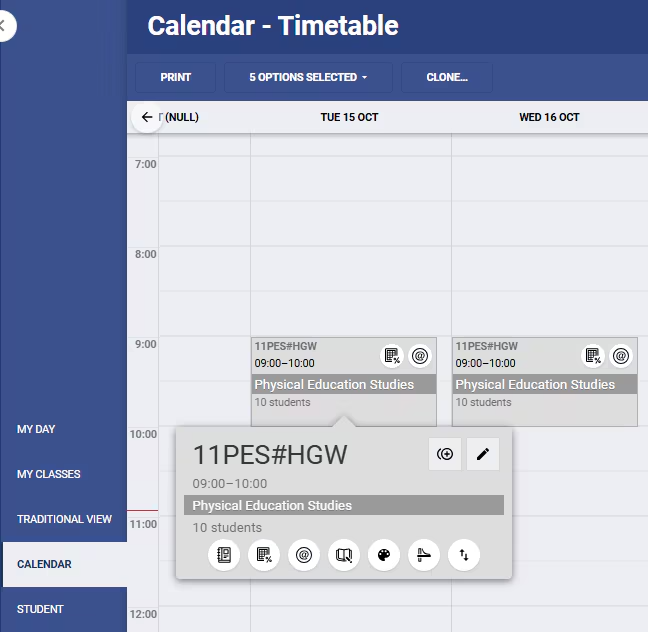
Checking staff timetable for Calendar classes
- Click on the Teaching workspace > Timetable > Calendar.
- Select the teacher name in the top-right corner.
- If required, change the date using the date selector or using the left and right arrows.
- In the top-left corner under Options selected, select Calendar classes from the drop-down. The classes should then display on the timetable.
- Clicking on Print will not show Calendar classes in the PDF. If the week view only contains Calendar classes then you will get an error message.
Was this article helpful?
That’s Great!
Thank you for your feedback
Sorry! We couldn't be helpful
Thank you for your feedback
Feedback sent
We appreciate your effort and will try to fix the article