TABLE OF CONTENTS
Rubrics are used in education as scoring guides and are used to evaluate the quality of students' assessments. Teachers can create, use, manage and re-use rubrics providing they have the required Rubrics Permissions.
- Go to the Teaching workspace>Timetable>My day/My classes/Traditional view/Calendar.
- Click on the Load programme icon for the class.
- Select Overview of assessments and select an assessment or create a new one.
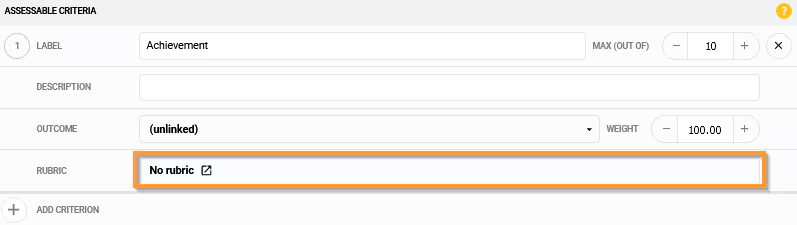
- Under Assessable Criteria>Rubric click to select the No rubric button
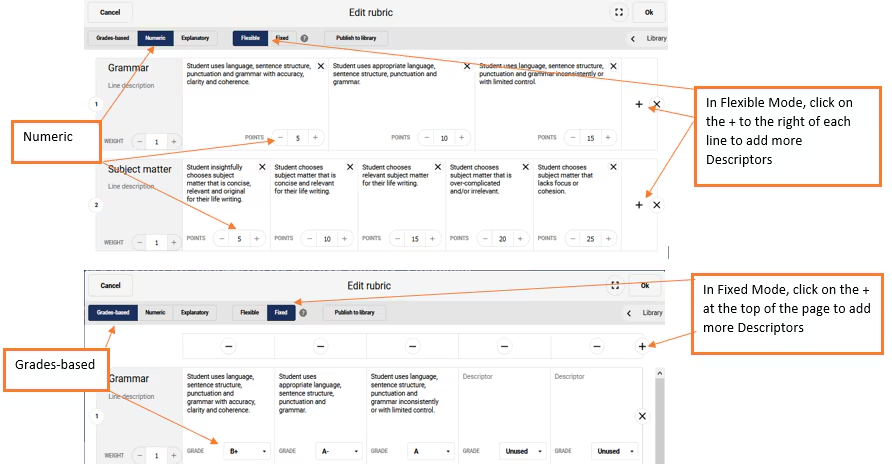
- In the toolbar, select your Marking Mode and Layout Mode. See the linked article or the section below for more information.
- Click on the + Add a Rubric Line at the bottom of the screen to add a new line.
- Type in the Line Label.
- Click the + button on the right-hand side to add more descriptor boxes.
- Enter your descriptions.
- Enter the marks, grades or explanations as required.
Marking Mode Setup and Rubrics
The system will automatically convert the results in the appropriate format when using Grades-based rubric in a marks-based assessment, or, a Marks-based rubric in a graded assessment.
Assessment Setup - Available Marking Mode
- Grades-based
- Numeric
- Explanatory: This rubric does not automatically calculate a score
Layout Mode
- Flexible: Each line can have as many descriptors as you like
- Fixed: Each line has the same number of descriptors
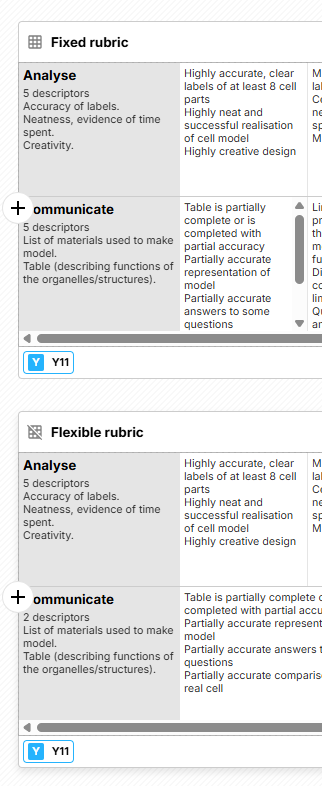
- NOTE the different icon when seen in the Rubric library
Was this article helpful?
That’s Great!
Thank you for your feedback
Sorry! We couldn't be helpful
Thank you for your feedback
Feedback sent
We appreciate your effort and will try to fix the article