Once a Rubric has been created for an assessment, it can be published to the Library and made available for private or public use. It is recommended that a school-wide naming convention be used when entering the Title.
The option to publish Rubrics to the Library is dependent on the staff member's level of permissions.
- Go to the Teaching workspace>Timetable>My day/My classes/Traditional view/Calendar.
- Click on the Load programme icon for the class.
- Select Overview of assessments and select an assessment or create a new one.
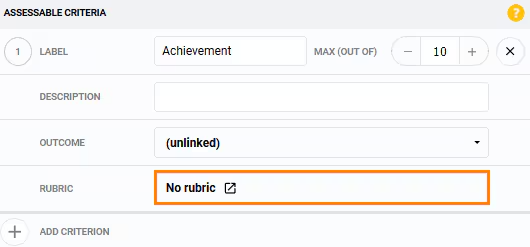
- Under Assessable criteria>No rubric, click to select the button to create a new one.
- Add a rubric line(s) and descriptors as needed.
- Alternatively you can select a rubric from the Library to use as the basis for a new one.
- When you have completed the rubric setup, click the Publish to Library button.
- Enter a Title, select applicable Departments (optional), Years (optional), Tags (optional) and Syllabus (Optional). If you have permissions, you can toggle on the Public button to allow other staff access the rubric.
- Select Publish, then click Ok.
- If you wish to save the rubric to the assessment criterion, click the Save button in the top-left corner. If not, refresh/reload the browser page. The Rubric will still be published in the Library even if the assessment is not saved.
Related articles:
Was this article helpful?
That’s Great!
Thank you for your feedback
Sorry! We couldn't be helpful
Thank you for your feedback
Feedback sent
We appreciate your effort and will try to fix the article