TABLE OF CONTENTS
- Embedding a ClickView video into SEQTA Creator (Windows)
- Embedding ClickView Playlist into SEQTA Creator (Windows)
- Removing ClickView videos (Windows)
- Embedding ClickView videos and playlists (Mac)
Introduction
ClickView videos and playlists can be embedded into online lessons and Portal pages using the Clickview, Legacy and External web content modules as well as the SEQTA editor.
This article contains the following sections:
- Embedding a ClickView video into SEQTA Creator (Windows)
- Embedding ClickView Playlist into SEQTA Creator (Windows)
- Removing ClickView videos (Windows)
- Embedding ClickView videos and playlists (Mac)
Embedding a ClickView video into SEQTA Creator (Windows)
- Access SEQTA Creator (available in Online lesson's or Portal pages)
- Click-drag the ClickView module onto the palette. Alternatively, click-drag the Legacy module > select Insert > Clickview
- Select the button Browse ClickView Library
- If prompted log into ClickView
- Navigate to the video to be added then select it. Next, click Ok
- Select Autoplay video if wanting the video to play automatically when viewed
- Click Apply
Embedding ClickView Playlist into SEQTA Creator (Windows)
- Log into ClickView independent of SEQTA
- Select Playlist option from the top menu
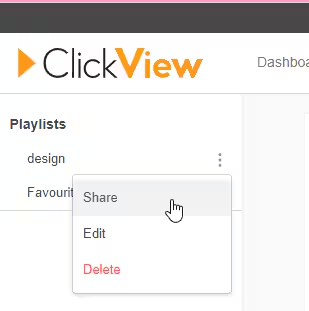
- Click the More button (three vertical dots) then select Share
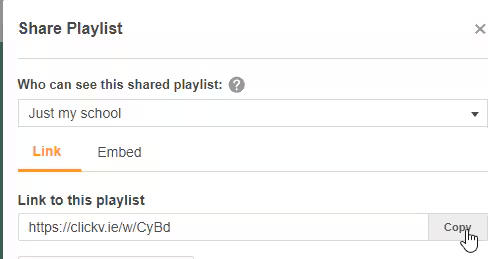
- Select Copy
- Access SEQTA Creator (available in Online lesson's or Portal pages)
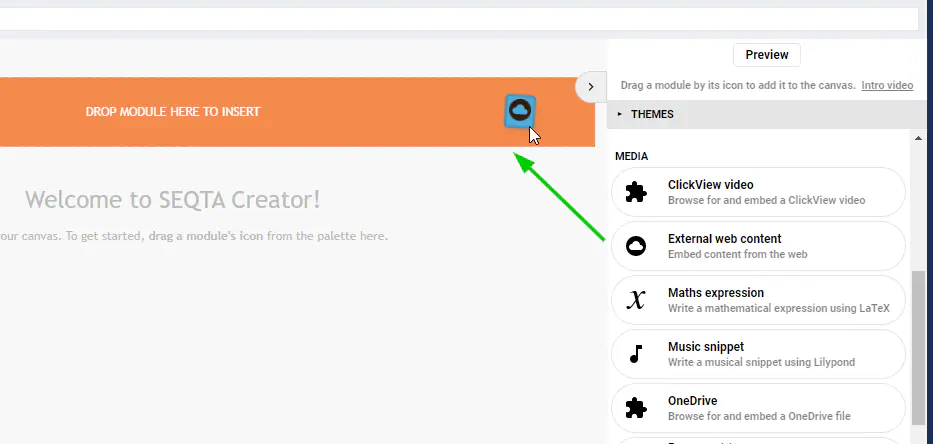
- Click-drag the External web content module onto the palette. Alternatively, click-drag the Legacy module > select Insert > Web content
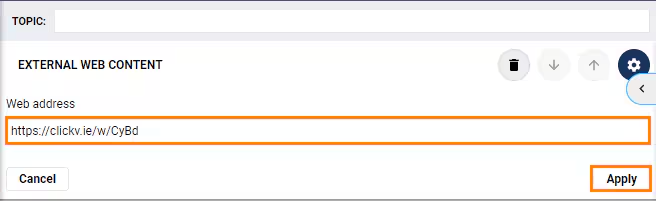
- Paste the copied link in the 'Web address' field and click Apply
Removing ClickView videos (Windows)
- View module: Select the Bin icon on the top of the ClickView Module
- External Web Content: Select the Bin icon to delete the External Web content module.
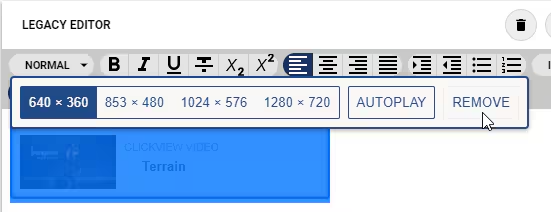
- In the Legacy editor select the place holder for the Clickview video > select Remove
Embedding ClickView videos and playlists (Mac)
Safari does not allow ClickView video embedding using the ClickView module or the SEQTA Editor 'ClickView' option. Rather, the share link must be obtained from ClickView and added into SEQTA's 'External web content' module, or the SEQTA Editor 'Web content' option.
Was this article helpful?
That’s Great!
Thank you for your feedback
Sorry! We couldn't be helpful
Thank you for your feedback
Feedback sent
We appreciate your effort and will try to fix the article