TABLE OF CONTENTS
- Enrol and Unenrol
- Backdating Student Enrolments using the 'Effective Date'
- Checking Student Enrolments are Correct
- Roll Classes and Roll Groups are separate
This article outlines the process for enrolling and unenrolling students from internally managed classes (ie: classes managed directly in SEQTA, not via sync from timetabling or administration software).
It is not possible to view which students are enrolled in a class through the Timetable management page. Go to the 'Teaching Workspace' on the 'Timetable' sub page and click on the "@" symbol on the class to check enrolments instead.
Enrol and Unenrol
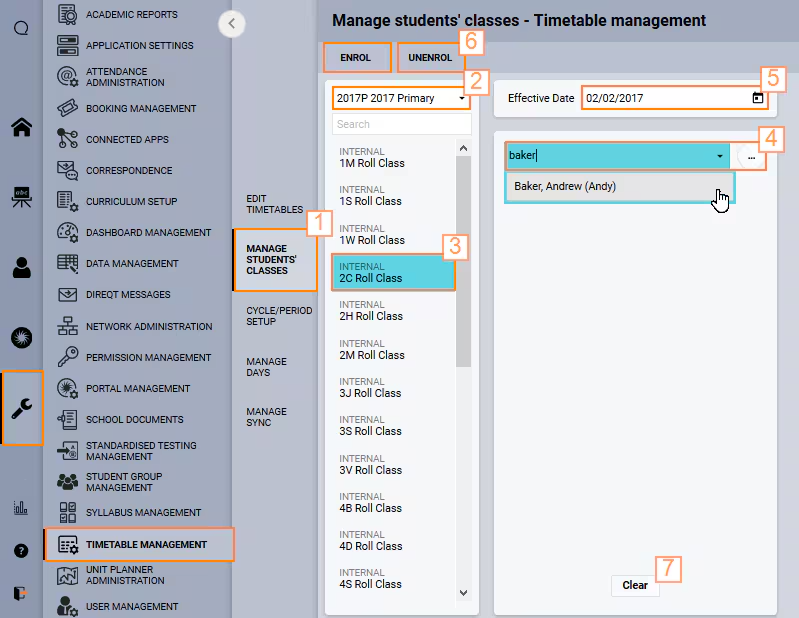
Go to Administration Workspace > Timetable Management > Manage Students' Classes.
Select the applicable Timetable Period from the drop-down list.
Select the Class or Classes you wish to enrol the student (or students) into. The class should be labelled as 'Internal'.
Select the student or students that need to be enrolled.
IMPORTANT: Set the Effective Date. When enrolling this will be the first day the student will be attending classes. If unenrolling this will be the first instance of the class the student does not attend.
Select Enrol > OK to enrol the student into the selected classes. Alternately, select Un-enrol > OK to remove a student from the selected classes.
If additional enrolment changes are required select Clear to remove the students from the list (button at bottom of the student selection column). Deselect any selected classes, then continue with steps 3-7 until all the enrolment changes have been completed.
Backdating Student Enrolments using the 'Effective Date'
The 'Effective Date' can only be used to backdate changes when the student is initially enrolled or unenrolled from the class.
Checking Student Enrolments are Correct
Student enrolments cannot be viewed through the Timetable management page. Rather, they show only on the teacher's and student's timetables.
If you have only just enrolled (or un-enrolled) a student from a class, refresh/reload the page then continue on to step 2 below. If a large number of student changes were made you might need to wait a couple of minutes for the database changes to take effect and be displayed in the interface.
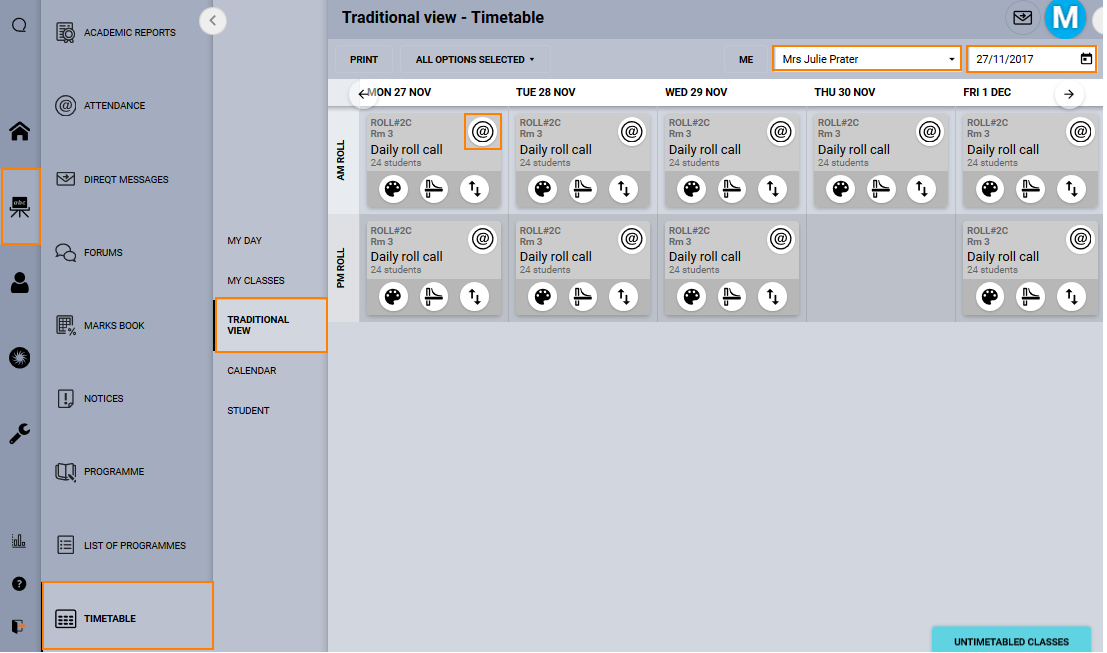
Go to the Teaching Workspace > Timetable > Traditional/Calendar/My Classes.
If working on behalf of another teacher select their name in the top-right corner.
If required change the date so the class shows on the timetable.
Click on the Attendance icon for the class.
The student should appear on the Attendance roll. Grey stripy lines display to indicate the student was not enrolled in the class for those dates.

Roll Classes and Roll Groups are separate
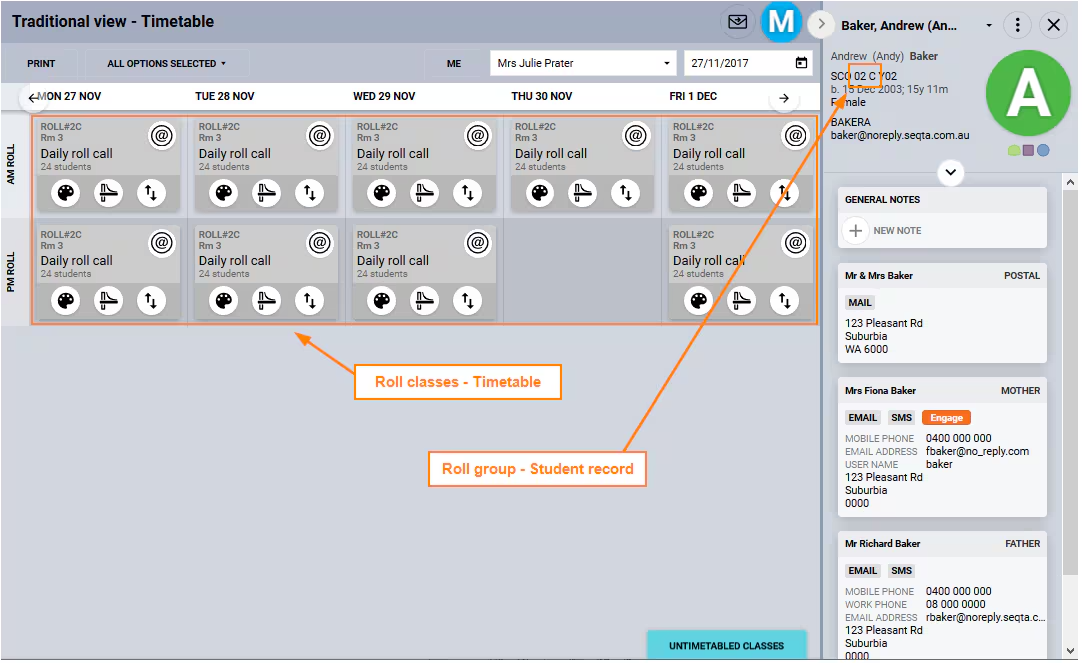
Assigning a student record to a Roll group will not enrol or un-enrol the student from internally managed Roll classes. They are separate from and work independently to each other. Therefore it is possible to accidentally enrol a student in a class that is not the one shown in their student record, so care needs to be taken with student selection. The ellipsis button (...) at the top of the student selection column will allow you to select students based on their Roll group.
Was this article helpful?
That’s Great!
Thank you for your feedback
Sorry! We couldn't be helpful
Thank you for your feedback
Feedback sent
We appreciate your effort and will try to fix the article