Most school's that sync data from an external system have the option to run a sync at any point. This article covers information regarding the MANAGE SYNC (NEW) profile only. This is our "new" way of syncing data, called, SYNC-NEXT.
- Go to the Administration Workspace > Timetable Management > Manage Sync (New)
- Select the appropriate Sync Profile (AOS Sync, or Edval Sync profile) you would like to run
- Select the components you would like to sync (i.e. Roll Group; Staff etc.) and any sub components (i.e Student Campus, Title, Username)
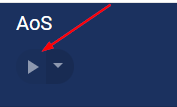
- Click on the "Play" button. This should run the sync immediately.
Click here for Sync Statuses (Sync-Next)
Was this article helpful?
That’s Great!
Thank you for your feedback
Sorry! We couldn't be helpful
Thank you for your feedback
Feedback sent
We appreciate your effort and will try to fix the article