TABLE OF CONTENTS
Enabling and Configuring the Notices Wallboard URL
Enabling the 'Notices App' provides schools with the option to access the Notices Wallboard directly via a URL without the need to authenticate. The URL for the Notices app can also be used to embed Notices in a portal page.
Security Concerns Regarding the Notices App
The Notices app does not require the user to authenticate. The user may edit the URL to view other Notices in the system, for example, they could add 'staff=true' to view the staff notices.
This must be taken into consideration before enabling the Notices app. Some options available for managing access to Notices content are as follows:
- Do not publish a public DNS record for the Notices app (this option is not 100%).
- Do not put any sensitive information in any Notices (including 'staff only' notices).
- Add a Firewall rule to prevent external access to the Notices app.
- Restrict physical access to the device serving the notices
Enabling the Notices App
For Notices to show in the Notices app the Label and Notices must meet the following conditions:
- The required DNS entries need to be added.
- The Notices app needs to be enabled in the Application settings.
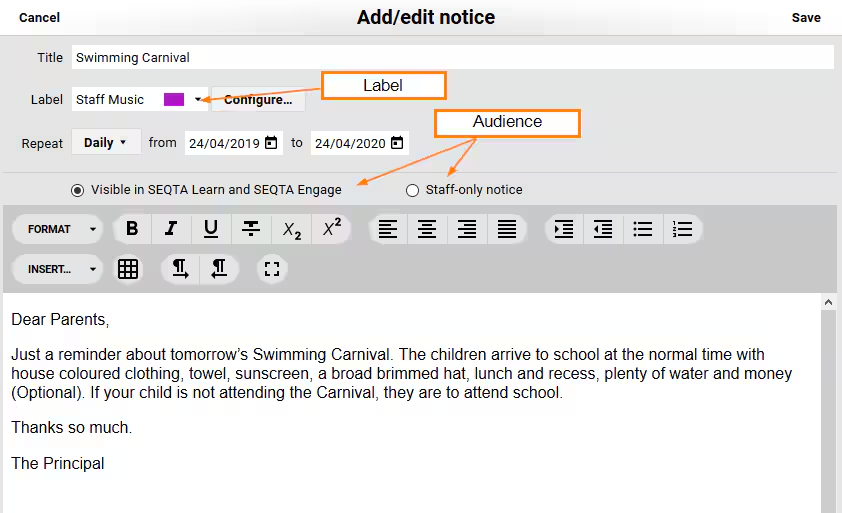
- The 'Label' assigned to the Notice needs to be unique.
Adding DNS entries
The School's IT department typically can assist with this by adding DNS entries pointing "notices.<school domain>" at the SEQTA server. This URL will need to be accessible externally if wanting people to have access outside the school network (eg: Parents).
Enabling Notices in the Application Settings
- Go to Administration Workspace > Application Settings.
- Search for the word 'notices' (without the quotes) and edit the Notices setting pane in the SEQTA Teach category.
- Select whether you would like the Notice app Enabled or Disabled.
- Click on the Save button.
- Once the Notices app is enabled, test by going to the URL directly, this will typically be https://notices.<school domain>, if this doesn't work check to ensure the DNS entries have been added.
Filtering Notices by Audience or Label
Notices can be filtered by audience or label by specifying parameters in the URL used to access Notices. If no parameters have been entered all Notices set to display to the audience Visible in SEQTA Learn and SEQTA Engage will be displayed.
For example, the below URL will display all Notices set as 'Staff Only' with the Labels 'Primary' or 'Secondary'.
https://notices.demo.seqta.com/?label=Primary,Secondary&staff=true- The characters '/?' need to be entered at the end of the Notices URL before the label and audience filters. (eg: https://notices.demo.seqta.com/?label=Primary).
- Separate the label and audience filters with an ampersand '&' (eg: label=examinations&student=true).
- If multiple labels are being used, each should be be separated with a comma ',' (eg: label=Primary,Secondary).
- To display staff Notices include the filter 'staff=true'.
- To filter out student Notices include the filter 'student=false'.
Using Spaces in Labels
Notices accept spaces in labels (eg: 'New Label'). To allow this to work the system will add '%20' (the HTML code for a 'space') when pasting the URL. However, if typing the URL directly into the address bar, the '%20' would need to be entered where the spaces are (eg: https://notices.demo.seqta.com/?label=Secondary%20school&staff=true).
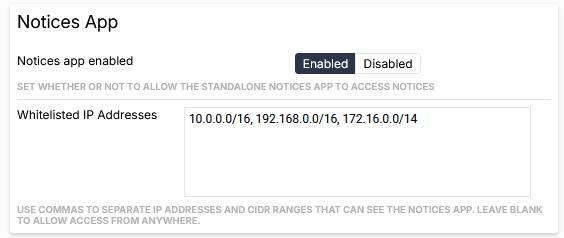
For additional protection, the Notices site (as opposed to the page embedded in Teach, Learn, Engage, & Tutor) can limit content to only be displayed from allowed IP's. In SEQTA's Application Settings (as a SEQTA Admin), search for Notices App, on the top right, filter by "notices"

and you should see the Notices App under SEQTA Teach.
Update with your internal subnet ranges:
Here we've included multiple IP ranges to demonstrate.
Was this article helpful?
That’s Great!
Thank you for your feedback
Sorry! We couldn't be helpful
Thank you for your feedback
Feedback sent
We appreciate your effort and will try to fix the article