TABLE OF CONTENTS
- Upgrade syllabus versions
Upgrade syllabus versions
When syllabus changes, your use of that syllabus needs to change, too. Often, though, the changes are mostly non-substantive – for example, wording might be tweaked without affecting the overall meaning. Sometimes, though, the changes are more comprehensive: syllabus items might be merged, split, discontinued, or added.
IMPORTANT: All syllabus sets will contain syllabus entries at the top or Item level. Some syllabus sets will also contain subsidiary entries below the Item level - these are referred to as Content. Syllabus Items can be used as an aid to teaching, and can be referenced in reports. Syllabus Content can only be added to a programme as an aid to teaching.
Upgrade syllabus per individual programme, plan or set
SEQTA makes it easy to keep up-to-date with such changes to syllabus. When you load a programme, student plan, or reporting syllabus set that uses old syllabus, you’ll be prompted to upgrade if there is a new version detected on the Syllabus Warehouse.
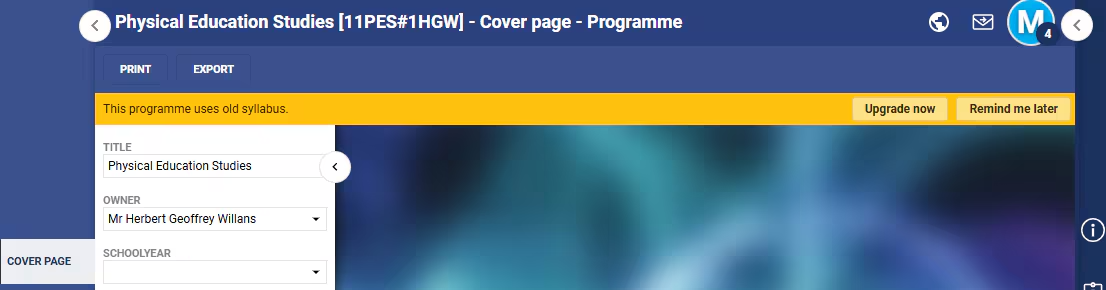
Clicking on “Upgrade now” opens the upgrade popup:
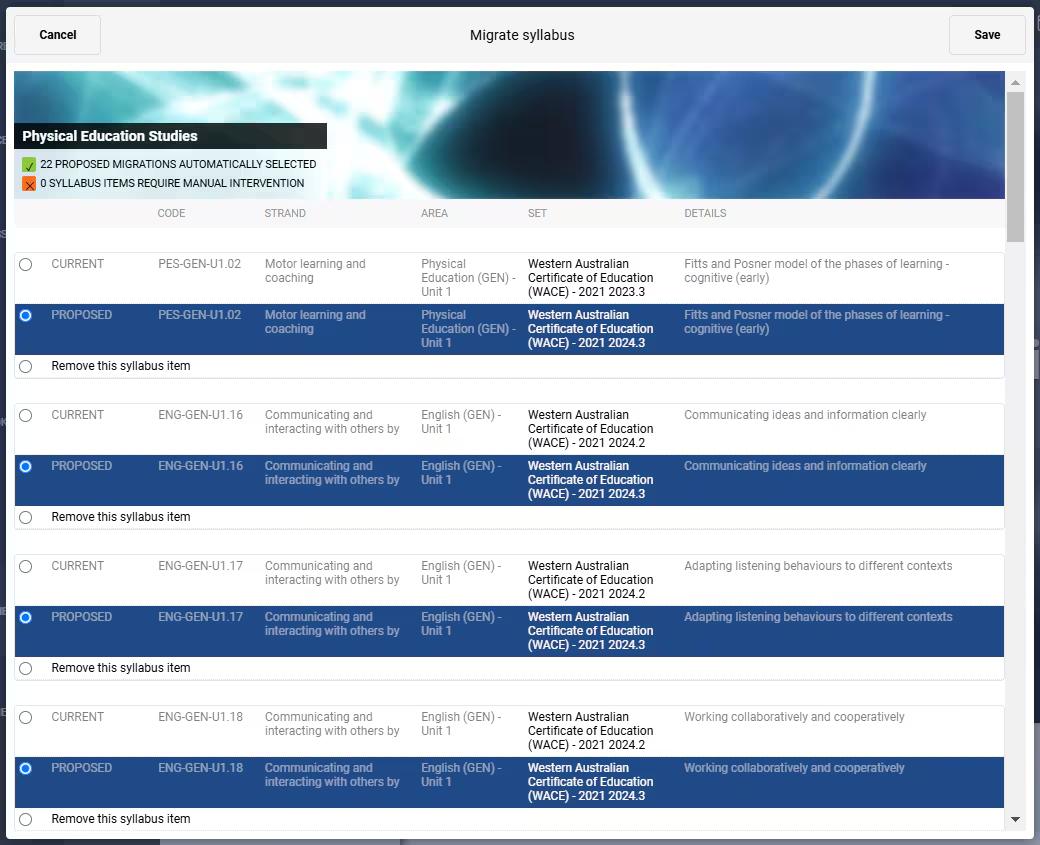
- At the top, you’ll see a summary of the migration/upgrade suggestions.
- Each syllabus Item is presented as a group, with up to three options:
- Current - Keep the current Item
- Proposed - Upgrade/migrate to the proposed Item
- If there is an upgrade path, the “proposed” Item will automatically be selected.
- Remove this syllabus item - Remove the Item entirely
- If there is no possibility to upgrade, you’ll have the choice of keeping the existing syllabus Item or removing it. You’ll see details of where the Item is used, as those are areas that you will likely need to visit and rework to accommodate the changes to the syllabus.
- Syllabus Content can also be automatically upgraded, but there are some additional constraints:
- You can only upgrade syllabus Content if the parent Item is also upgraded.
- You cannot keep the “current” syllabus Content if the parent Item is upgraded.
Upgrading in bulk
- You can upgrade multiple programmes at once from the List of programmes page by selecting the programmes you want to upgrade and clicking the Upgrade syllabus in all sets button in the toolbar.
- To upgrade all student plans at once, click the Upgrade syllabus in all plans button on the Student plans page.
- For reporting syllabus, click the Upgrade syllabus in all sets button on the Reporting syllabus page.
If you upgrade only a handful of programmes, you’ll be able to control the migration of each individual syllabus item using the upgrade popup.
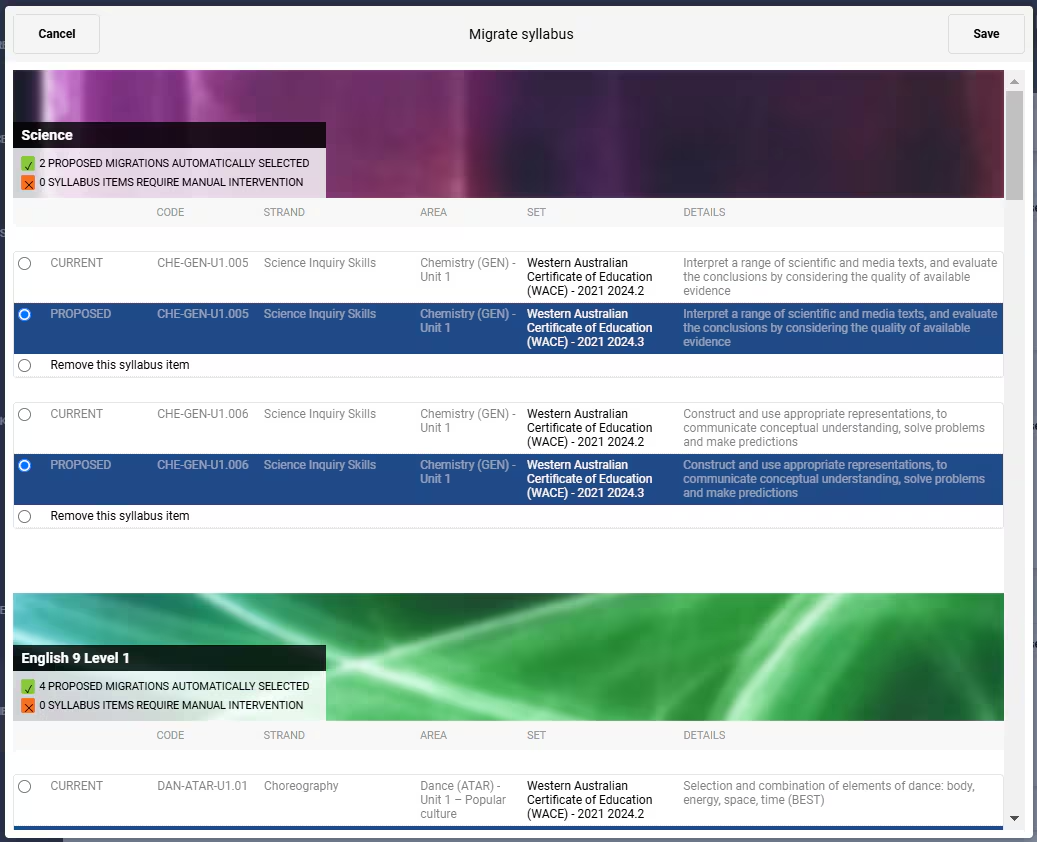
If, however, you’re upgrading more than ten programmes, you will be presented with the Bulk migrate syllabus popup:
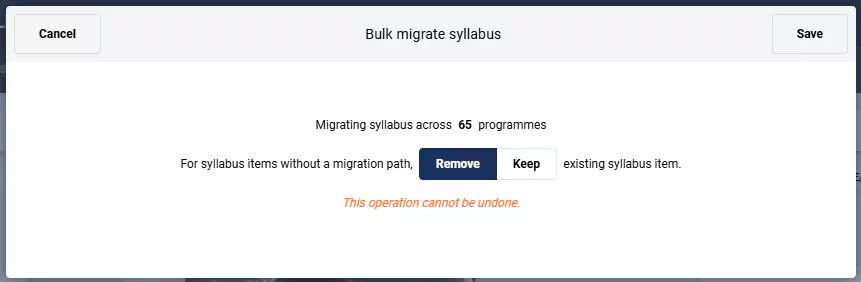
This popup allows you to choose the default action when no migration is available – Remove will unlink the syllabus Item, while Keep will ignore the bulk migrate change (ie: the Item will remain in the programme). This will happen as a background process, and you will receive a notification when it’s complete.
Permissions:
Two new permissions have been added to control access to syllabus upgrading/migration:
• SYLL: MIGR - Staff with this permission can migrate syllabus in their own programmes and student plans.
• SYLL: MIGR ALL - Staff with this permission can migrate syllabus in any programme, reporting syllabus, or student plan.
Related links:
Was this article helpful?
That’s Great!
Thank you for your feedback
Sorry! We couldn't be helpful
Thank you for your feedback
Feedback sent
We appreciate your effort and will try to fix the article