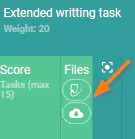
Individual Turnitin submissions do not appear in the Marks book next to the students name. Rather, they are accessed by clicking on icon at the top of the submission column. Only E-submissions and Direct online (WISP) submissions display individually for each student.
To prevent confusion when students submit work, the File upload (E-Submissions) and Direct online (WISP) submissions should be left deselected for Turnitin assessments.
- Go to the Teaching workspace > My classes
- Click on the Mark book icon for the class
- Click on the Turnitin icon at the top of the 'File' column for the assessment.
Was this article helpful?
That’s Great!
Thank you for your feedback
Sorry! We couldn't be helpful
Thank you for your feedback
Feedback sent
We appreciate your effort and will try to fix the article