TABLE OF CONTENTS
- Exceptional Day Setup Process Overview
- Steps for Setting up an Exceptional Day
- Information Specific for External Timetabler
Exceptional days are used to manage timetabling for days where the classes differ from the existing days in the cycle.
Schools that use an external timetabling system will need to create the day in the timetables system. The codes need to match those specified for the exceptional day in SEQTA.
Exceptional Day Setup Process Overview
- Create the exceptional day under Timetable Management > Cycle/Period Setup.
- Select the day under Timetable Management > Manage Days > click 'SAVE'.
- Select one of the following options:
- Externally Managed Timetables: Create a day (cycle) in the Timetabling system, ensure the cycle 'Code' in the Timetable structure corresponds that in the Timetabling system.
- Internally Managed Timetables (Timetables Managed Directly in SEQTA): Create Internally managed timetabled classes and Enroll Students.
Steps for Setting up an Exceptional Day
- Go to the Administration Workspace > Timetable Management > Cycle/Period Setup.
- Select the Timetable Period.
- Click on "+" icon from the top of the Timetable grid to add a new Cycle (Day). Enter a Cycle Name and a Cycle Code (this must be unique). If the timetable is managed in an external system the cycle code needs to match that specified for the cycle in that system.
- Tick the 'Exceptional' box.
- Enter the Period Times in the fields provided. To omit a 'Cycle/Period' click on the "X" symbol in the 'To' and 'From' fields.
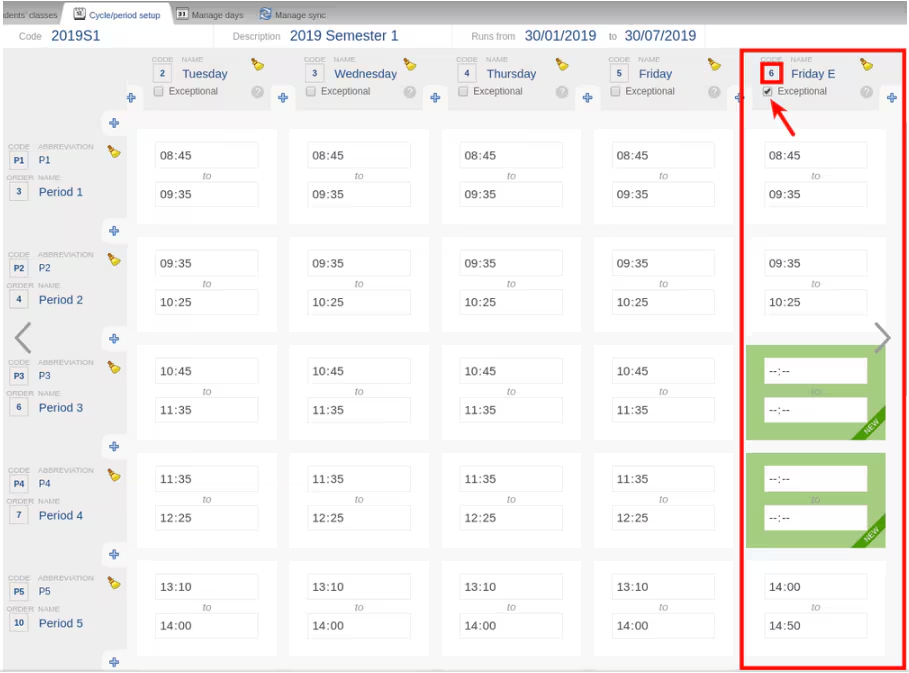
- Click 'SAVE'.
- Open the 'Manage Days' tab.
- Select the 'Timetable Period' and change the 'Cycle' to the 'Exception Day' on the date it will take place. (i.e. Friday E)
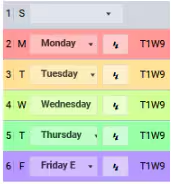
- Click 'SAVE'.
- School's with external managed timetables will need to run a SYNC to complete the process.
When the Exceptional Day is in place, the Traditional view orders by period order and not by time. To view this correctly, you will see this under the Calendar view as this is displayed by time.
Information Specific for External Timetabler
The following guidelines outline how to Sync a day with different period orders or different periods than the usual day from Timetabler (Sync UI) to SEQTA Teach.
Example: If every Friday has the periods Period 1, Period 2, Period 3, Period 4, Period 5, Period 6 but on one specific Friday, the periods for this Friday only are: Period 1, Period 2, Period 6, Period 5. Then the school will need to set up an 'Exceptional Day' for that specific Friday.
Using the example above, the steps would be as follows:
- Complete the above steps to set up the exceptional day in SEQTA Teach.
- In the TTDetail.txt file copy the lines against the original day's code (from our example this will be 5) and paste it to the bottom of the file. Then replace original day's code (from our example 5), with the code from the exceptional day (from our example 6).
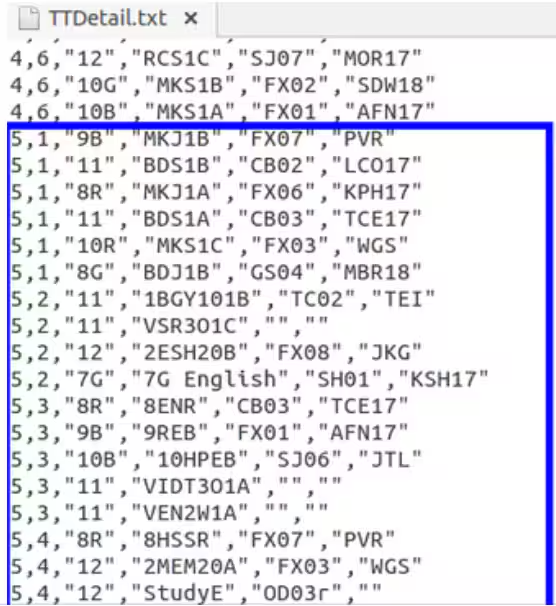
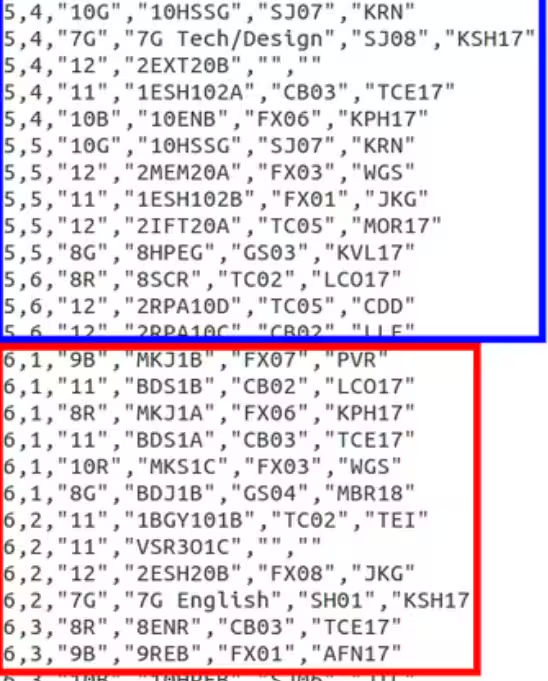
- Upload the file to Sync UI.
- Run a manual sync or wait for the overnight Sync.
>TTDetail.txt file is edited EVERY time you upload the file to Sync UI until after the date of the Exceptional Day.
Was this article helpful?
That’s Great!
Thank you for your feedback
Sorry! We couldn't be helpful
Thank you for your feedback
Feedback sent
We appreciate your effort and will try to fix the article