TABLE OF CONTENTS
- Step 1: Obtain the Shared Key and Account ID from the Turnitin Website
- Step 2: Send the Shared Key and Account ID to the SEQTA Support Team
- Step 3: Enable the Turnitin App through the Connected Apps Page in SEQTA Teach
Step 1: Obtain the Shared Key and Account ID from the Turnitin Website
- Log into your School's admin account on the Turnitin website.
- On the Dashboard, make a note of the Shared Key.
- Under the Accounts tab, make a note of the Account ID.
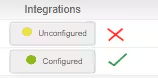
- Scroll to the right to the column called Integrations. If this displays as Configured continue on the the next step. Otherwise, click on the Unconfigured button and fill out the required fields.
Step 2: Send the Shared Key and Account ID to the SEQTA Support Team
Submit a ticket via the Help portal, with the Shared Key and Account ID to be uploaded into the School's SEQTA database. Confirmation will be sent once the keys are added.
Authorisation from the school's delegated School Education Contact is required.
Step 3: Enable the Turnitin App through the Connected Apps Page in SEQTA Teach
Once the keys have been added, enable the Turnitin app through the Connected Apps page in SEQTA Teach. The steps for this are as follows:
- Go to the Administration Workspace>Connected Apps.
- Click on the checkbox next to the App name.
- Select the option ENABLE or DISABLE. If disabling an app, click on the CONFIRM prompt to apply the change.
Additional Articles:
Was this article helpful?
That’s Great!
Thank you for your feedback
Sorry! We couldn't be helpful
Thank you for your feedback
Feedback sent
We appreciate your effort and will try to fix the article