KEY POINTS IN THIS ARTICLE
- Introduction
- Roll marking attendance types
- Attendance type icon descriptions
- Changing the status for an attendance type
- Special attendance types
- Default settings for attendance types
Introduction
The following is a general guide that can be used to identify (using colours) whether the default attendance types have a status of Unresolved, Resolved - Absent or Resolved - present.
- Red: indicates an absence
- Red with envelope: indicates a resolved (explained) absence
- Blue: indicates counted as present
- Blue with green: indicates the student is on campus
- Blue with orange: indicates the student is counted as present, but is off campus
Roll marking attendance types
| Attendance icon | Description | Note |
|---|---|---|
 | In-class | Note that this attendance type is in addition to Present. In-class does not need a resolution to be applied. |
 | Absent | |
 | Late to class | |
 | Learning at home | This is no longer a core attendance type. It will only appear during roll marking if it is an active attendance type, but can be made inactive. |
Attendance type icon descriptions
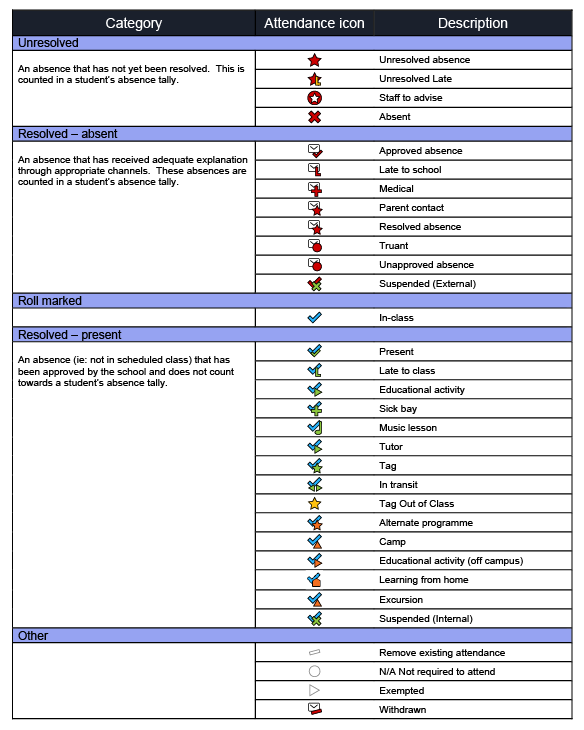
Changing the status for an attendance type
The following statuses are assigned to Attendance types. These options can be set in the attendance type setup under the settings Considered present?, Resolved? and Removes existing?.
NOTE: SEQTA does not recommend changing the Removes existing? setting.
- Unresolved: An absence that has not yet been resolved. Counted in student's absence tally.
- Resolved – absent: An absence that has received adequate explanation through appropriate channels. These absences are counted in student’s absence tally.
- Roll marked: The student is present at their timetabled location.
- Resolved – present: An absence from their scheduled class that has been approved by the school, and does not count towards a student’s absence tally
Special attendance types
Staff to advise: Attendance staff are awaiting further information from other staff members.
Unapproved absence: the school is aware of the reason for the absence but does not consider it valid.
Remove existing attendance: This is the same as no attendance being entered. It typically appears when an attendance that has been incorrectly marked and saved, which is then marked again but left empty. It is also triggered by the Removes existing? setting in SEQTA Kiosk.
Not required to attend: This is not counted as either absent or present when calculating attendance.
Exempted: The student does not need to be in the class. Similar to the above but allows for the use of a different code or attribute.
Withdrawn: A student that is still enrolled but has left the school and is not attending.
Default settings for attendance types
The attached PDF is the report that is available when reviewing the Attendance types. This is the default state as set up on a new SEQTA instance.
To print this report for your school, please go to Admin workspace>Attendance administration>Type manager, then choose the Print button at the top of the page.
Was this article helpful?
That’s Great!
Thank you for your feedback
Sorry! We couldn't be helpful
Thank you for your feedback
Feedback sent
We appreciate your effort and will try to fix the article