- The teacher is not in a Permission group with the permission ATT:EDIT (ie: Staff Account set up process has not been completed).
- The class is a Calendar class and the Attendance option is deselected. To check this, click on the Edit icon on the class.
- The class is an Untimetabled class. Untimetabled classes do not reference a time-frame and therefore cannot be used for Attendance recording.
TABLE OF CONTENTS
Marking the Attendance roll for a class
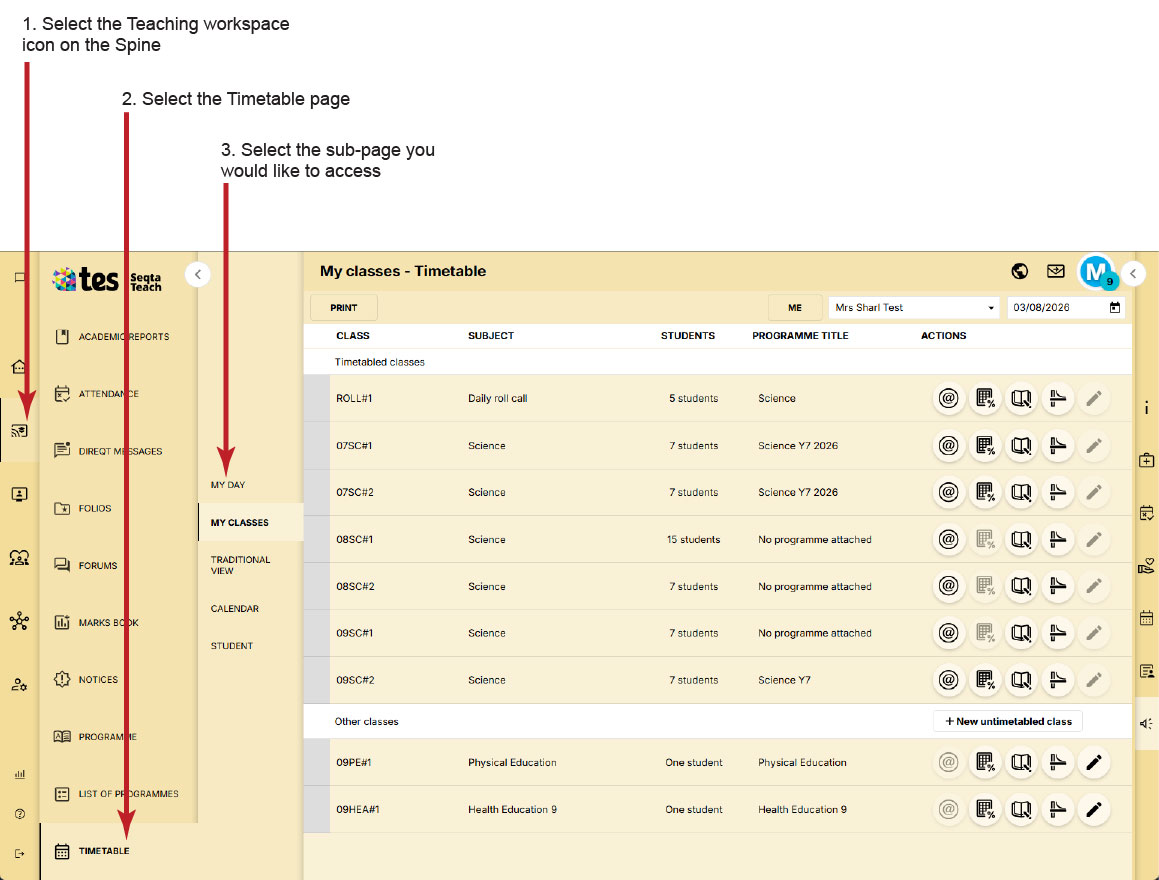
The Attendance page is used by teachers to mark the attendance roll for their class and record traits. The attendance roll can be accessed by clicking on the "@" symbol on the class.
- Go to the Teaching workspace>Timetable and choose your class in My day, My classes, Traditional view or Calendar.
- Click on the Attendance icon @ on the class to open the attendance roll. If the icon does not show, please contact your school's SEQTA Administrator to be added to the required permission group. See the section below for other possible reasons for the icon to not appear.
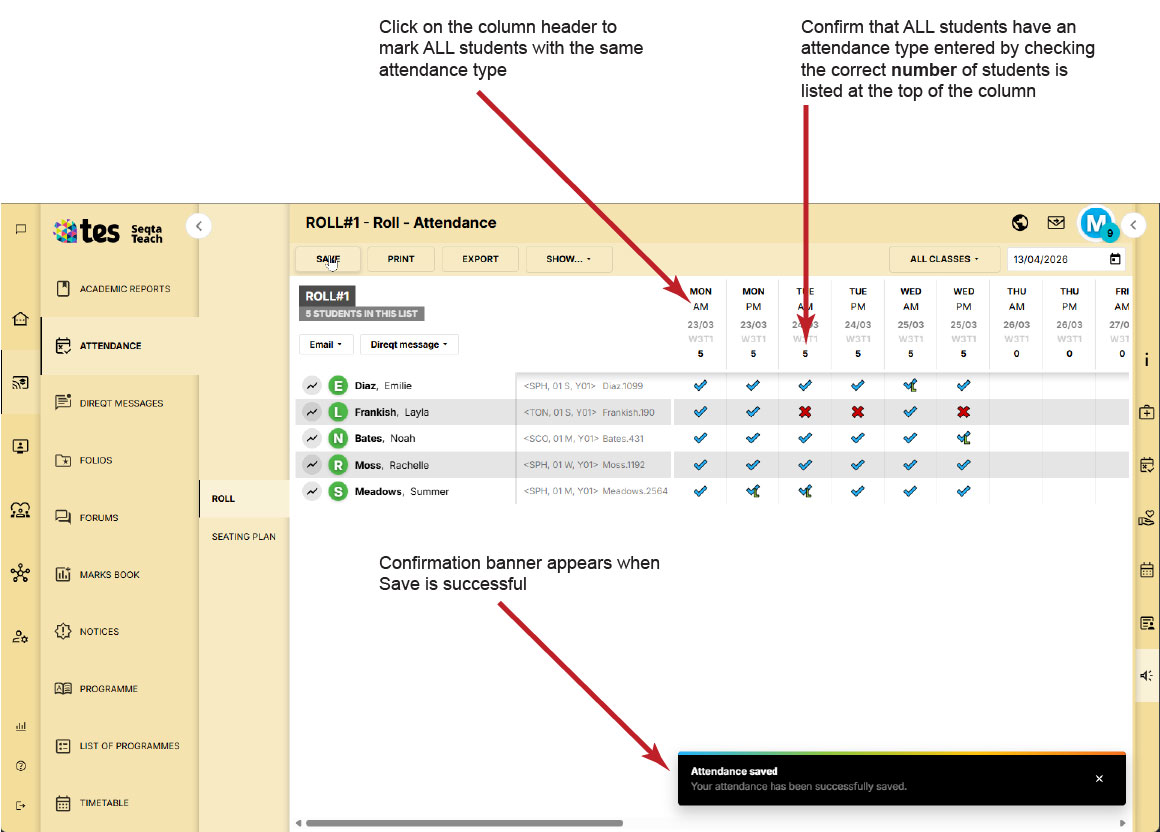
- Click on the top of the column to mark the entire class as present (or absent by clicking again), then make any individual student adjustments as required. Alternatively, you can mark each student's attendance individually by clicking each cell until the appropriate icon appears.
- See the table below for the click/tap sequence.
- The number at the top of the column is the number of students who have attendance recorded. It should match the total number of students currently enrolled in your class.
- Click Save. The Attendance saved confirmation banner will display.
- If no banner is seen, please wait a couple of seconds and then try again. If the banner still doesn't appear there might be an issue with network communication to the SEQTA Teach server. In the first instance please contact your school's IT support team for assistance.
Marking attendance
Attendance can be recorded by selecting the cell next to each student's name, for the chosen date and period, or by clicking at the top of the attendance column then make any changes required.
Double periods cannot be marked simultaneously as each period on the roll screen is a separate timetable instance. To reduce the keystrokes required, you can click on the top of the column to mark the entire class as present, then make any adjustments required by clicking or tapping again for a specific student.
Attendance types available through the Attendance roll page
The attendance types available on the attendance page are Present, Absent, and Late to Class. Learning at home will also be available if it is set as Active in the Type Manager.
It is not possible to change or add additional attendance types to the Attendance roll page. Attendance administrators and SEQTA Kiosk can use other types, and various attendance types can also be made available for use with Parent Notified Absences.
| Laptop device | Touch device | Result | Icon |
|---|---|---|---|
One click | One tap | In-class (Present) |  |
Two clicks | Two taps | Absent |  |
Three clicks | Three taps | Late to class |  |
Optional: Four clicks* | Optional: Four taps* | Learning at home |  |
Modifier and click eg: shift and click (works only for the selected student) | --- | Late to class |  |
*Learning at home will only appear in the click/tap sequence if it is set as Active in the Type manager.
Attendance icon not appearing on a class
The Attendance icon (@) will not show on a class in the following conditions:
Was this article helpful?
That’s Great!
Thank you for your feedback
Sorry! We couldn't be helpful
Thank you for your feedback
Feedback sent
We appreciate your effort and will try to fix the article