The 'Room swap' feature allows the teacher to assign a different room for a class instance. This will only change the room for the one lesson. For the room change to apply to all future instances of the class, the change will need to be made through the timetable.
The permissions 'BKG: EDIT' (edit room swaps for own classes) or 'BKG: EDIT ALL' (edit room swaps for all teachers classes) are required for the 'Room' tab to show under the 'Swap' option.
- Click the Teaching Workspace > Timetable > Traditional/My Classes/Calendar.
- If working on behalf of another teacher select their name in the top-right corner.
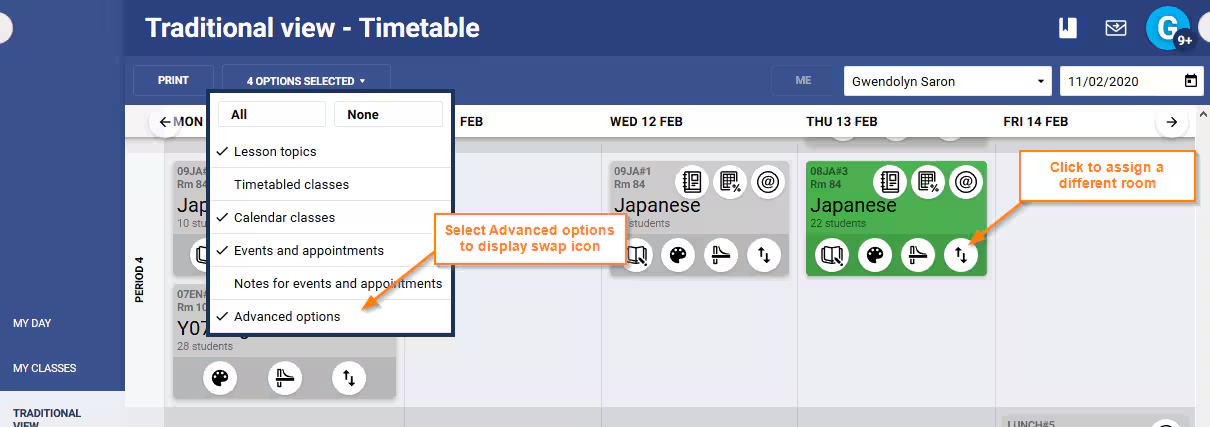
- In the options drop-down ensure Advanced Options is selected. This will make the 'Swap' icon visible (the 'BKG: EDIT' permission is also required). The exception is for Calendar classes, Appointments or Events which need to be clicked on for the option to display.
- Click on the Swap icon.
- Open the tab Rooms.
- Select the room you would like to assign to the class instance.
- Click Save.
Was this article helpful?
That’s Great!
Thank you for your feedback
Sorry! We couldn't be helpful
Thank you for your feedback
Feedback sent
We appreciate your effort and will try to fix the article