TABLE OF CONTENTS
Introduction
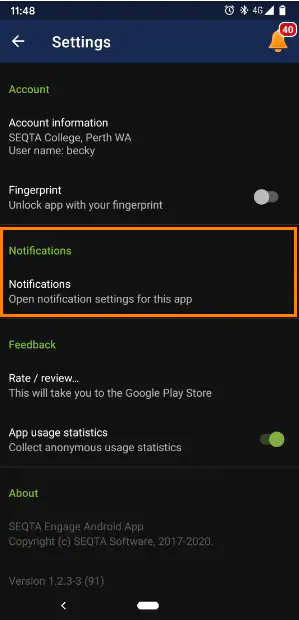
The SEQTA Learn and SEQTA Engage apps can be set to send a push notification to display the notification on the screen of the device. This option can be enabled or disabled through the 'Settings' menu in the SEQTA app. In addition, settings on the device need to allow SEQTA app notifications and for many phone the 'Battery Saver' needs to be off.
The SEQTA Service Desk is not able to assist students or parents directly. Rather, support is managed in-house by the school.
Accessing Notification Settings in the SEQTA Apps
- Open the SEQTA App.
- Select Settings.
- Select Notifications.
Notification Settings on the Device
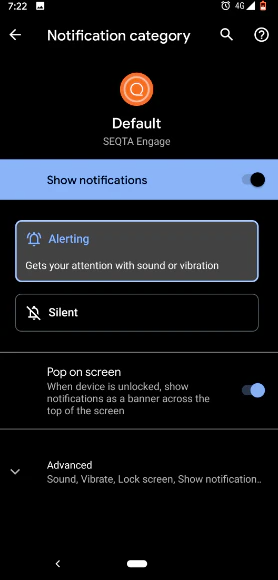
If they are enabled in the App and still not working this indicates there is a setting on the device blocking the apps notifications. These settings are in different places depending on the device. A Google search 'enabling notifications for an app on a model_of_phone (i.e. iPhone, Android, Samsung)' will give the steps.
'Battery Saver' can prevent notifications from displaying. If there are issues test with the battery saver off.
Support on how to change setting on devices is not covered by the SEQTA Service Desk as they are not settings in SEQTA. Rather, they are part of the OS.
Was this article helpful?
That’s Great!
Thank you for your feedback
Sorry! We couldn't be helpful
Thank you for your feedback
Feedback sent
We appreciate your effort and will try to fix the article