TABLE OF CONTENTS
- Printing individual student plans
- Printing student plans for multiple students
- Student plans not printing properly
- Printing attachments to Student plans
- Student plan reports
Individual student plans can be printed from the Student plans page or selecting the Student plan alert (green icon) next to the student name.
The permission ST PLANS: VIEW is required to print and access student plans.
Printing individual student plans
The steps for printing a student's plan through the Student plans page are as follows:
- Go to the Pastoral care workspace > Student plans
- Select the student
- Click to select the plan name
- Click PRINT in the toolbar
The steps for printing a student's plan through the SIP or via the Student plan alert are as follows:
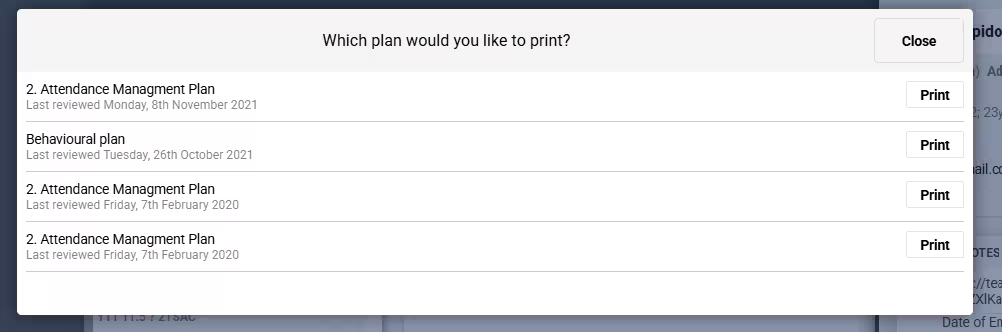
- Click on the green Student plan icon
 next to the student name. The student plan icon is available in multiple areas (ie. in the SIP, Attendance roll page and Marks book).
 - Select PRINT next to the student plan
Printing student plans for multiple students
It is not possible to print multiple plans at a time. If you require further assistance with this please contact the SEQTA Support team via the Help portal.
Student plans not printing properly
The Student Plan was designed initially as an on-screen tool, so under some circumstances it might behave inconsistently when printed. However we understand there are times when a PDF version needs to be supplied to a parent, counsellor, etc.
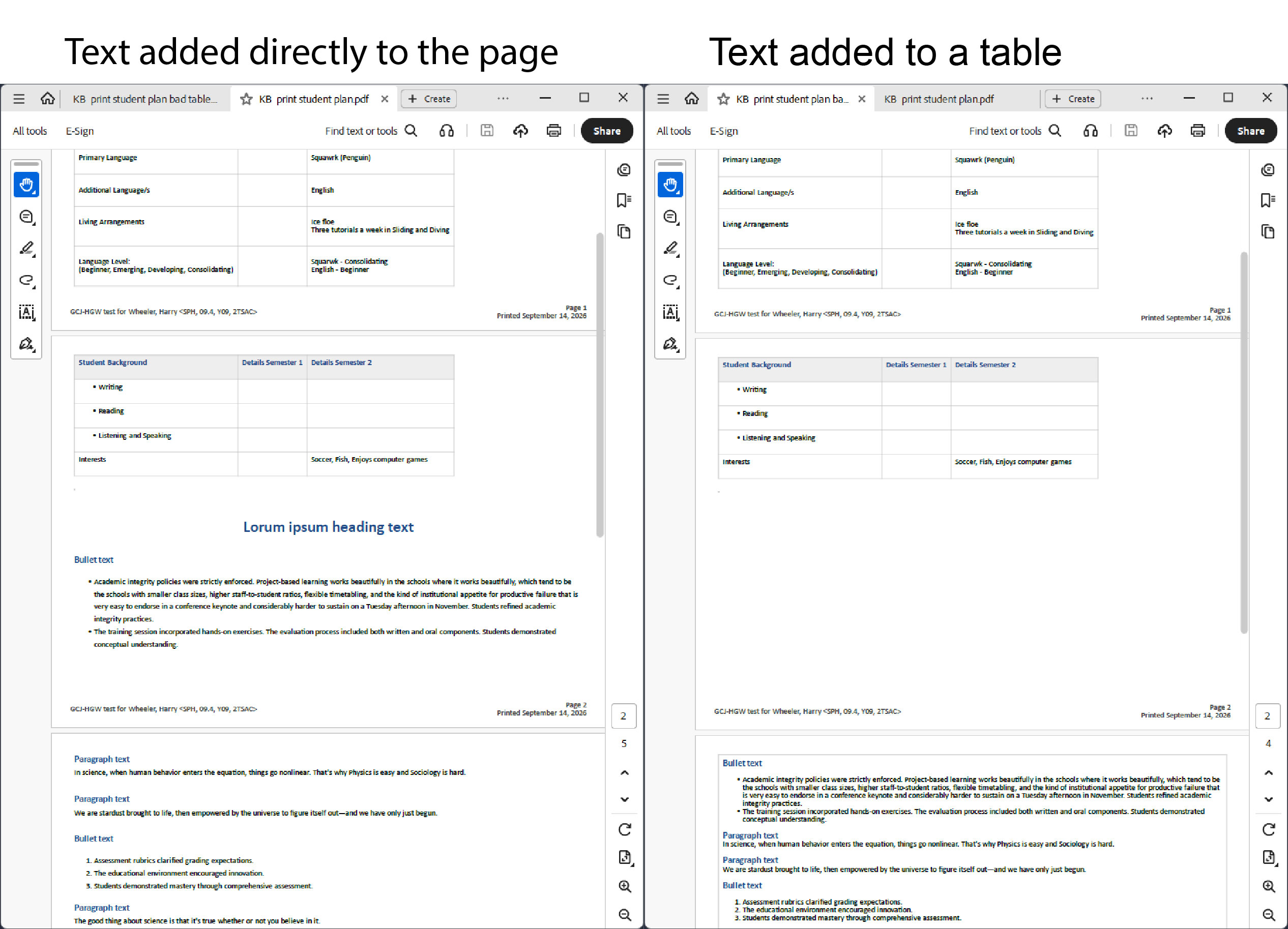
A common issue is when there is a large amount of text that is contained in one cell in a table, which causes the plan to not print correctly. This usually shows as a truncated section of the plan. See the screenshot below which compares two versions of the same student plan.
We recommend using the plan Background pane as a summary and directions document (with mainly static information), and the Details pane to record progress, actions and events. It might be necessary in some cases to summarise text in the SEQTA Teach version of the plan, and add the full text as a supporting document which can be attached to the plan.
Printing attachments to Student plans
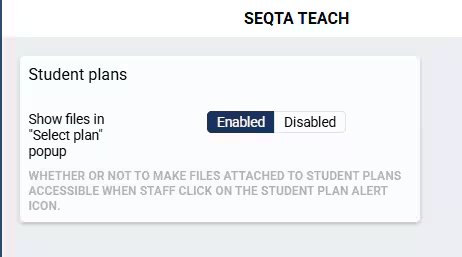
By default, attachments to Student plans are not displayed in the Print dialog pop-up window (as shown above); only data in the database will be shown. To display and print attachments, change the Student plans setting.
- Go to Admin workspace>Application settings>Application settings
- In the search box in the top-right corner, enter student plan
- Select Enabled for Show files in "Select plan" popup
- Click SAVE
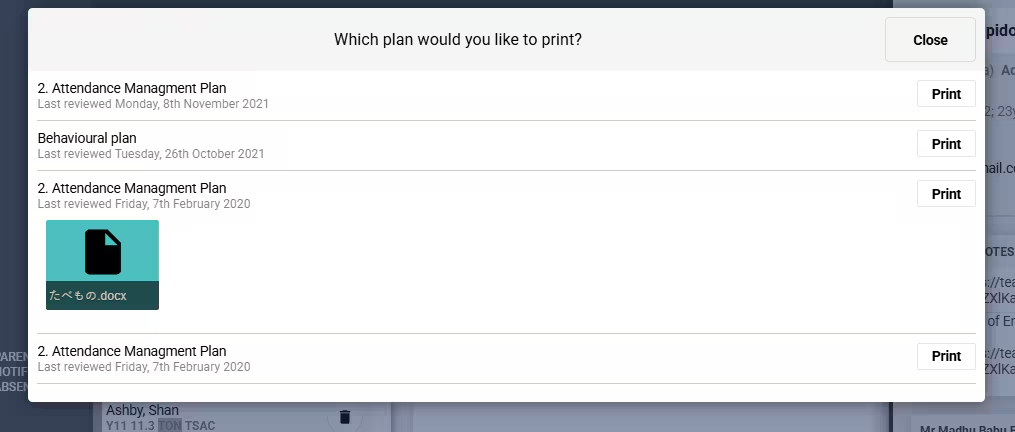
- Attachments will then show in the pop-up when it is next used (see below)
- Click on the attachment to download it
- Navigate to the attachment and print as per your standard process for your device.
Student plan reports
The following reports are available though the Student Summary page under the Reporting tab.
- Active student plans - This report is a PDF
- Active student plans (CSV) - This report can be opened in a spreadsheet or a text editor
- List of all student plans - This report is a PDF.
The steps for printing the student plan reports are as follows:
- Go to the Pastoral care workspace>Student summary>Reporting
- Select the student name or leave blank to print all plans
- Click on the report you want to print
- Click the Print
- After a moment the Click to access your document option should display. Click the button to open your document
Was this article helpful?
That’s Great!
Thank you for your feedback
Sorry! We couldn't be helpful
Thank you for your feedback
Feedback sent
We appreciate your effort and will try to fix the article