This article outlines the process for tracking attendance using an assessment, created in a Marks book. This method does not affect the student's attendance statistics in any way, as such can be used for before and after school classes, and classes held on lunch breaks or recess etc. which do not count toward student's 'in-class' time.
Untimetabled classes cannot be used to take attendance, as they have no reference to time, which is required for the system to be able to record attendance.
Process overview:
- Add a New Programme to the class.
- Create an Assessment with one criterion for each instance of the class.
- Use the Marks book to flag whether or not the student was absent.
The steps are as follows:
- Click on the class and choose the option New Programme. If the class already has a programme attached, click on the Load Programme icon
- Go to Overview of Sssessments and select the Add assessment button
- Under 'Accessible criteria' click the "+" button enough times to add one criterion for each instance of the class. Edit the name the criterion, with the week number, or date. Set the 'Max' to 1 and click Save.
- To note attendance click on the % icon to open the Marks book.
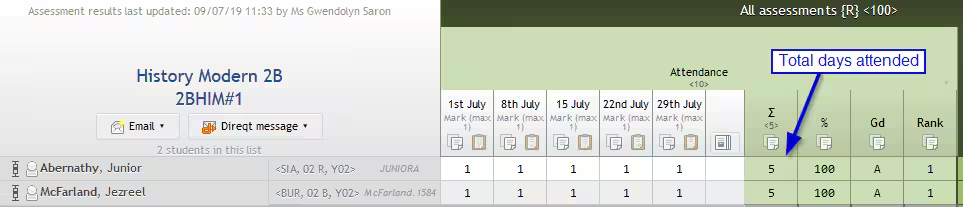
- Each class, enter a '1' in the Marks book for each student who attends.
Image below: A Marks-Based Course Type, with the setting 'Show Sum of Criteria' selected. If a Grades-Based Course Type is selected, a Y can be entered, rather than a 1.
Was this article helpful?
That’s Great!
Thank you for your feedback
Sorry! We couldn't be helpful
Thank you for your feedback
Feedback sent
We appreciate your effort and will try to fix the article