TABLE OF CONTENTS
- Summary of Weighting Setup
- Managing Assessment Type and Assessment Group Weightings
- Assigning Weightings to Assessments
- How to Enable and Disable Assessment Type or Criterion Weightings (Admin)
This article outlines the different weighting options available for assessment components and how to set and manage them. Assessment Groups, Assessment Types, Assessments and Assessment Criterion can be excluded from the calculations in the Marks book by assigning them a weighting of zero.
Summary of Weighting Setup
- Assessment Groups: Managed through the programme Cover Page > Marks book settings. Once setup assign the types through the Overview of Assessments by editing the assessment.
- Assessment Types: Managed through the programme Cover Page > Marks book settings. Once setup assign the types through the Overview of Assessments by editing the assessment.
- Assessments: Managed through the Overview of Assessments by editing the assessment.
- Assessment Criterion: Managed through the Overview of Assessments by editing the assessment.
- This option is only available in the Course type has 'Allow Criterion Weights' enabled.
Managing Assessment Type and Assessment Group Weightings
Any component with a weighting of '0' will not be calculated in the Marks book. Any component with a weighting of '0' will not be calculated in the Marks book.
- Go to the Teaching Workspace > Timetable > My Classes/Traditional/Calendar.
- Click on the Load Programme icon on the class.
- Click on the Marks Book settings button.
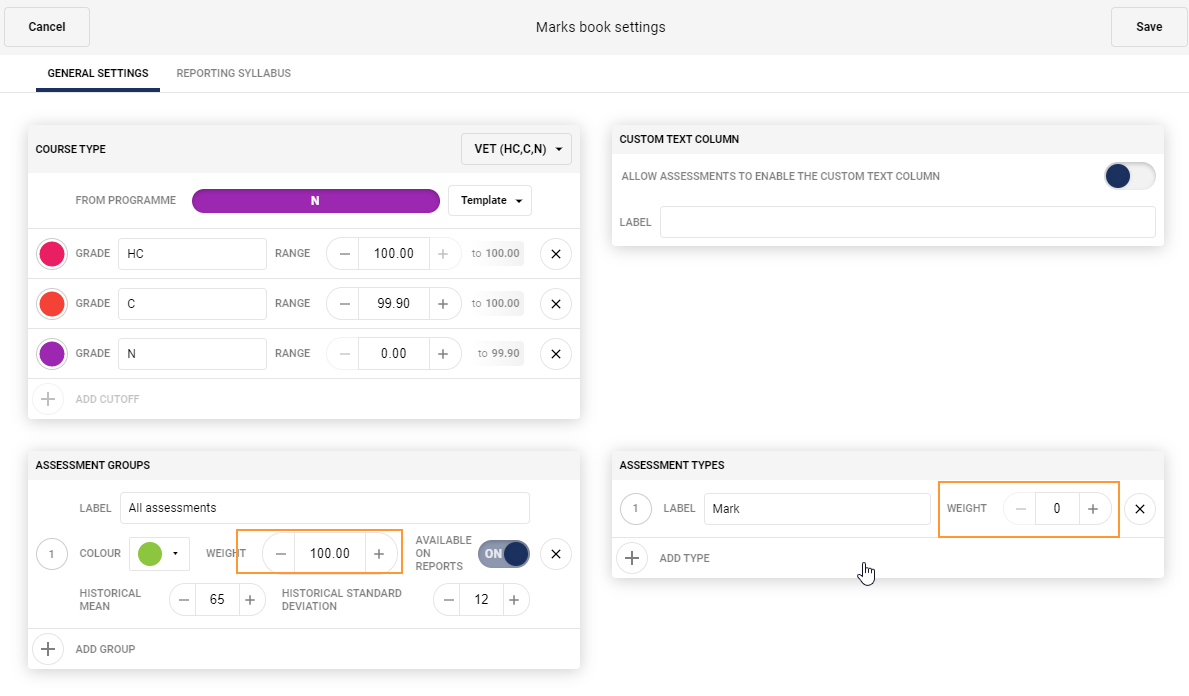
- Set the weighting for the 'Assessment Groups' and 'Assessment Types' as required.
- To add additional 'Assessment Groups' click on the '+ ADD GROUP' button
- To add additional 'Assessment Types' click on the '+ ADD CRITERION' button. NOTE: If there is no weighting option available under 'Assessment Types' this indicates they are disabled. Rather 'Criterion Weightings' are enabled, see below for steps on existing the criterion weightings.
- Click Save.
- Follow on with the steps below to assign the Assessments themselves to the applicable Assessment Groups and Assessment Types.
Assigning Weightings to Assessments
Set the Assessment Group and Assessment Type weighting in the Marks book settings (see above steps). Once done, edit the assessment using the below steps to assign the applicable groups and types.
- Go to the Teaching Workspace > Timetable > My Classes/Traditional/Calendar.
- Click on the Load Programme icon on the class.
- Select 'Overview of Assessments'
- Select the assessment.
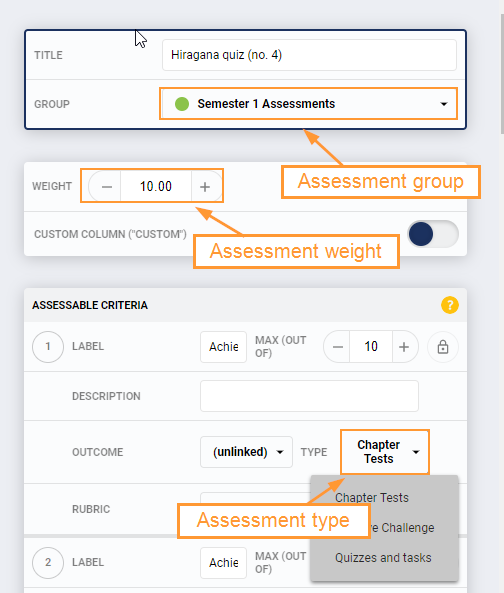
- Assessment group weightings: To change 'Assessment Group' click on the drop-down next to Group
- Assessment weightings: Enter the weighting under Weight.
- Criterion weightings: Enter a criterion weight under 'Assessable Criteria'. If there is no 'Weighting' box this indicates criterion weightings are not being used (skip to next step)
- Assessment type weightings: The Assessment type from the drop-down next to 'Type'
- Click SAVE
How to Enable and Disable Assessment Type or Criterion Weightings (Admin)
The Course type determines whether 'Assessment Type' or 'Criterion Weighting' weightings are enabled. If 'Allow Criterion Weights' is enabled in the Course type, then assessments type weightings will be disabled.
Both assessment types and criterion weightings cannot be used in the one programme at the same time. If 'Allow Criterion Weightings' are enabled in the course type being used by a programme then the 'Assessment Type Weightings' will be disabled.
- Go to the Administration Workspace > Curriculum Setup > Course Types.
- On the right-hand side under Criteria select (or deselect) 'Allow Criterion Weights' as required.
- Click Save.
Was this article helpful?
That’s Great!
Thank you for your feedback
Sorry! We couldn't be helpful
Thank you for your feedback
Feedback sent
We appreciate your effort and will try to fix the article