Providing the staff member has the required Email Permissions and the student and contacts have email addresses assigned the option to email will be available through the Marks book, Attendance page and SIP information pane.
Emails sent using these methods will be sent using the default email client and will not be recorded in the SEQTA Correspondence logs. The option to add attachments is available when using this method.
- Go to the Teaching workspace > Timetable > My classes/Traditional/Calendar
- Select the Marks book icon or the Attendance icon
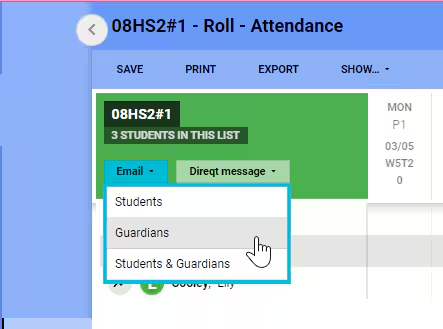
- Select the Email option in the top-left corner then select Students, Guardians or Students & Guardians. Note: If selecting 'Students & Guardians' does nothing or gives error refer to Unable to email Students & Guardians through the Marks book or Attendance roll
- SEQTA will then parse the email addresses via the browser to the default email client on the device. They will display in the BCC field, this ensures recipient cannot see each others email addresses.
- Enter a subject, type the email correspondence and if required link any attachments before sending the email.
Was this article helpful?
That’s Great!
Thank you for your feedback
Sorry! We couldn't be helpful
Thank you for your feedback
Feedback sent
We appreciate your effort and will try to fix the article