TABLE OF CONTENTS
- Sending emails using the Correspondence page
- How to add attachments
- Sending Pastoral care notification emails
- Sending Welcome emails and Password reset emails
- Unread notification emails
- Emailing using a third party email client
Emails can be sent through SEQTA Teach using the Correspondence page, User management page (Welcome and Password reset emails), and the Pastoral care pane in the Student Information Panel. The availability of these options will depend on the Correspondence Permissions and Application Settings.
Sending emails using the Correspondence page
The option to email attachments is not available when using this method. Directly adding an attachment to an email is only available when emailing through the Attendance roll and Marks book (ie: when using your third-party email client on your device).
Pasting of images and other objects into Correspondence is not supported. It may cause issues with server load and the queuing system resulting in bulk email and reports to be delayed, or on rare occasion to fail. See: Issues copy pasting into the SEQTA Editor for more information.
- Click on Administration workspace>Correspondence>Send emails.
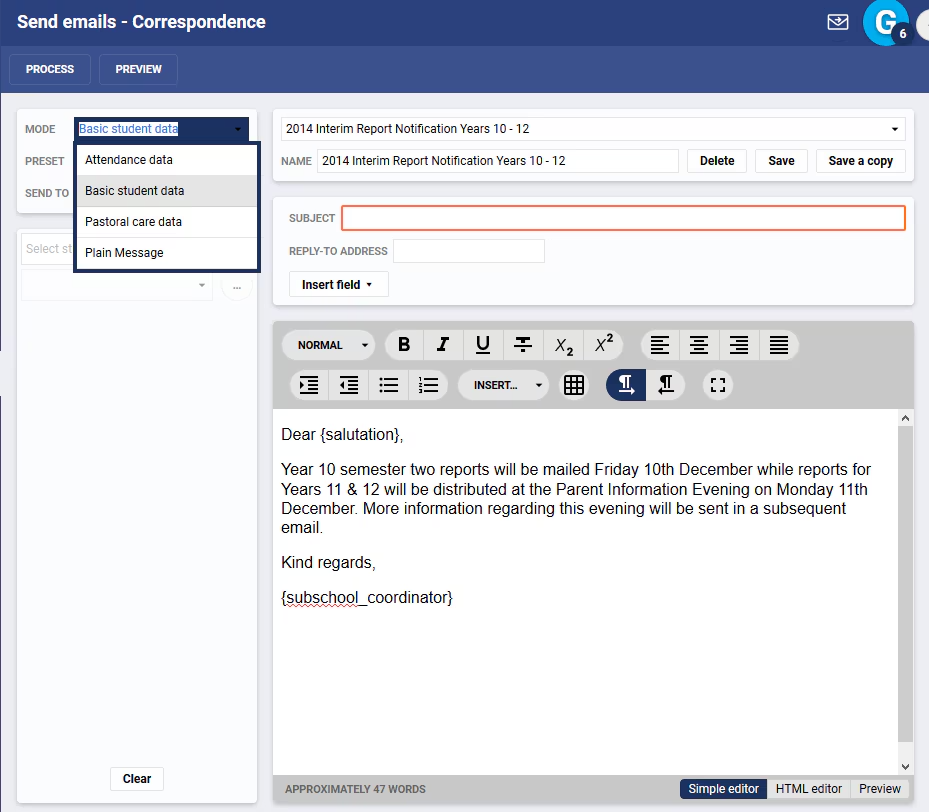
- Set the mode to Plain Message. Alternatively, select Basic student data if you wish to use merge fields based on student demographics, for example {salutation} which will display the parent's full name, or {firstname} which will display the student's first name. The other two modes (Attendance data and Pastoral care data) can use merge fields that are specific to those areas of SEQTA Teach.
- Select the related students or staff.
- Select the recipient type under the Send To option (ie: Students, Guardians or Both).
- Enter a subject and type in the body of the email.
- If attachments need to be included they must first be uploaded to an externally accessible source. A URL link to the attachment can then be included in the email body via Insert > Hyperlink. For more info see the link below.
- Click Send. If prompted confirm the send.
How to add attachments
Please check the article Methods for Sending and Sharing Attachments and Images
Sending Pastoral care notification emails
The option to email attachments is not available when using this method.
- Select the student name in the SIP.
- Select the Pastoral care icon.
- Select a Category and enter data in the applicable fields.
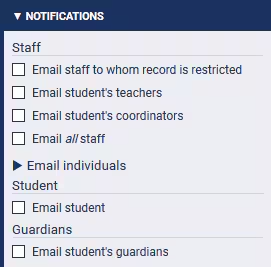
- Click Notifications and select recipients.
- Click Save.
- NOTE: the displayed checkboxes as shown above are controlled by settings found in Application settings>Pastoral alerts.
Sending Welcome emails and Password reset emails
Welcome and Password reset emails should only be used if SEQTA's internal authentication is used. In most cases, this will only be SEQTA Engage. Most schools use Active Directory or a similar product to handle authentication, which means the passwords are not stored in SEQTA and must be changed in that Admin system.
Unread notification emails
These are emails generated by SEQTA automatically when notifications are not read within a set number of days. Please refer to the article Configuring unread notification emails for information on enabling/disabling or setting the number of days in Application settings.
Emailing using a third party email client
Please refer to the article Emailing through the Marks Book, Attendance Page and SIP information pane for information on sending emails using a third party email client.
This method is not recommended, as it does not record correspondence in the SEQTA Correspondence logs as it is managed by the school's mail server.
Was this article helpful?
That’s Great!
Thank you for your feedback
Sorry! We couldn't be helpful
Thank you for your feedback
Feedback sent
We appreciate your effort and will try to fix the article