Syllabus items, sometimes referred to as objectives, units of competency or curriculum, can be added to the Unit Planner, individual lessons in Planner, or criteria in Assessments. Syllabus linked to assessment criteria are also available for inclusion in Academic Reports (depending on the School's reporting requirements and programme setup).
Reporting Syllabus Sets contain syllabus links applicable for multiple courses. Selecting a Reporting syllabus set in the Marks book settings will display the syllabus items in that set in the Reporting section for the Marks book. If reporting syllabus sets are being used on reports, syllabus linked to Assessment criteria is not required.
Methods for adding syllabus to a programme:
- Adding Syllabus to the Unit Planner
- Adding Syllabus to the Planner
- Adding Syllabus to Online Lessons
- Selecting a Reporting Syllabus Set
Adding Syllabus to the Unit Planner
- Go to the Teaching Workspace > Timetable > My Classes / My day / Traditional View / Calendar.
- Click on the Load Programme icon, then select the Unit planner sub-page.
- Choose an appropriate Unit Planner if one exists, or choose a template and create a new Unit Plan.
- Add the required syllabus links using either or both of the following options:
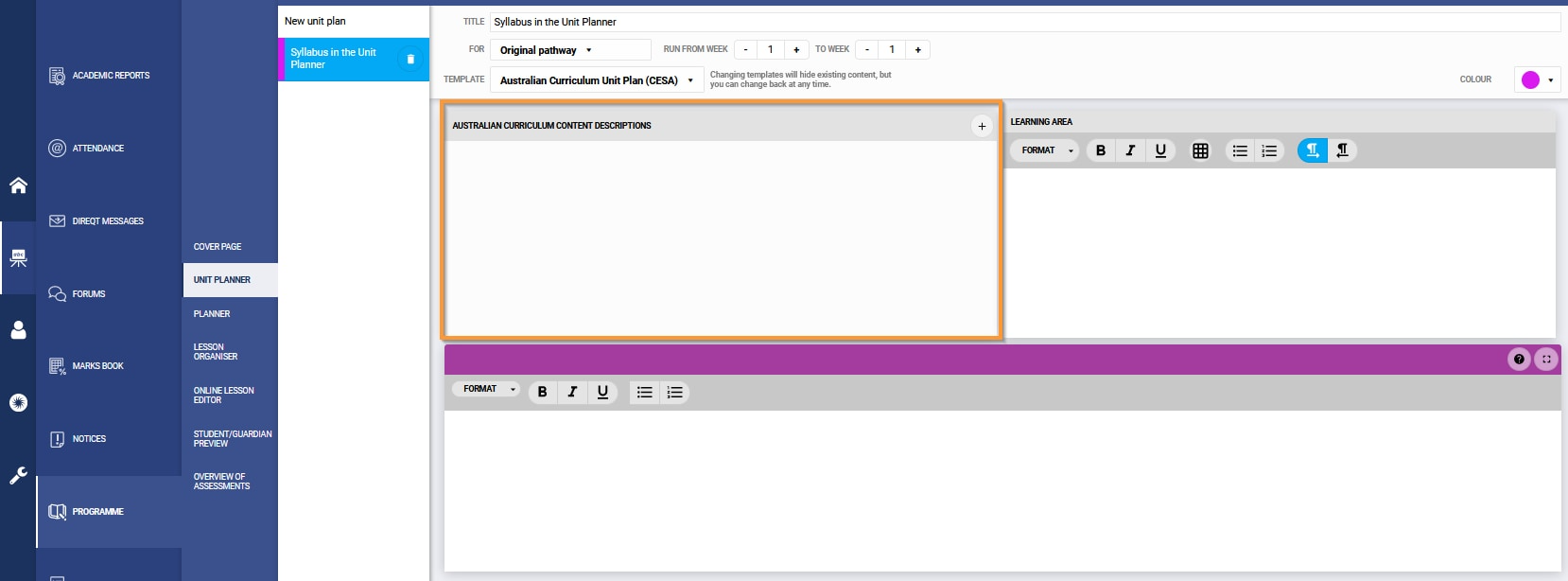
- To add under Objectives click the '+' symbol.
- Your Unit Planner may use a modified template so Objectives may have been removed or renamed. For example in the screenshot it is called Australian Curriculum Content Descriptions.
- To add syllabus links to a section (eg: Resources), click on the Expand button, then INSERT... > SYLLABUS.
- To add under Objectives click the '+' symbol.
- Select the applicable syllabus link. To do this, select the syllabus set from the top of the popup, then use the filters, or search box, to find the required syllabus link.
- Click Save.
Adding Syllabus to the Planner
- Go to the Teaching Workspace > Timetable > My Classes / My Day / Traditional View / Calendar.
- Click on the Load Programme icon, then select the Planner sub-page.
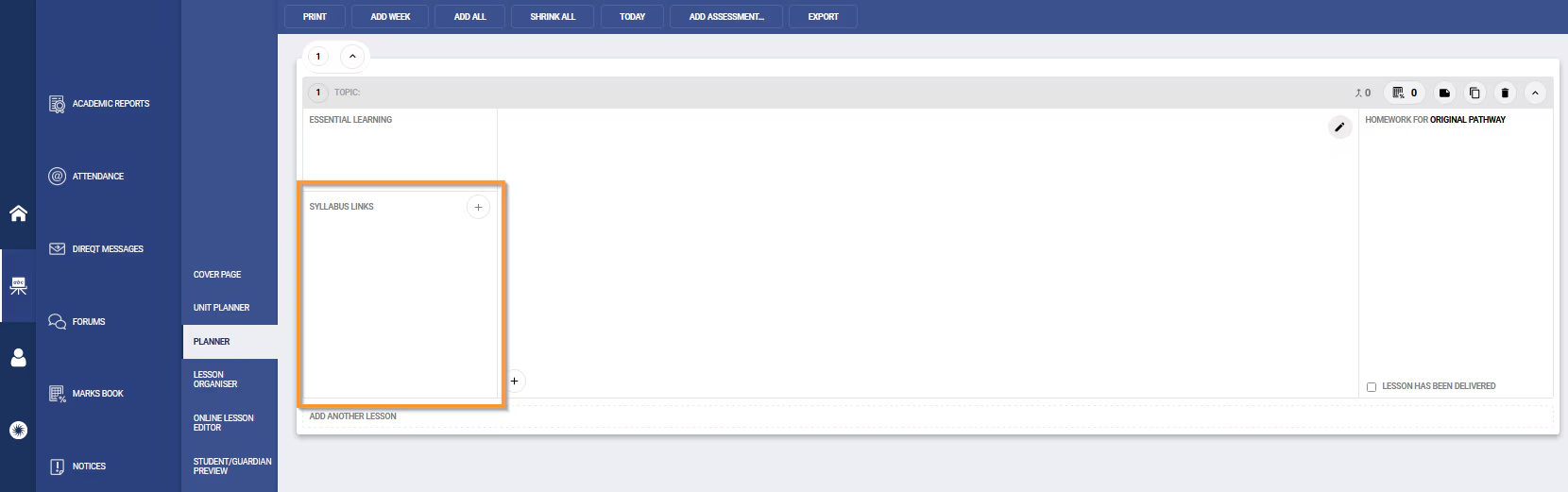
- Expand the lesson by clicking on the arrows on the topic bar. Next, click '+' next Syllabus Links to add the syllabus links. Alternatively, click the Edit lesson plan pencil icon, then INSERT... > SYLLABUS to add syllabus links.
- Select the applicable syllabus link. To do this, select the syllabus set from the top of the popup, then use the filters, or search box, to find the required syllabus link.
- Click Save.
Adding Syllabus to Online Lessons
- Go to the Teaching Workspace > Timetable > My Classes / My Day / Traditional View / Calendar.
- Click on the Load Programme icon, then select the Online Lesson Editor sub-page.
- There are two methods for adding syllabus to an Online lesson
- Drag and drop the Legacy editor module into the main work area. Next, select the INSERT... drop-down and select Syllabus.
- NOTE: You might need to click '>' to close the module list so that Insert... is visible.
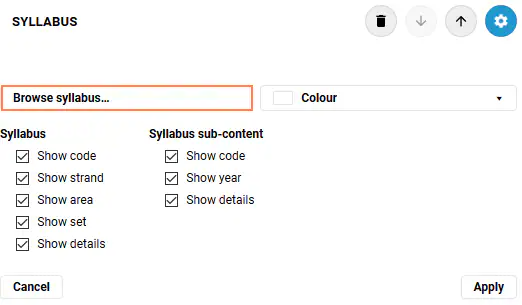
- Drag and drop the Syllabus module into the main work area. Deselect any options not required, then select Browse syllabus...
- Drag and drop the Legacy editor module into the main work area. Next, select the INSERT... drop-down and select Syllabus.
- Select the applicable syllabus link. To do this, select the syllabus set from the top of the popup, then use the filters, or search box, to find the required syllabus link.
- Click Save.
- If working in the Syllabus module, select Apply in the bottom-right corner. Nothing further is required if you are using the Legacy module.
Selecting a Reporting Syllabus Set
Reporting syllabus sets allow syllabus results to be entered directly into the Reporting section ("purple columns") of the Marks book, without the need to add syllabus to assessments.
- Go to the Teaching Workspace > Timetable > My Classes / My Day / Traditional View / Calendar.
- Click on the Load Programme icon, then select the Cover Page sub-page.
- Click on Marks book settings, then choose the Reporting syllabus tab.
- Select the required Syllabus set and click Active
- Click Save.
Was this article helpful?
That’s Great!
Thank you for your feedback
Sorry! We couldn't be helpful
Thank you for your feedback
Feedback sent
We appreciate your effort and will try to fix the article