TABLE OF CONTENTS
- Method 1: Reporting on syllabus using assessments
- Method 2: Reporting on syllabus using Reporting Syllabus Sets
The set up process will differ depending on the method used for reporting on syllabus.
NOTE: The assessment Method 1 is required for reporting on VET (RSVET).
Method 1: Reporting on syllabus using assessments
- Go to the Teaching Workspace > Timetable > My Classes/Traditional view/Calendar.
- Click on the Load Programme icon for the class
- Select Overview of Assessments.
- Click on the assessment. If there is no assessment to which the syllabus can be linked, create a new assessment.
- In the Assessable criteria pane, click on the drop down arrow in the Outcome box (it will display (unlinked) by default if no syllabus is selected). For each criterion select the required syllabus item.
- If the Syllabus does not show in the list it will need to be added to the programme.
- Click SAVE to keep the changes.
- Enter results for each criterion into the Assessment section of the Marks book.
Method 2: Reporting on syllabus using Reporting Syllabus Sets
The steps for enabling or disabling a Reporting Syllabus Set are as follows. The instructions below assume a Reporting syllabus set has already been created.
- Go to the Teaching Workspace > Timetable > My Classes/Traditional view/Calendar.
- Click on the Load Programme icon on the class.
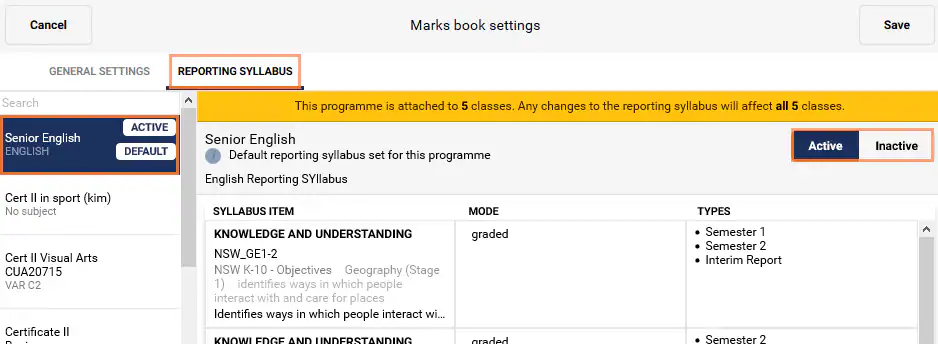
- Click on Marks book settings and choose the Reporting Syllabus tab.
- Click on the Syllabus set that you wish to change.
- To enable select Active. To disable select Inactive. Click Save.
- Enter the results into the Reporting section of the Marks book
Related articles:
Was this article helpful?
That’s Great!
Thank you for your feedback
Sorry! We couldn't be helpful
Thank you for your feedback
Feedback sent
We appreciate your effort and will try to fix the article