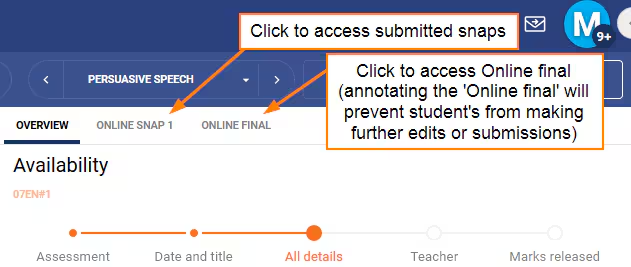
The 'Annotator' button on the Submission pane in Focus mode, can be used to view and annotate WISP submissions. Annotating a 'Snap' will allow students to make further submissions (students cannot edit snaps).
Annotating the 'ONLINE FINAL' WISP will lock the assessment preventing further submissions. Deleting the annotations will unlock the assessment again.
- Go to the Teaching Workspace > Timetable.
- Select My Classes/My Day/Traditional/Calendar.
- Select the Marks Book icon for the class).
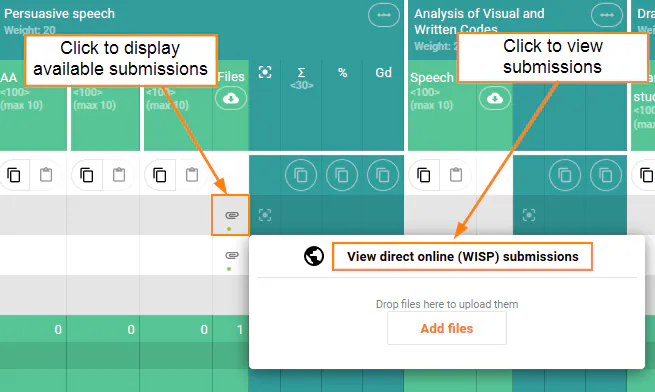
- Click in the 'Files' column to the right of the assessment criterion for the student/assessment.
- Click the View Direct Online (WISP) Submissions button for the assessment/student (see screen shot at top of page).
- At the top of the Submission Pane, select the Online SNAP or Online Final.
- Toggle on the 'Annotate Mode' by clicking on the Annotator button in the bottom-right corner

- Click on a word in the WISP in the location that you would like to add an annotation. Alternatively, click on an existing annotation to edit or delete. On completion, click somewhere on the page in order to exit the edit box.
- Click Save.
Annotating Icons
Below are the annotating icons and its meaning when marking a students work:
 - Correct
 - Incorrect
 - Enter
 - Shocking
 - Attention
 - Undo
 - Spelling
 - Grade
 - Not bad
 - Good
 - Bad
- Bad
Was this article helpful?
That’s Great!
Thank you for your feedback
Sorry! We couldn't be helpful
Thank you for your feedback
Feedback sent
We appreciate your effort and will try to fix the article